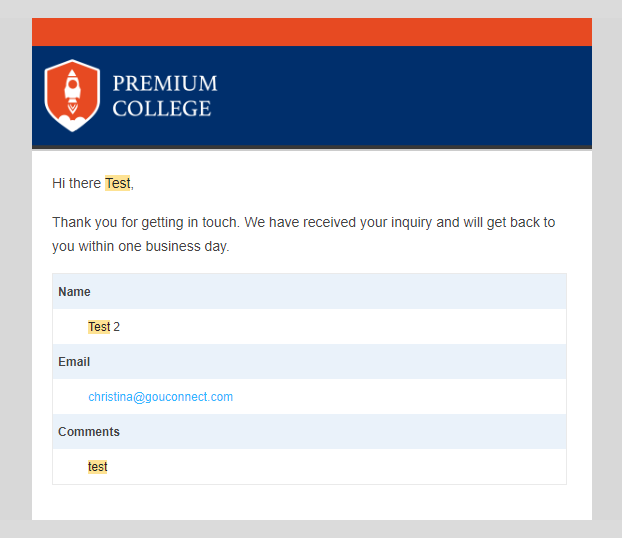
With uConnect Forms, you can automatically send users a copy of their form submission by email every time they complete a Form.
Watch the video below to see how to update this setting, or read on below for step-by-step instructions!
Step by Step Instructions:
To get started, navigate to the Engage>Forms section of your admin dashboard.
Note: You must have admin-level access to your uConnect platform to manage Form notification settings.
If you haven't created a Form yet, please read this article to learn how to get started. For an existing Form, hover over the Form name and click on "Settings."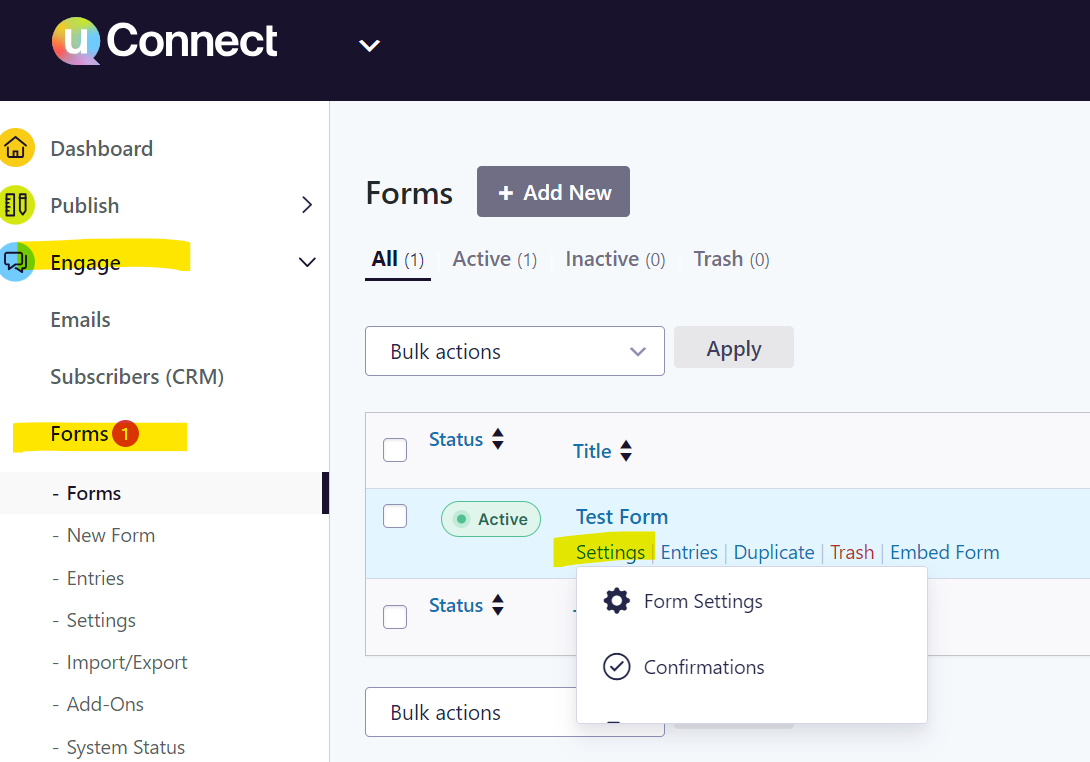
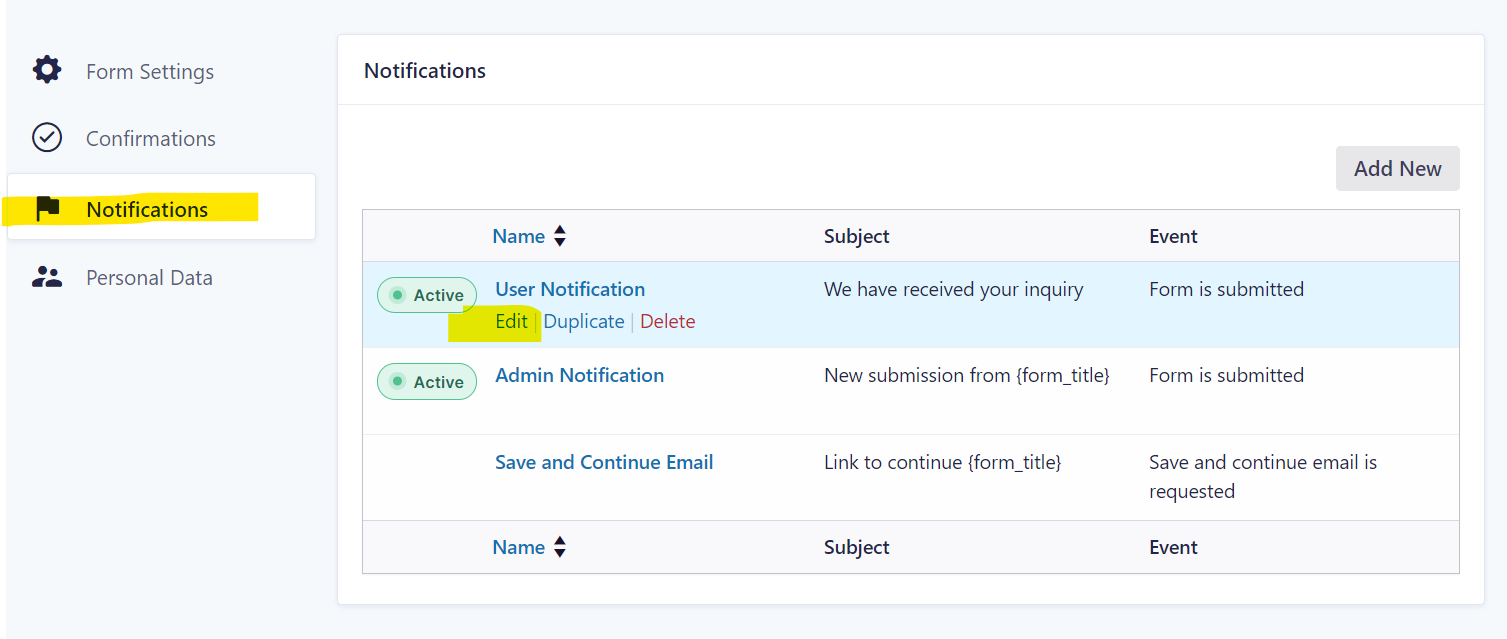
In the Settings section, click Notifications in the right-hand menu. Find the pre-set User Notification, hover over it, and click Edit.
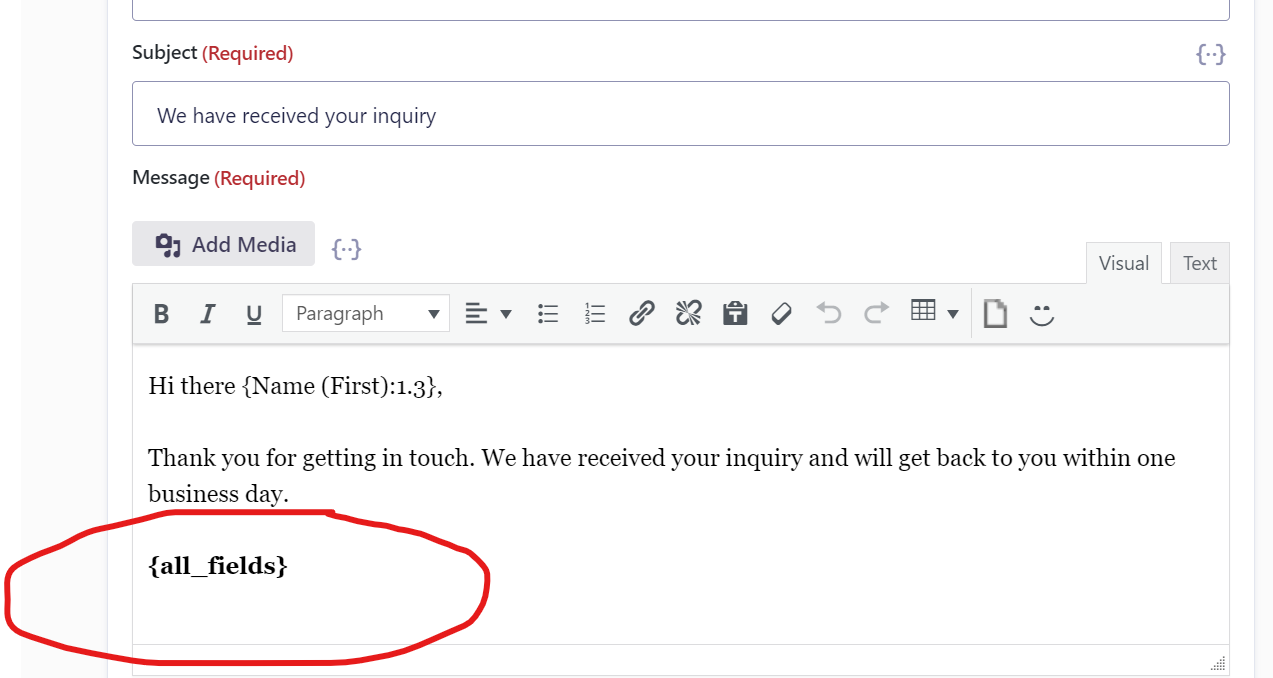
Scroll down to the "Message (Required)" section that contains the text for the notification that a user will receive when they complete your Form.
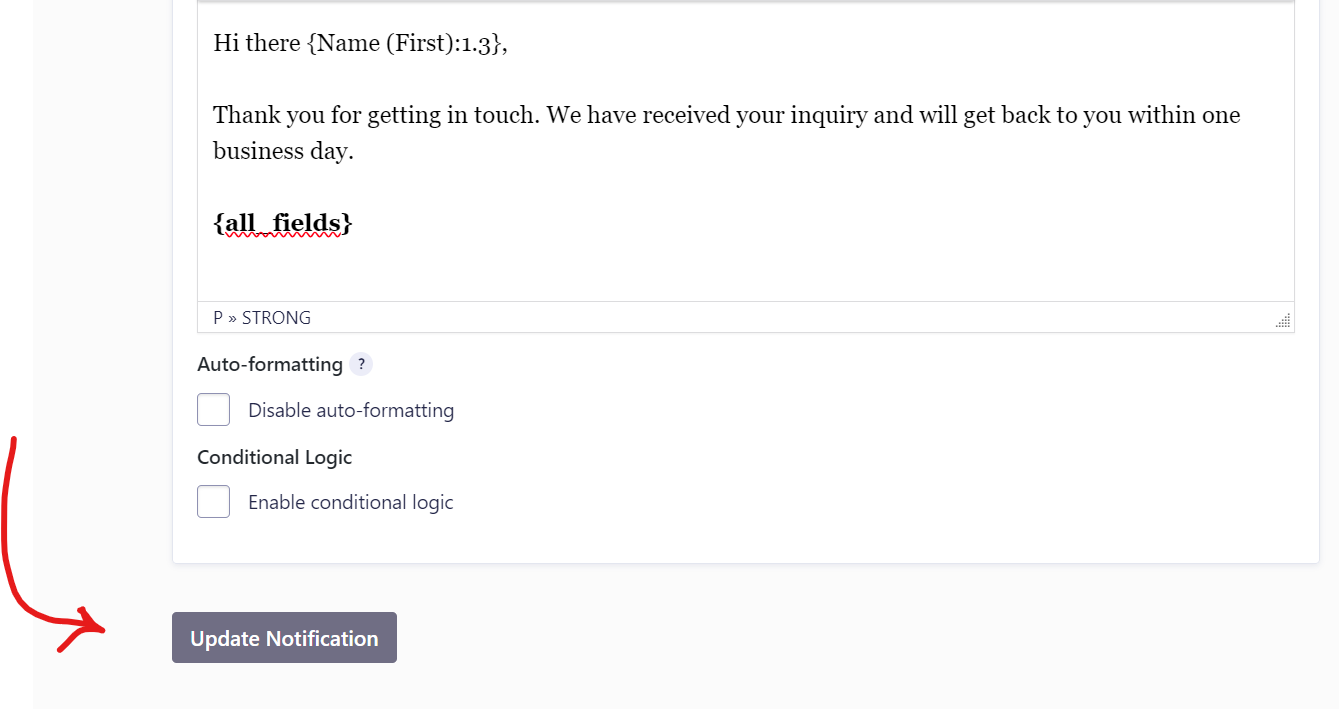
Type the merge tag {all_fields} at the end of your message.
Finally, click "Update Notification" to save your changes.
The screenshot below shows an example email notification a user would receive after completing a uConnect Form. The custom message you entered appears above the submitted form field responses: