
In general, Users are the accounts created for yourself and anyone contributing content to your platform and of whom has backend access. Conversely, Subscribers are the accounts of individuals that you want to receive your uConnect emails and these accounts store the subscriber preferences (or tags) of those individuals so you know who should receive certain content (example: if a subscriber signed up to receive information about your Accounting career community, you could email anyone with that corresponding career community tag and send them information). The sections below explain each account type in detail.
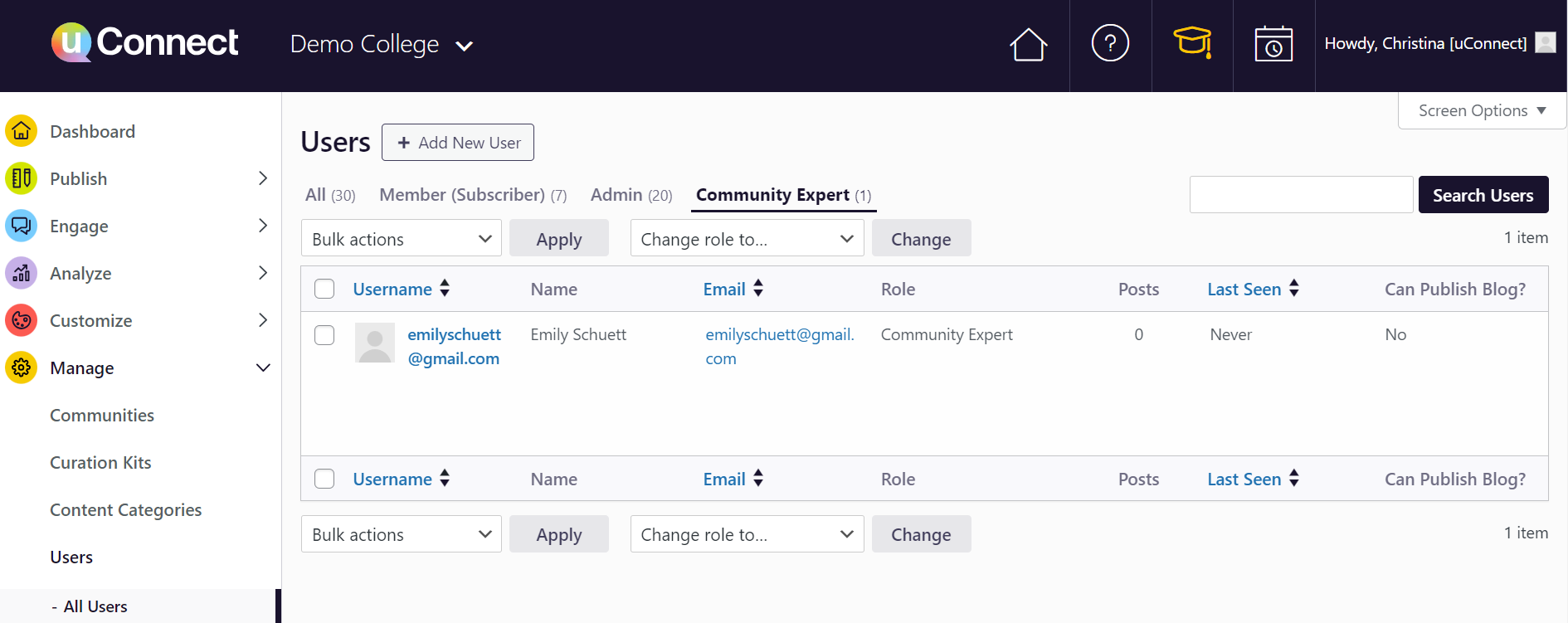
Users are the accounts created under Manage>Users>Add New, and each user type has different permission levels associated with them related to admin capabilities.
User Types:
Members
Admins
Staff
Student Staff
Community Experts
Unlike typical subscribers who can only customize their preferences, certain users types such as Student Staff, Staff, and Admin user types all have higher levels of permissions and varying levels of access to different areas of the platform and adding/editing/deleting content. Learn more about user permission levels here!
You can gain Subscribers in three ways: 1. Organic user sign-ups 2. An automated SIS (Student Information System) integration with your institution's user data system 3. uploading a subscriber list.
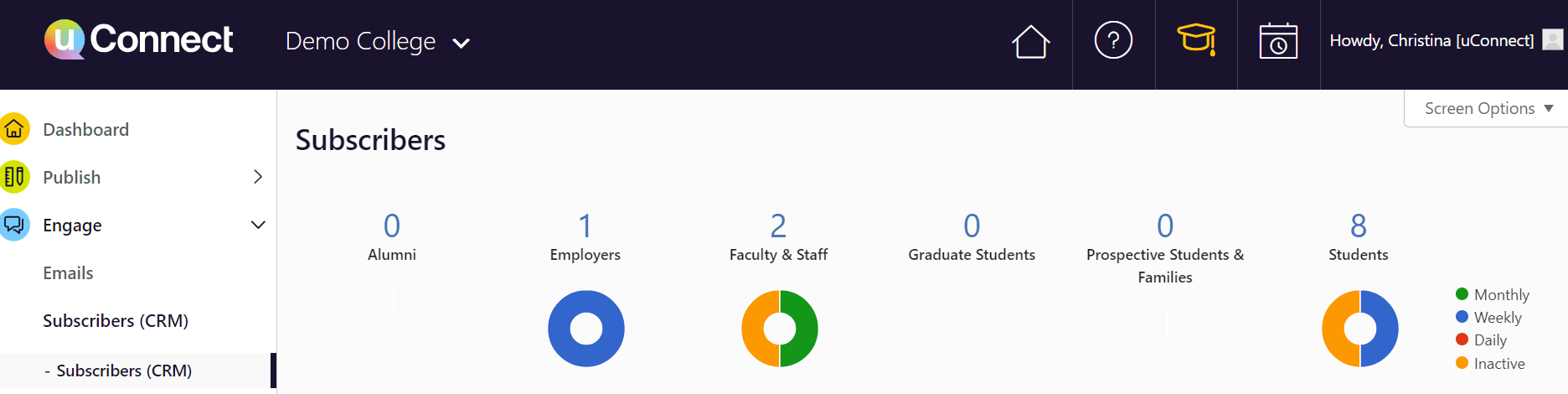
When Single Sign-On (SSO) is enabled, a user account is automatically created each time a visitor logs in with their institutional credentials. However, that account only appears under Engage > Subscribers. On the other hand, any visitor who has logged in using SSO AND has signed up for alerts and set their preferences, their accounts will show up under Engage > Subscribers.
Sometimes there are many more Subscribers than Users. This typically happens when: - A subscriber list was uploaded, or a SIS (student information sync) is active. - Students are logging in through SSO without backend access. To completely remove a User, delete their existing account. If duplicate accounts exist for the same user, merge those accounts before or after deletion. To merge duplicate accounts, navigate to Manage > Users, locate the duplicate accounts, and follow the merge process outlined in your platform's user management documentation.
If you still need help, please submit a support request here