
What is a community?
Communities are essentially mini-hubs of content that is tagged to them based on a specific topic, like an industry/career pathway. The easiest way to tell if you on a Community page in a uConnect platform is looking at the URL - if it has the word "channels" in it, you are on a Community page, and you can edit these pages under the Manage section of your admin dashboard.
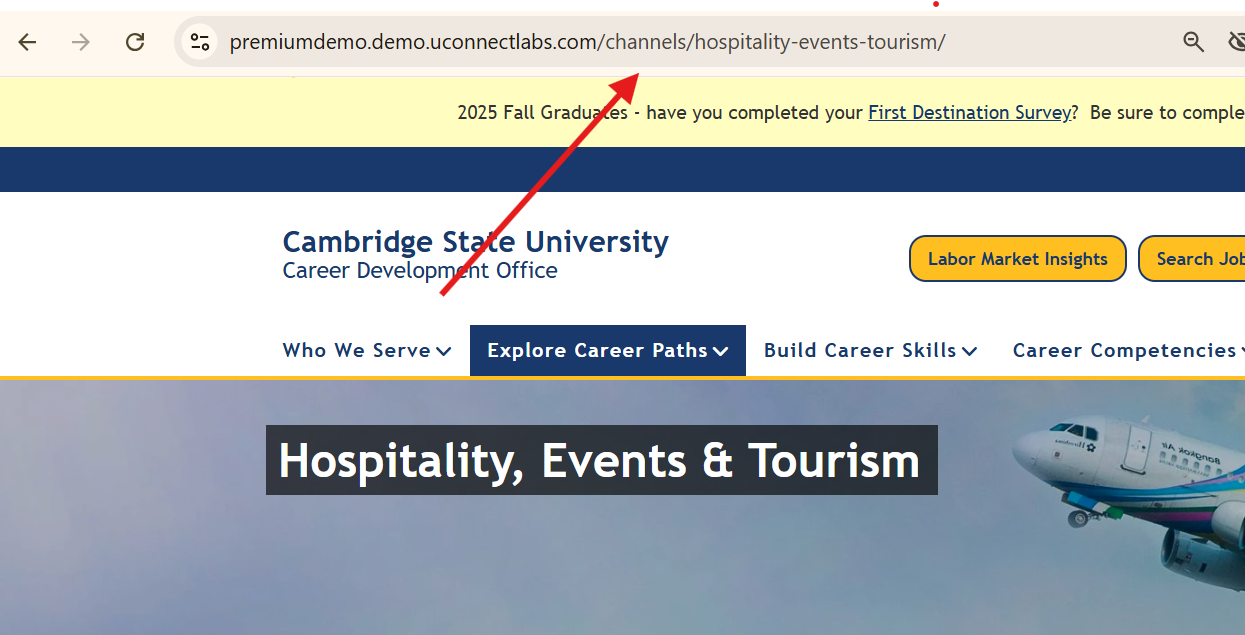
They also are typically the pages that have widgets displaying on them as well. Learn more about widgets in this article.
Overall, Communities serve three basic purposes:
-
serve as content hubs for content of a specific topic
-
label and organize content in the Admin Dashboard
-
provide filters for subscribers to determine the type of content they wish to receive in automated emails
-
enable site visitors to find relevant content using them as filters
Using communities to organize your Dashboard:
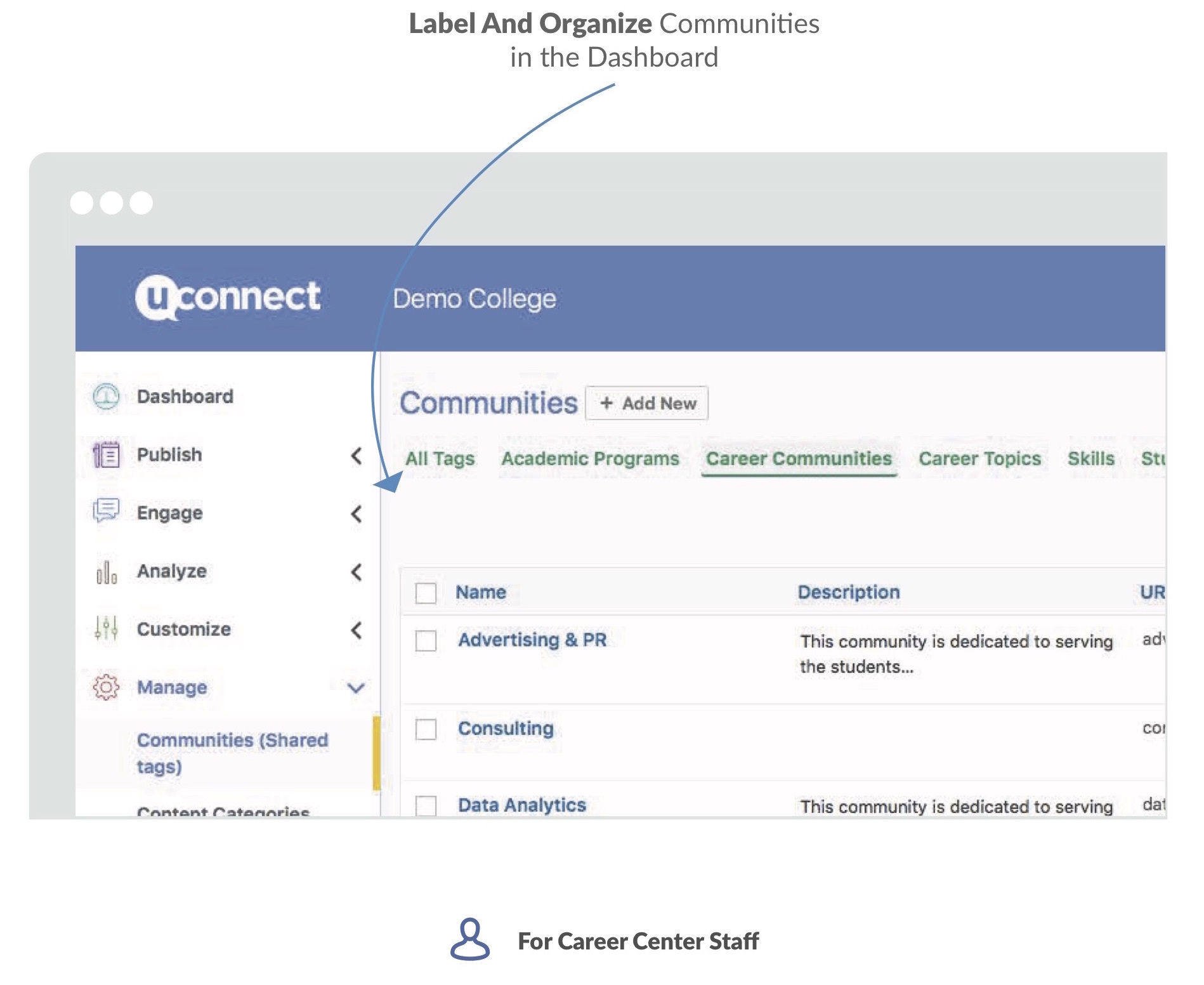
Under the Manage section of your admin dashboard, Communities (and their parent or community groups) can help you organize the back-end of your site. Parent or Community Groups are labels that group communities together. Think of them as buckets or drawers that you then organize the related Sub-Communities within. For example, given the communities, "Accounting," "Engineering," and "Journalism," you might assign the overlying Community group (parent group) called Career Communities, the default parent/Community group for industries. Keep in mind that you can change the names of parent/Community groups to reflect your organizational preferences.
Using communities to set automated email preferences:
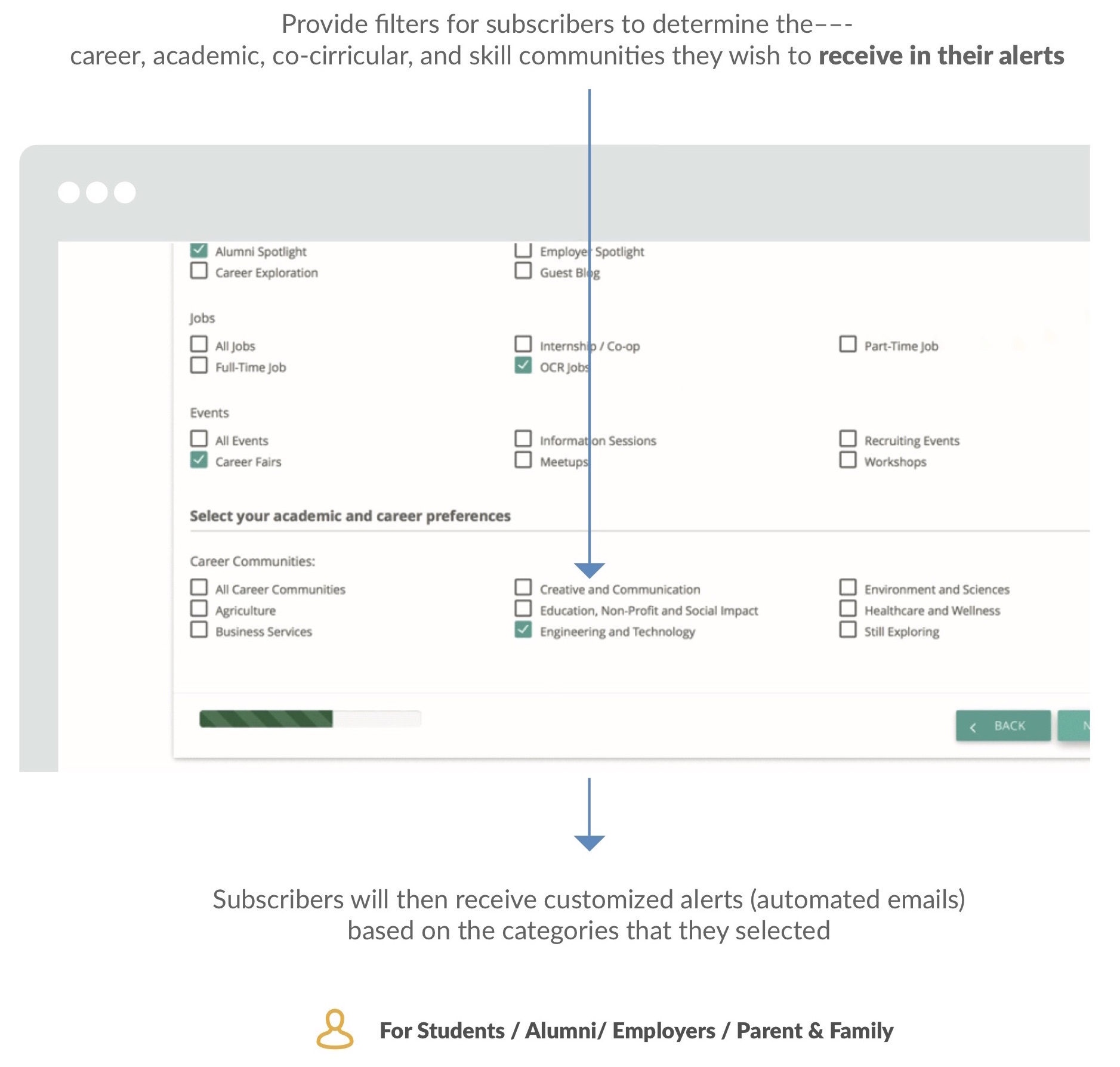
Once you've set up communities in your Dashboard, subscribers can select the ones most relevant to their interests in order to customize the types of emails that they receive from your career center. Automated emails are sent to subscribers with content that is tagged specifically to their preferences. The best part is that you don't have to do a thing -- automated emails are sent without your lifting a finger!
Using communities to find content on your site:
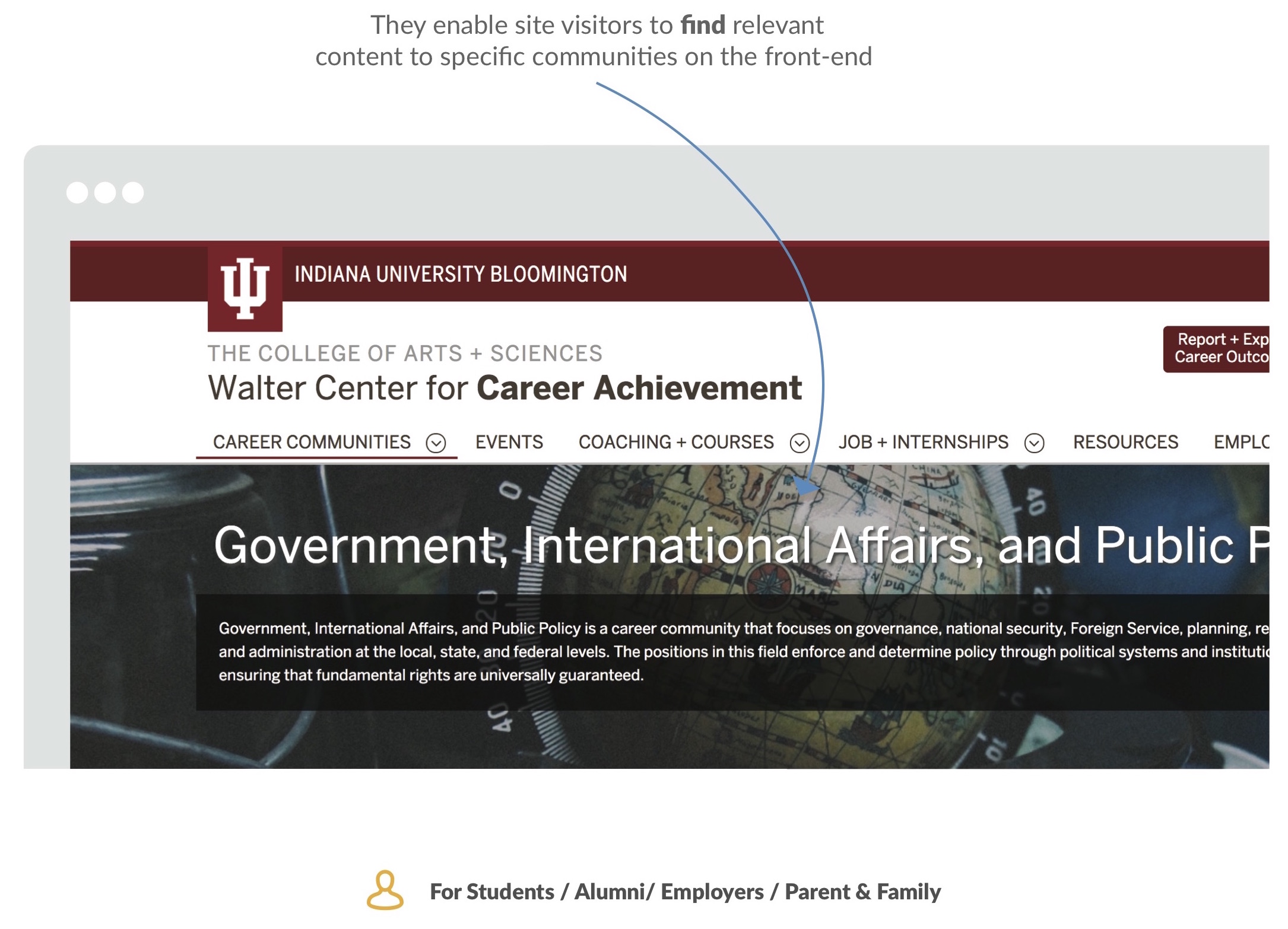
Communities are labels that are relevant for all content types, like Career Communities, Audience types, or Industries.
Communities play two major roles on your site: they act as (1) pages for career communities to organize content, and (2) as labels that allow you to segment your audiences -- and eventually determine which types of content users receive in their automated emails.
Note: It's important to remember that communities are different than content categories, which are only relevant to the form of content they were created to organize. To learn more about content categories, read this article.