
The uConnect Support Portal gives you a centralized, self-service hub to manage all of your support interactions. Once logged in, you can view past tickets, check the status of open requests, see tickets submitted by other members of your team, and submit new tickets — all without leaving the knowledge base.
Steps to Access the Support Portal
- Go to the uConnect Knowledge Base, where you'd normally find how-to articles and videos for your platform.
- In the top right corner of the knowledge base, you'll see a button labeled Support Portal Login. Click it to be redirected to the login screen. You can also navigate directly to http://support.gouconnect.com/portal so be sure to bookmark it for future reference.
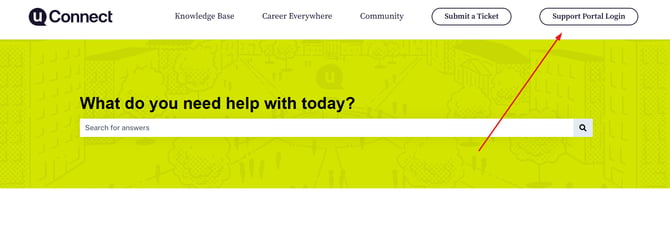 3. You have two options for logging in:
- Password-less: Enter your university email address and click Email Link. You'll receive a one-time sign-in link in your email inbox. The link expires in 15 minutes. Click it, then click Continue on the confirmation screen to access your portal.
- Register with a Password: Click Register Here, enter your university email, create and confirm a password, then click Save Password. Going forward, you can log in directly with your email and password.
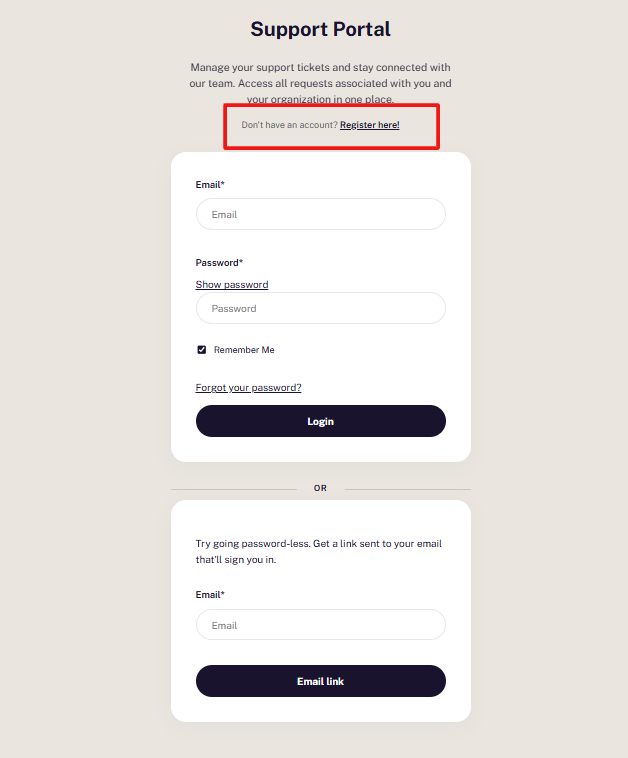
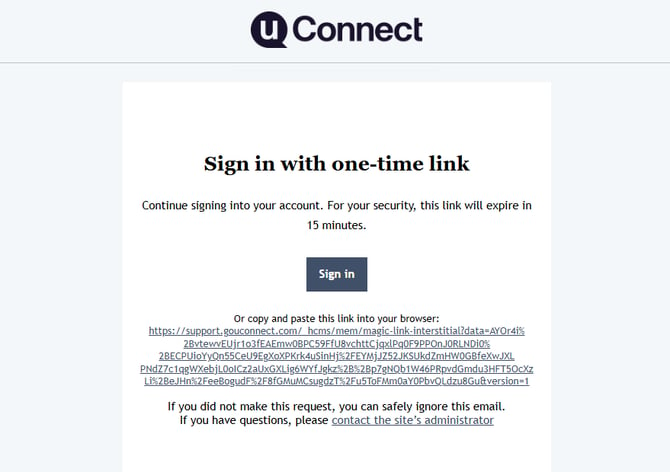
💡 Tip: If you've already registered and try to register again, the system will let you know. Just log in with your existing credentials instead.
4. Once logged in, you'll see a dashboard of all tickets associated with your account. For each ticket, you can view:
- Subject line and ticket ID
- Who submitted the request
- Date created
- Current ticket status
- Reason for status (when applicable)
- Last activity date
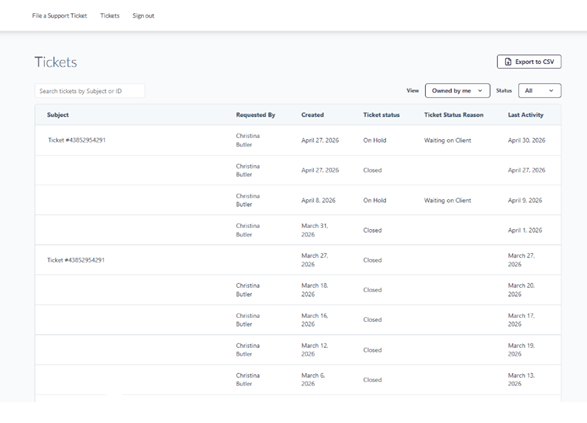
5. Use the search bar to look up tickets by subject, ticket ID, or keywords. You can also filter your view by:
- Submitter: Just your tickets, or all tickets submitted by your team (filtered by university domain)
- Status: Open or closed tickets

6. Need to share ticket history with your team or include it in a report? Use the Export option to download your ticket data.
7. To start a new support request from within the portal, click the New Ticket link at the top of the page. You'll be redirected to the standard support ticket form.
8. When you're finished, click Sign Out at the top of the portal. You'll be returned to the uConnect Knowledge Base.

💡 Pro Tip: Encourage all team members at your institution to register with their university email so you can take full advantage of the team ticket view — no more wondering if a colleague already submitted a request on the same issue!