
This article walks you through how to add AI Search patterns to a page, customize their appearance, and understand how the AI Search launcher works.
Video Walkthrough
Before You Begin
Make sure you have:
- Admin access access to your uConnect portal
- AI Search enabled on your account (contact your Customer Success Manager if you're unsure)
Step 1: Access the Block Editor Patterns
- Navigate to the page where you want to promote AI Search and open the Block Editor.
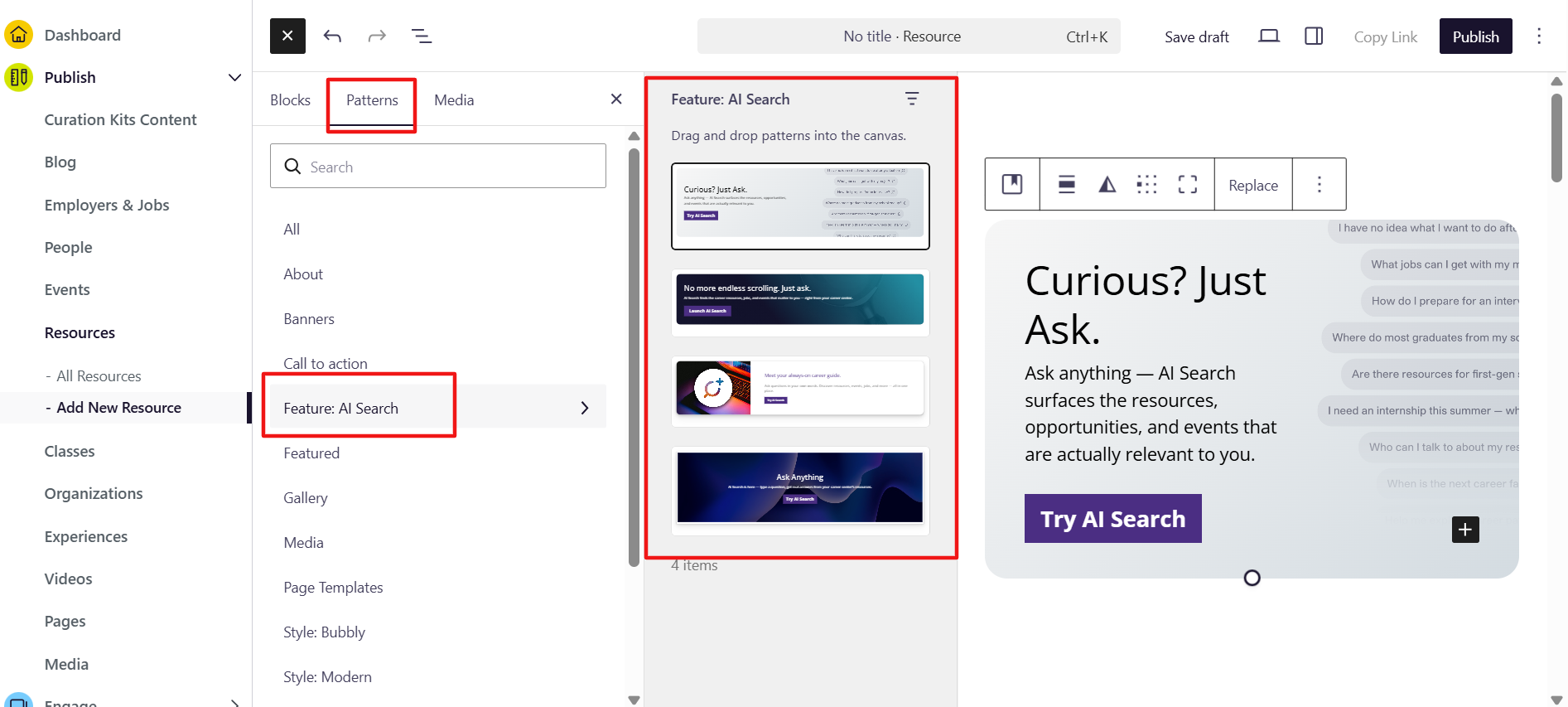
- Open the List View sidebar for easier navigation.
- Click the Block Inserter (the + icon).
- Select the Patterns tab.
- Look for the AI Search category — you'll find four sample patterns available, also accessible under their corresponding Style tabs.
Tip: If you've previously used uConnect's sponsorship templates, the patterns interface will feel familiar.
Step 2: Insert the Patterns
- Select the AI Search patterns you want to use and insert them onto your page.
- Close the sidebar to get a clearer view of your content area.
Each pattern is ready to publish as-is — your heading fonts are already applied, and the layout is pre-configured.
Step 3: Understand the AI Search Launcher
Each pattern includes a launcher link that opens AI Search on the front end. This is built using:
# launch-ai-search This hash link is what triggers AI Search to open when a student clicks. You'll find it applied to:
- Buttons within patterns
- Images in split media/text layouts (so students can click either the image or the button)
Note: No additional setup is needed for the launcher to work — it's already configured in each pattern.
Step 4: Customize Your Pattern
All patterns are fully editable standard blocks — think of them as a head start, not a finished product. Here's what you can customize:
Text and Copy
Click directly into any text block to edit headlines, body copy, or calls to action.
Colors and Headings
- Most heading colors pull from your institution's brand settings automatically.
- Some patterns use hard-coded colors (such as black). To change these:
- Select the text block.
- Open the right-hand sidebar.
- Update the text color to your preferred option — and always check for sufficient color contrast for accessibility.
Images
To swap out a placeholder image:
- Click on the image block.
- Open your Media Library and select or upload a replacement image.
Cover Block Overlays and Gradients
Some patterns use Cover blocks with gradient overlays to improve text readability. To adjust:
- Click the Cover block and go to the Style tab.
- Use the overlay opacity slider to lighten or darken the background.
- Adjust gradient colors using the preset options or custom color pickers.
Step 5: Work with Nested Blocks
One of the patterns uses nested blocks to create an offset/shadow effect. If you're editing this pattern, it's highly recommended to:
- Open the List View sidebar.
- Review the block structure — you'll see familiar elements like Media & Text blocks, Headings, and Cover blocks.
- Make edits from within the List View to avoid accidentally selecting the wrong block.
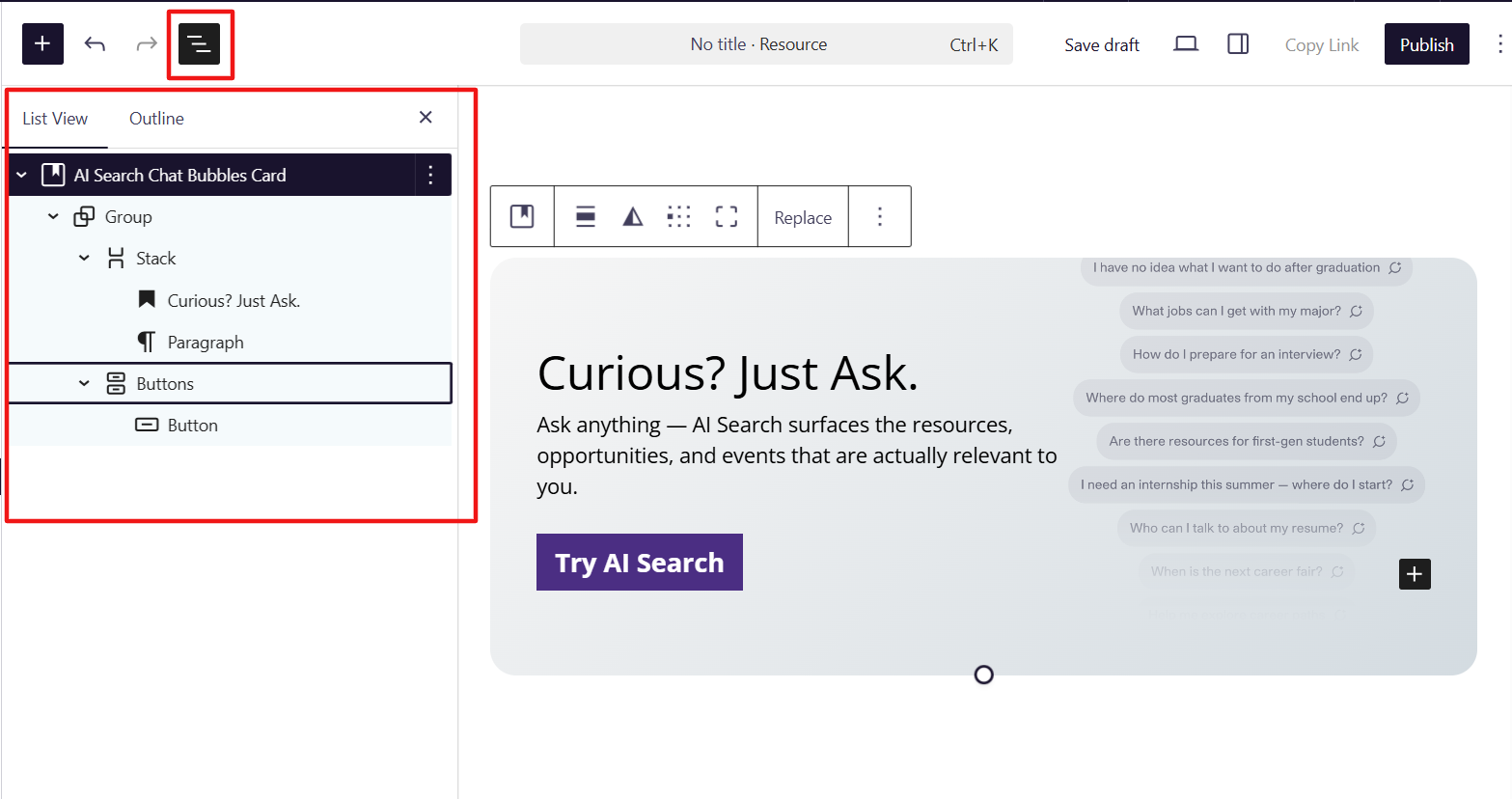
Pro Tip: Using List View when working with nested blocks will save you time and help you make targeted edits with confidence.
Step 6: FAQs
Q: Do I need to configure the AI Search launcher after inserting a pattern?
No. The #launch-ai-search link is already built into each pattern. Students can click the button or image to open AI Search immediately.
Q: Can I build my own AI Search promotional blocks from scratch?
Absolutely! These patterns are meant to be a starting point and source of inspiration. You can duplicate, modify, or build entirely new blocks that work best for your students and institutional brand.
Q: Why does one of my heading colors look different from the others?
Some patterns use hard-coded colors rather than pulling from your brand settings. See Step 4 → Colors and Headings above for instructions on how to update these.