
Overview
Passive (Silent) Single Sign-On (SSO) is an authentication enhancement designed to provide a seamless, friction-free login experience for students, faculty, and staff.
When an unauthenticated visitor accesses your uConnect platform, the platform silently checks whether the user already holds an active session with your institution’s Identity Provider (IdP).
- Active Session Exists: The user is logged in automatically and transparently without needing to click a "Log In" button or enter credentials.
- No Active Session Exists: The user continues browsing as a public/guest visitor without interruption, error screens, or login prompts.
Key Benefits for Your Organization
- Frictionless Access: Eliminates extra authentication steps for returning users who are already logged in to campus portals or learning management systems (LMS).
- Immediate Personalization: Users instantly see personalized content, saved preferences, and role-based resources upon landing.
- Zero Impact on Guest Visitors: Prospective students, employers, and external guests experience standard, fast page loads with zero login friction.
- Cache & SEO Optimization: Search engine crawlers and public caching layers are completely unaffected.
How Passive SSO Works
Passive SSO relies on the standard SAML 2.0 protocol using the IsPassive="true" flag.
Detailed Workflow Step-by-Step
- Initial Page Visit: A visitor arrives on your uConnect platform. A lightweight client script verifies whether a silent login attempt has already occurred in the current browser session.
- SAML Request (IsPassive="true"): If no prior attempt was made, uConnect initiates a background SAML authentication request containing IsPassive="true" to your institution's IdP.
- IdP Response Evaluation:
- Outcome A (Active Session Found): The IdP issues a SAML assertion. The browser receives the assertion and automatically logs the user into uConnect.
- Outcome B (No Session Found): The IdP responds with a standard SAML status code (urn:oasis:names:tc:SAML:2.0:status:NoPassive). uConnect catches this response benignly, and the user remains on the page as an anonymous guest.
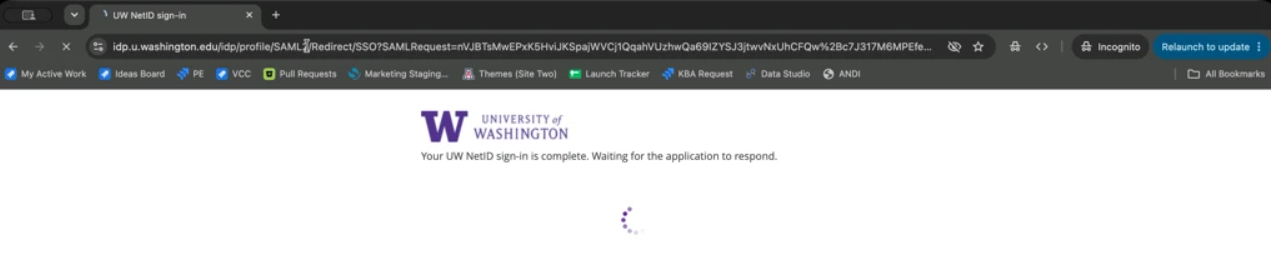
Note: You may see a brief message from the provider
Your institution's provider may show their own screen during the redirect — usually something like Signing you in… or Taking you to… — before returning the visitor to the page. It is your institution provider's screen, not uConnect's screen, and we cannot suppress or restyle it. Luckily, it clears on its own and the visitor ends up where they were going either way. Whether it appears, and what it says, depends entirely on the your institution's provider.
Technical Considerations & Prerequisites
1. SAML 2.0 Compliance
Your Identity Provider (e.g., Okta, Azure AD / Entra ID, Shibboleth, PingFederate, ADFS) must support standard SAML 2.0 IsPassive="true" behavior. A spec-compliant IdP returns NoPassive control back to the Service Provider rather than displaying a login form or error screen when an unauthenticated request is received.
2. Full-Page Redirect vs. Hidden iFrames
Passive SSO uses a full-page SAML browser redirect. Embedded hidden iFrames are intentionally avoided because:
- Framing Restrictions: Most enterprise IdPs enforce X-Frame-Options: DENY or CSP frame-ancestors 'none' to block clickjacking.
- Third-Party Cookie Blocks: Modern privacy standards (Safari ITP, Chrome Privacy Sandbox, Firefox ETP) partition or block third-party cookies in cross-site iFrames, preventing the IdP from reading active sessions.
3. Session-Scoped Safety Controls
To avoid infinite redirect loops, a lightweight, session-scoped cookie (uc_sso_passive_attempted) is set prior to the initial redirect. Silent SSO is attempted once per browser session.
Platform Safety & Circuit Breaker ArchitectureuConnect includes built-in safeguards to protect site availability:
- Automated Circuit Breaker: If an institution’s IdP becomes unresponsive or experiences unexpected errors, uConnect automatically trips a local circuit breaker and disables passive SSO for that tenant. This prevents users from getting stranded during campus IdP outages.
- Pre-Rollout Compliance Verification: Before turning on Passive SSO for your platform, an automated check verifies that your IdP gracefully processes NoPassive responses without throwing user-facing errors.
- Selective Application: Silent login attempts are restricted to front-end browser GET requests. They never run on administrative pages (wp-admin), REST API endpoints, POST form submissions, or automated web crawlers.
Frequently Asked Questions (FAQ)
Q: How do I enable Passive SSO on my uConnect platform?
Passive SSO will be enabled by the uConnect team after confirming that your platform has SAML SSO configured and that your Identity Provider supports passive authentication. Contact our Support team to request enablement. The uConnect team will first verify the no-session sign-in behavior with your Identity Provider, then enable passive SSO for a small pilot and monitor the results before expanding availability. If your Identity Provider does not respond correctly, passive SSO can be disabled for your platform while the configuration is reviewed.
Q: Will Passive SSO slow down initial page loads for public visitors?
No. Public pages remain 100% cached at the edge. The lightweight trigger script executes client-side after initial page delivery, keeping page performance fast.
Q: Does Passive SSO affect search engine indexing or SEO?
No. Search engine crawlers and bots do not execute the passive login trigger script and receive standard cached HTML pages.
Q: What happens on public or shared workstations (e.g., library terminals)?
If a previous user left an active session open in the browser at the institutional IdP level, a subsequent visitor could be logged in automatically. Organizations operating high-density public computer labs should encourage explicit user logouts upon ending a workstation session.