
What is the AI Search card?
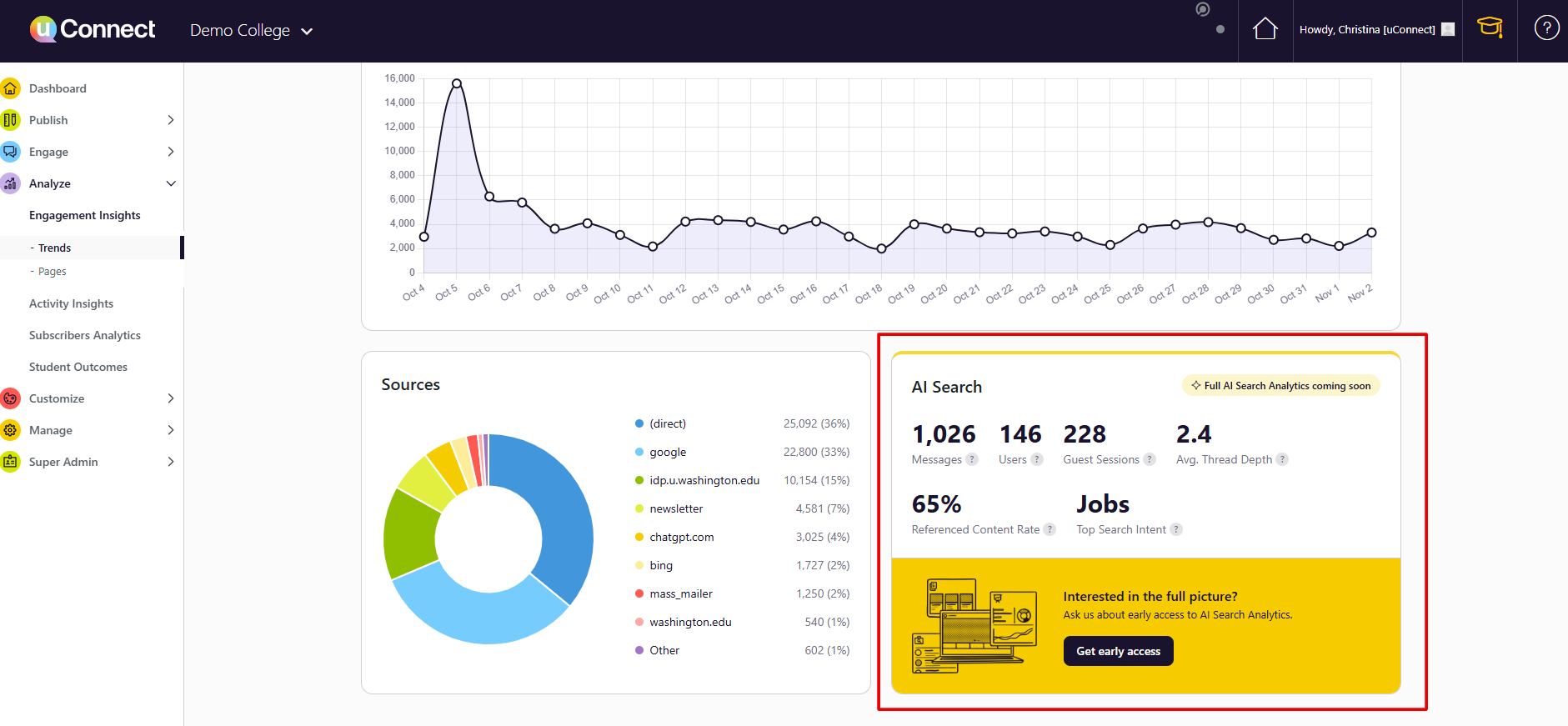
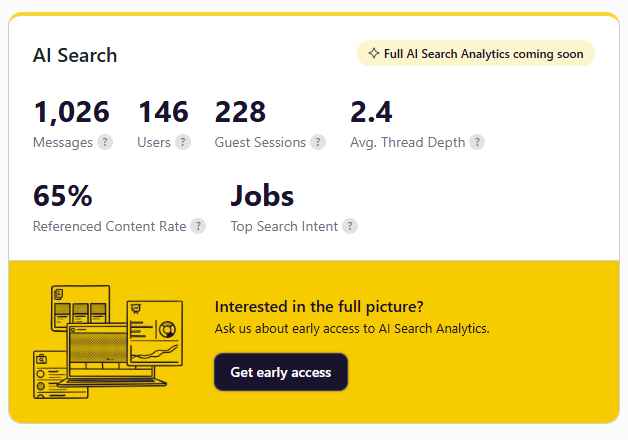
The AI Search card summarizes how students and visitors use AI Search on your site. It shows six key figures for the date range you select, so you can see engagement at a glance and spot trends in what your students are asking about.
This card is an early preview of our upcoming full AI Search Analytics page. You’ll see a “Full AI Search Analytics coming soon” badge on the card, plus a Get early access button if you’d like to be among the first to try it.
Where to find it
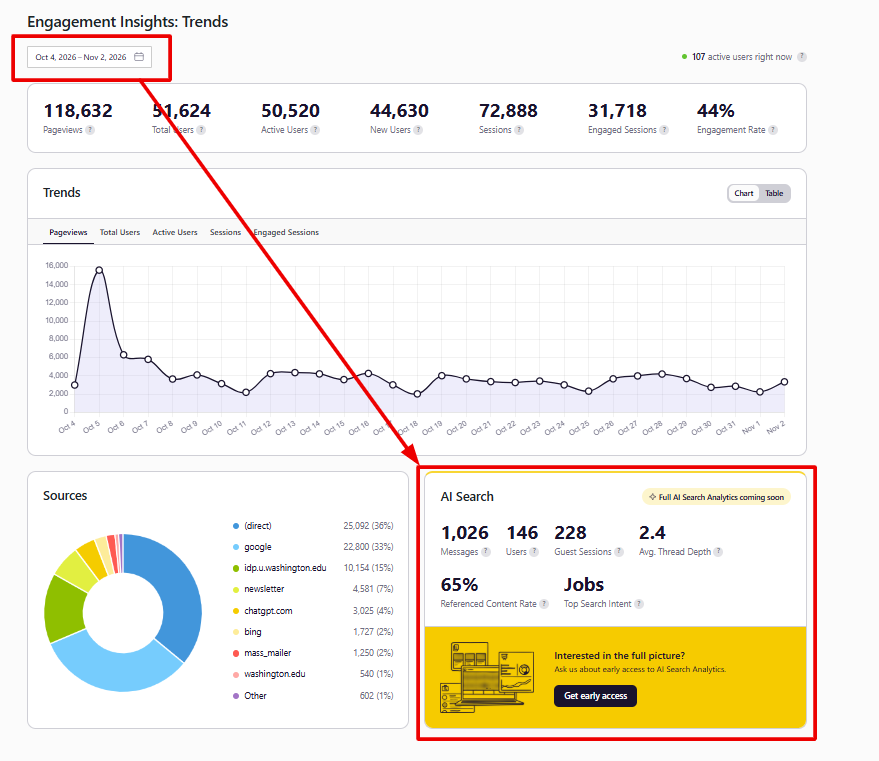
- Go to Engagement Insights.
- Select Trends.
- Look for the AI Search card beside the Sources section.
Note: The AI Search card doesn’t appear on the Pages view or when you’re viewing insights for a single page. That’s because AI Search data reflects activity across your whole site, not individual pages.
Who can see it
The AI Search card is visible to admin users on VCCs where the feature has been enabled. Other users who have access to Engagement Insights won’t see it.
Don’t see the card? Contact Support and our team will help get it set up for your site.
What each figure means
Messages: The total number of questions asked in AI Search during the selected date range. This includes both signed-in users and guests.
Users: The number of unique signed-in people who asked at least one question.
Guest Sessions: The number of conversations started by visitors who weren’t signed in. Because guests can’t be told apart, each conversation counts as one session, even if the same person returns later.
Avg. Thread Depth: The average number of questions per conversation, across both signed-in and guest conversations. A thread depth close to 1 means most people ask one question without following up. Most schools fall between 1.1 and 1.4, so a number above 1.6 suggests your students are having unusually in-depth conversations.
Referenced Content Rate: The percentage of AI Search answers that linked to or cited at least one piece of your site’s content. Most schools land between 78% and 86%. If your rate is well below 72%, see the section below for possible reasons.
Top Search Intent: The topic students and visitors asked about most. Hover over it to see how many questions were asked and which broader “intent group” the topic belongs to.
Tip: If there’s no data for the selected date range, the figures show a dash (—) rather than a zero.
Interpreting your Referenced Content Rate
A lower Referenced Content Rate isn’t necessarily a bad sign. Several factors can affect it:
- Content gaps: Your VCC may have little or no content on some topics students and other users ask about, such as no upcoming events, few resources, or no jobs feed. This is a great opportunity to identify content to add.
- Question type: Greetings, thank-you's, off-topic questions, and general career advice questions often don’t have content to cite. If your users ask more of these, a lower rate is expected.
- Restricted content: If some of your content requires users to sign in, AI Search can’t cite it for guests. Since much AI Search usage comes from guests, this can have a noticeable effect.
Date ranges and data timing
The AI Search card follows the date picker at the top of the Engagement Insights page. A few things to keep in mind:
- The most recent date you can select is yesterday.
- AI Search data begins July 1, 2026. If your selected range starts earlier, the card shows data from July 1 onward and lets you know. If your entire range falls before July 1, you’ll be prompted to choose a later range.
- Data updates once a day, so the card may run slightly behind. If the most recent days in your range haven’t loaded yet, the card tells you. For example: “Data through Oct 20, 2026, so the last 2 days of this range aren’t included yet.”
Tip: Seeing low numbers for the last day or two? The data most likely hasn’t loaded yet. There’s no need to refresh or re-save anything. Check back tomorrow!
If the card displays “Unable to load AI Search data,” the rest of your Engagement Insights page will still work normally. If the message persists, contact Support.
Get early access to full AI Search Analytics
We’re building a full AI Search Analytics page with deeper insights into how your students use AI Search. To express interest, click Get early access on the AI Search card and complete the short survey. We’d love to hear what insights would be most valuable to your team!