
What's New
When users click Login in the top-right corner of your Virtual Career Center (VCC), they'll now see a redesigned split-panel login screen that clearly communicates the value of logging in — especially when it comes to AI Search. You aren't able to edit the contents of this screen but let's review what it contains below.
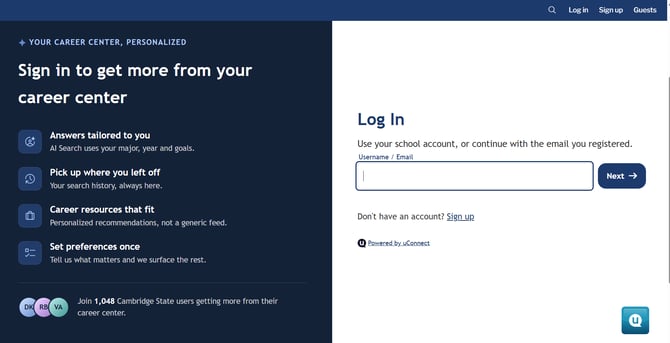
The new screen highlights:
- Tailored AI Search responses — Users learn their search results will be personalized to them.
- Saved search history & memory — Users can pick up right where they left off; AI Search remembers previous conversations.
- Personalized recommendations — Users can opt in via their account preferences.
- Automated email alerts — If enabled on your platform, users can opt in and adjust these preferences anytime.
- Community proof — The screen shows how many other users have already logged in and created accounts, helping new users feel part of the community.
Video Walkthrough
Responsive and on-brand
This split-panel design is fully mobile responsive and automatically adjusts based on whether a user is on a desktop browser or mobile device. It also automatically pulls in your institution's branding — colors, fonts, and graphics — so it feels native to your platform right out of the box.
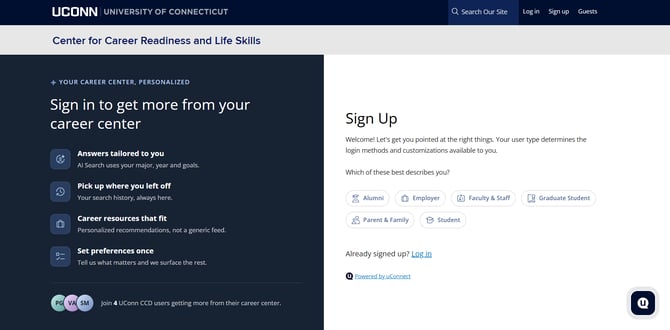
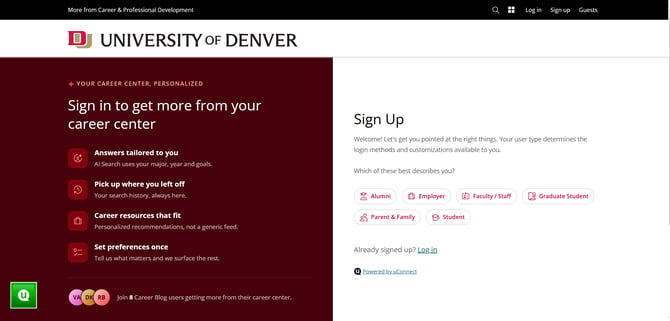
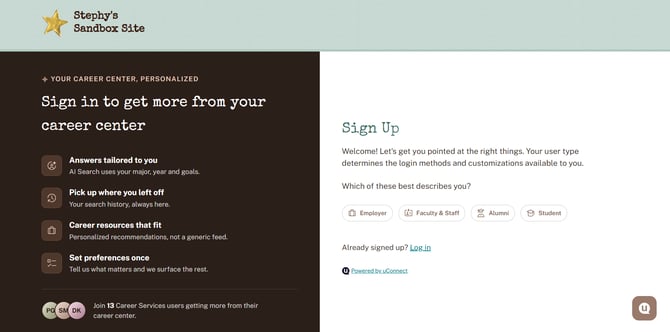
💡 Note: This screen's language is a set, non-editable experience — our team designed and optimized the copy for you, so there's no setup required on your end to take advantage of it.
The sign-up experience
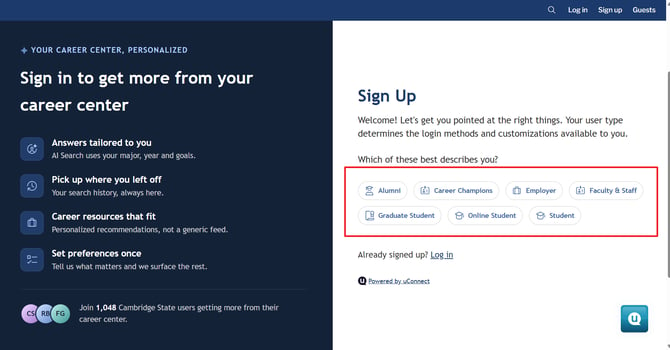
If a user doesn't yet have an account (for example, a returning alum), they'll click Sign Up instead, which takes them to a personalized sign-up screen where they select their role type.
- If SSO is enabled for your platform, that button will appear here too, giving users a fast, secure way to log in with existing credentials.
- Role types shown on this screen map directly to your platform's Audience Communities (also referred to as "People We Serve" or "Stakeholder Groups").
- You have full control over which role types/communities appear as sign-up options.
- If a user selects the wrong role type, they can easily switch before continuing.
How to Customize Which Communities Appear at Sign-Up
Want to hide a specific community from the sign-up screen (for example, if you don't currently want Prospective Students & Families to self-register)? Here's how:
- Log in as an admin (via SSO or your standard admin login).
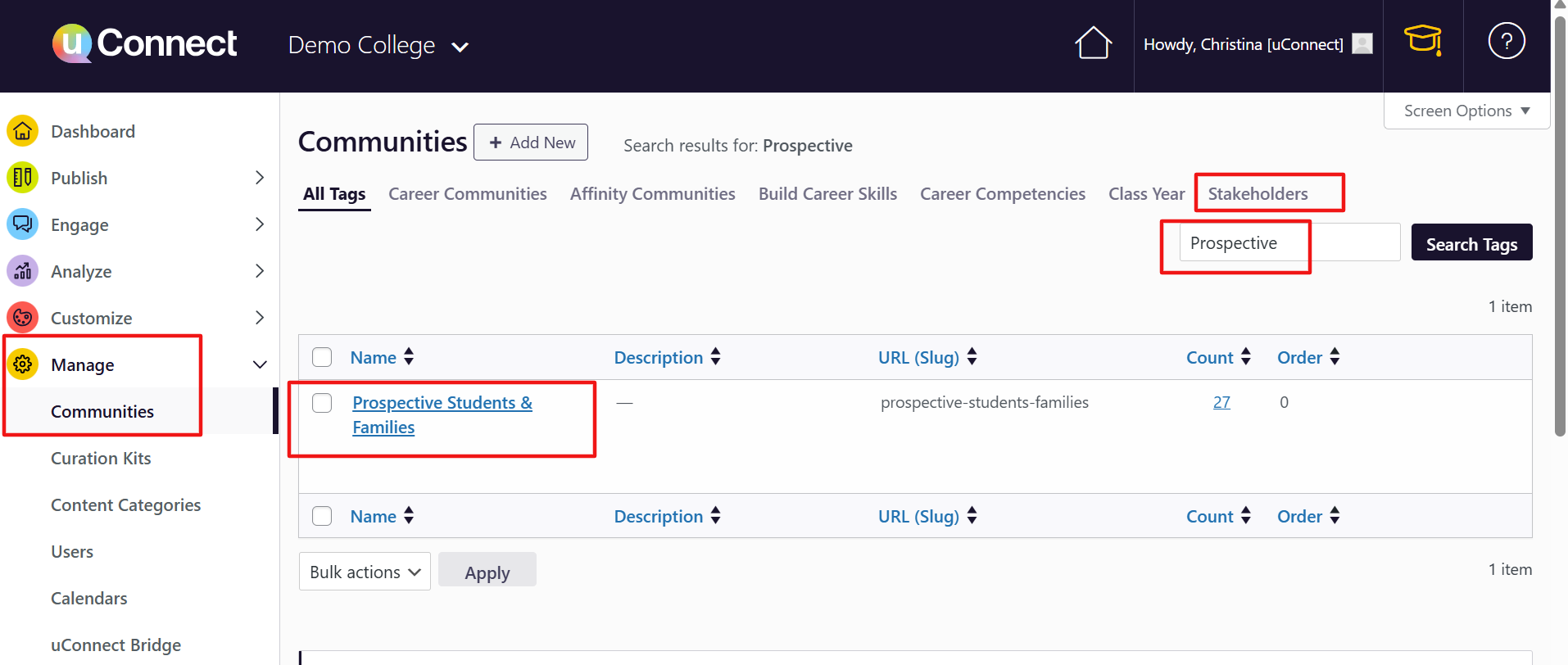
- Navigate to Manage > Communities (or use the search bar in the top-right corner to jump straight there).
- Locate the community you'd like to edit and click into it.
- Navigate to Manage > Communities (or use the search bar in the top-right corner to jump straight there).
- Locate the community you'd like to edit and click into it.
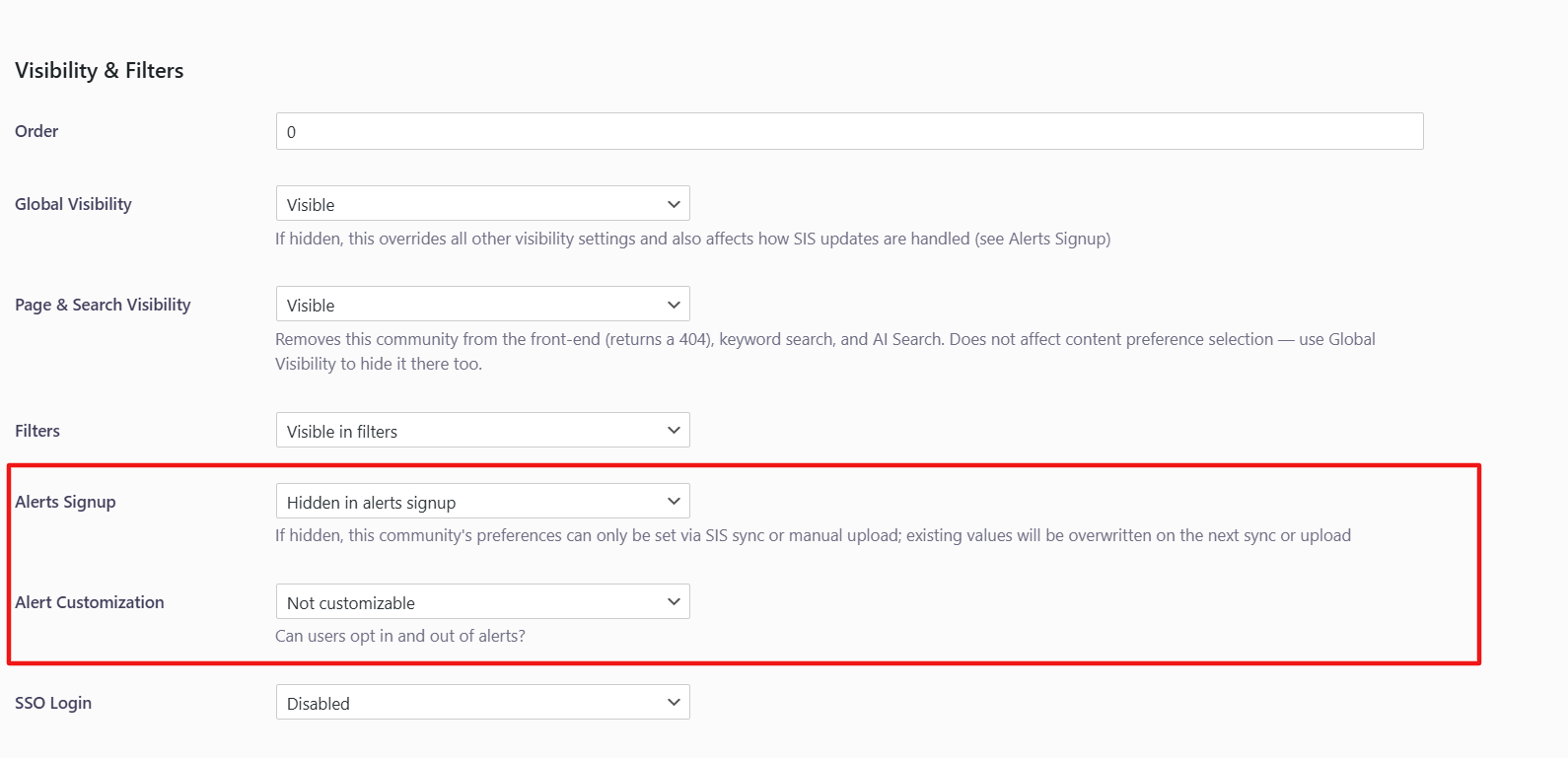
- Scroll down to the visibility settings near the bottom of the page.
- Set both of the following fields to Hidden:
- Alerts Sign-Up
- Customization
Note: SSO does not apply to groups that are not yet account holders, such as prospective students.
- Click Update to save your changes.
- Update the following filters to Hidden:
- Alerts Sign-Up
- Customization
- (Note: SSO doesn't apply to groups that aren't yet account holders, like prospective students.)
- Click Update to save your changes.
Once saved, log out and revisit the sign-up screen to confirm the community no longer appears as a selectable role type.
Why this matters
This update is designed to:
- Drive more logins by clearly communicating the value of a logged-in experience
- Give you richer data and analytics on engagement
- Boost adoption of AI Search through a stronger first impression
- Ensure your sign-up flow reflects only the communities relevant to your institution
We'd love to hear what you think! Have you noticed an uptick in engagement since this update? Share your experience with us in the Career Everywhere Community or reach out to your Customer Success Manager.