
Video Walkthrough
What Suggested Prompts Are
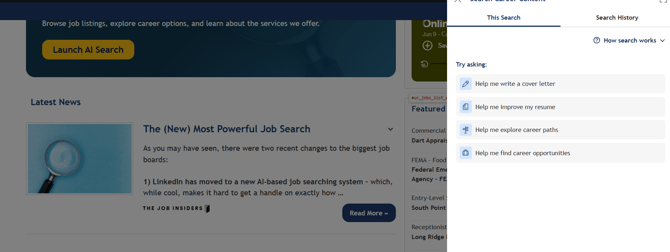
Suggested prompts are pre-written questions that appear in the AI Search panel before a student starts typing. They serve as a guided on-ramp to your content ecosystem — helping students who aren't sure what to ask, or who don't yet know what your career center has to offer.
Think of them as your opportunity to say: "Here are some of the most valuable things you could discover right now."
Where to Configure Suggested Prompts
Suggested prompts are managed from your admin dashboard. To access the prompt settings:
- Log in to your admin dashboard
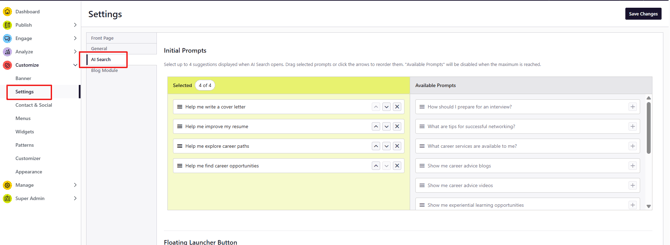
- Navigate to Customize → Settings → AI Search
- Select the prompts you want to display from the curated options available
- Save your selection
Prompts are aligned to your institution's enabled modules — you'll only see prompts that are relevant to the content types and data available on your platform.
How to Choose the Right Prompts
You're selecting from a pre-curated set, so the key question is: which of these prompts best reflect the questions your students most need answered?
A few frameworks to guide your choices:
- Lead with your highest-value content — which community pages, resource collections, or event series do you most want students to discover?
- Think about the populations you most want to reach — first-generation students, graduate students, students exploring specific career paths — and choose prompts that speak to their most common questions.
- Reflect your current season — during fall recruiting season, job and internship prompts may be most relevant. During spring, outcomes data or graduate school prompts might take priority.
- Review prompts periodically — what was most relevant at the start of the year may not be the right set for late spring. Updating your prompts seasonally keeps the experience fresh.
Persona Awareness
AI Search is designed to recognize who is asking a question and respond appropriately. A student asking about interview preparation receives a different experience than an alumnus asking the same question. Suggested prompts are part of this persona-aware design — they help surface the most relevant starting points for the audience using your VCC at any given moment.
Other Settings: Floating Launcher Button
Your students and other stakeholders can interact with AI search in two ways: 1) by clicking the AI search icon at the top right corner of your platform, and 2) by clicking on the AI search floating launcher button in the bottom right corner. For the floating launcher button specifically, you have more settings at your disposal!
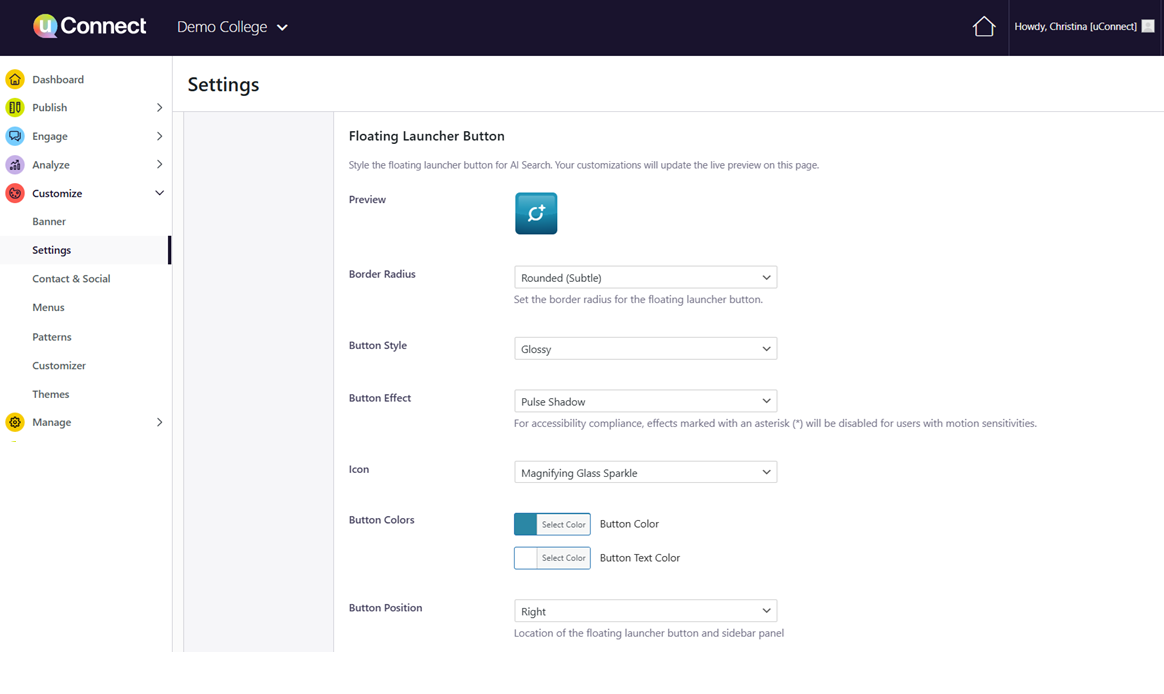
- Border Radius - you can change whether your AI search floater button has rounded, full or sharp edges
- Button Style - choose between the default Flat, Glossy, Gradient, or Vignette
- Button Effect - choose between Breathe, Flat Shine, Pulse Shadow, Shimmer and Wobble. Please note for accessibility compliance, effects marked with an asterisk (*) will be disabled for users with motion sensitivities.
- Icon - choose between the default "Magnifying Glass Sparkle" icon or our "uConnect icon" as the front-facing icon for AI search
- Button Colors - change the button background color and text color
- Button Position - change the location of your button: on the left or right of your front page (please note this also changes the location of the sidebar panel chat area)
Note: You can only move the AI Search button to the left or right side of your front page. Not up or down, or any other locations. At least for now!
Video Walkthrough
|
Pro Tip: After configuring your prompts, test them yourself — open AI Search as a student would and click each prompt to see what results come up. If a prompt surfaces thin or outdated content, consider adding richer content in that area before your launch communications go out. |