
Overview
The Data Exclusion tab gives you fine-grained control over which outcomes data is displayed on your public Outcomes page and surfaced in AI Search responses. This is useful if you have outdated data you want to retire, majors that are no longer offered, or a specific class year you are not ready to publish yet.
|
📌 Please Note The Data Exclusion tab is visible to all customers, but most controls are only active for customers with the ODV module. The one exception is the AI Search toggle, which is available to all customers. |
Accessing Data Exclusion Settings
- Navigate to Analyze > Student Outcomes.
- Click the Data Exclusion tab.
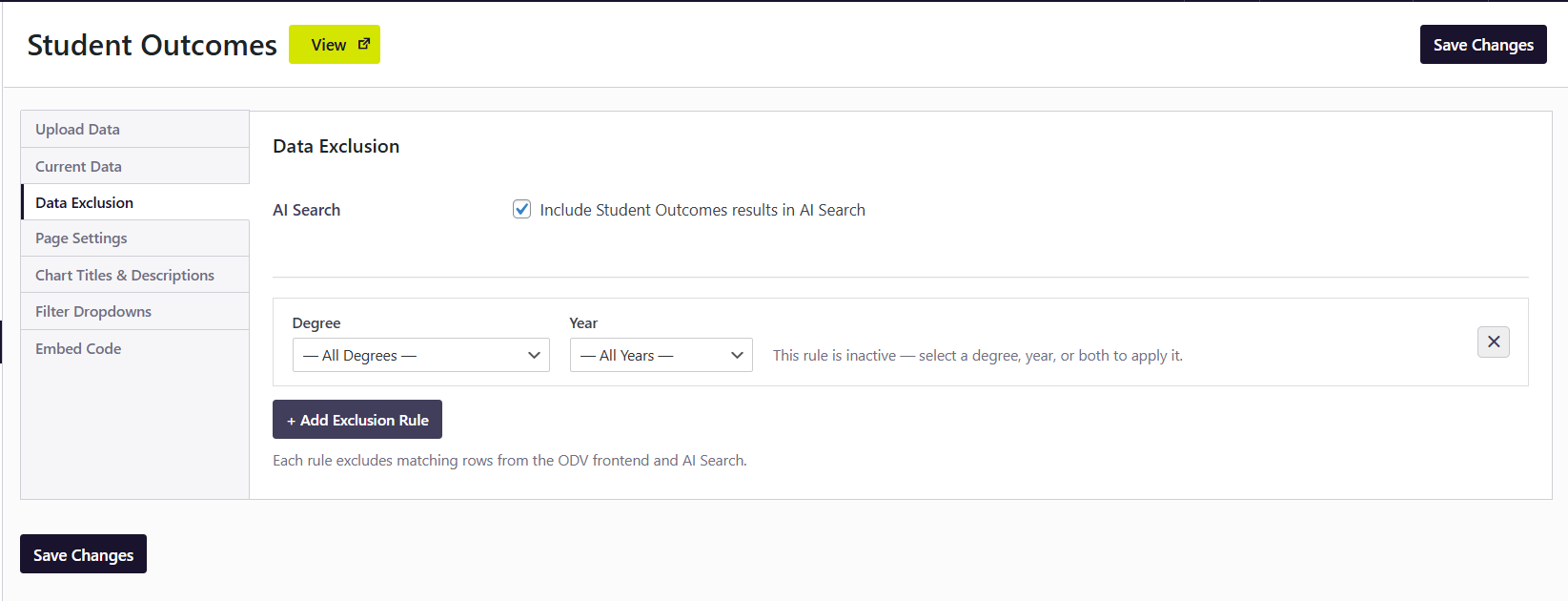
AI Search Toggle
Setting: Include Student Outcomes results in AI Search
This checkbox is enabled by default for all customers who have uploaded outcomes data. When checked, your outcomes data is available to AI Search and can be used to generate institution-specific responses to student questions.
To exclude all outcomes data from AI Search: Uncheck this box. AI Search will continue to function and surface other content from your platform, but will not draw from your outcomes data.
|
💡 Pro Tip We recommend keeping this enabled. Outcomes data makes AI Search significantly more valuable to students — especially for questions about salaries, employment rates, and career paths specific to your institution. |
Excluding Specific Class Years
To prevent a particular class year from appearing on your Outcomes page or in AI Search:
- In the Data Exclusion tab, locate the Class Year Exclusions section.
- Use the dropdown to select one or more class years to exclude.
- Click Save.
Example use case: Your platform has five years of historical data uploaded, but you have determined that data from 2019 is no longer representative of current outcomes. You can exclude the Class of 2019 from both your public Outcomes page and AI Search without deleting the data from your platform.
Excluding Specific Majors
If your institution has discontinued an academic program but the major appears in historical outcomes data, you can exclude it from display:
- In the Data Exclusion tab, locate the Major Exclusions section.
- Select the major(s) you want to exclude.
- Click Save.
Excluded majors will not appear on your Outcomes page or in AI Search responses.
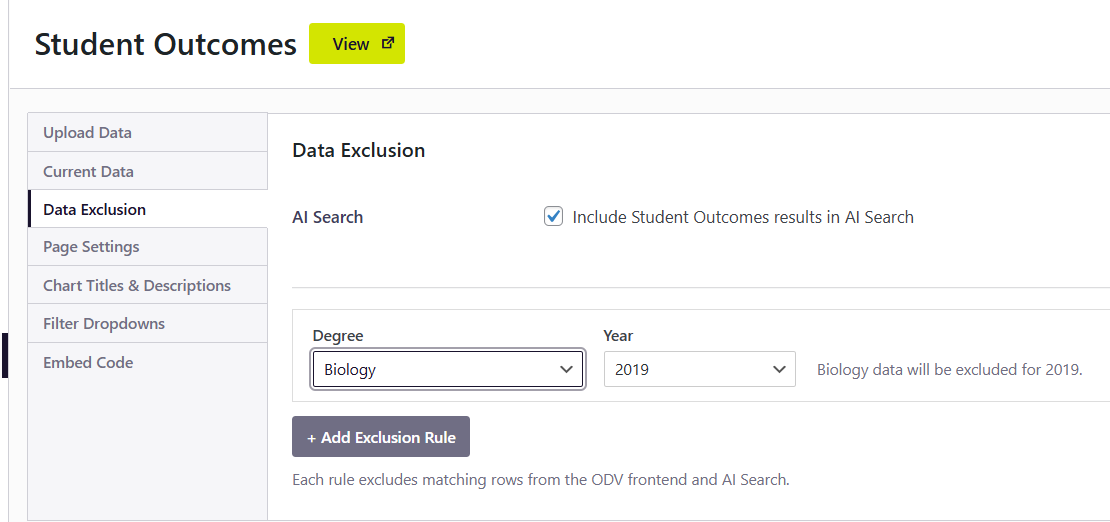
Minimum Pool Size
The minimum pool size setting determines how many data entries are required before a data set is visualized on your Outcomes page. This setting exists to protect student privacy — when outcome data is shown for very small groups, it can be possible to identify individual students, particularly when combined with program, graduation year, or other context.
The available thresholds are:
- 3 entries (minimum): Allows visualization of most data, including very small programs. Aligns with MBA-CSEA and Tableau defaults.
- 5 entries: A middle-ground option for institutions with smaller programs that still want meaningful data privacy protection.
- 10 entries (default): The most privacy-protective option, aligned with NACE standards.
|
📌 Please Note The minimum pool size cannot be changed directly in your dashboard —contact the uConnect support team to request a change. We encourage the default threshold of 10 for data privacy reasons. |
|
💡 Pro Tip If you see charts showing 'We don't have enough student data to show you these results' for certain programs, it may mean those programs don't meet your current minimum pool size. Lowering the threshold (with appropriate privacy consideration) can help surface more of your data. |