
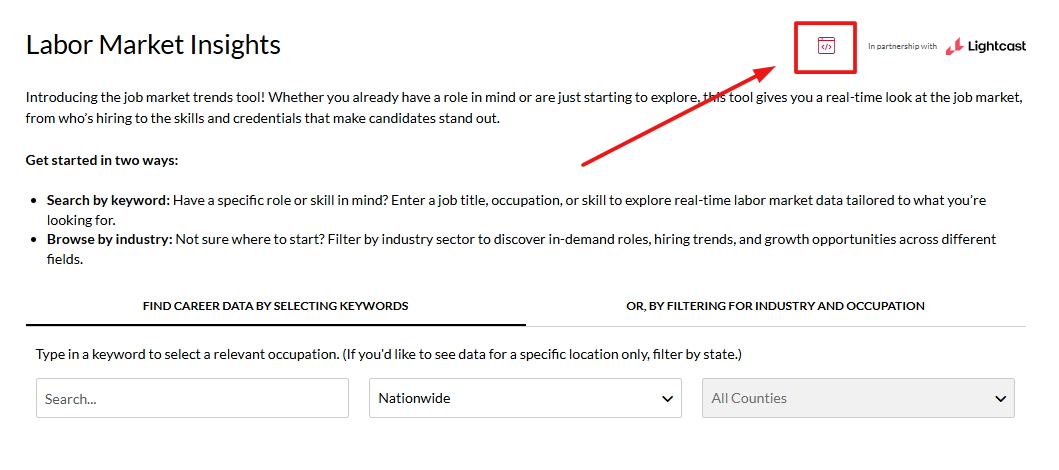
Compact mode is a layout option for the LMI widget that changes how sections are displayed without altering the underlying data. Use compact mode to reduce vertical space when embedding the widget into program pages, department sites, sidebars, or other constrained areas.
How does compact mode work?
-
Default (Compact mode OFF)
- The widget renders every LMI section stacked vertically in full: Occupation Description, Employment Trends, Top Employers, Education Levels, Annual Earnings, Technical Skills, Core Competencies, Job Titles, etc.
- Best suited for a dedicated LMI page where you want all sections visible at once and a long-scroll experience.
-
Compact mode ON
- The same sections are present, but the layout collapses into a numbered left-rail navigator.
- Only the section the user selects in the left rail is shown on the right; sections are revealed one at a time.
- The data itself remains identical to the full view; compact mode is purely a visual/layout change.
- Produces a much shorter vertical footprint, making it suitable for embedded contexts with limited space.
Embedding guidance and allowlist requirement
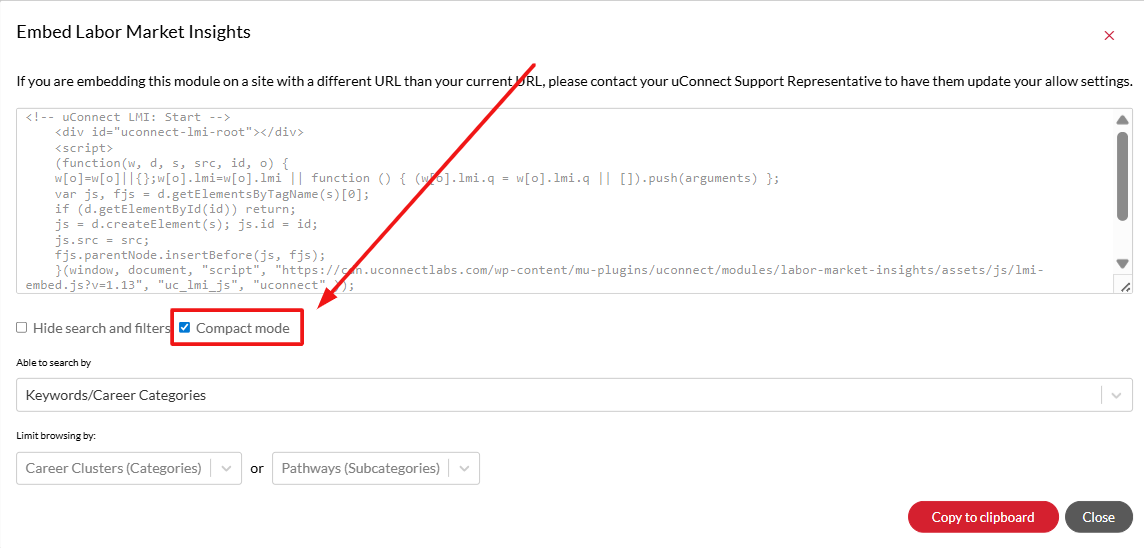
- If you embed the LMI widget on a domain different from your uConnect subdomain (for example, embedding on a college or department site under your institution’s main domain), provide the destination URL so the widget can be added to the allowlist.
- If the destination URL is not added to the allowlist, the widget will not render on that domain.
- Prepare a list of the destination domains (or pages) where the widget will be hosted so they can be added to the allowlist prior to embedding.
When should you use compact mode?
- Use compact mode when:
- You need to embed LMI on pages where vertical space is limited (program pages, department sites, sidebars).
- You prefer a navigable, section-by-section view rather than a single long-scroll page.
Troubleshooting tips
- Widget does not appear after embedding:
- Confirm the destination domain has been added to the allowlist; if not, submit the destination URL so it can be added.
- Layout appears like full view instead of compact:
- Verify compact mode is enabled in the widget settings (compact mode controls layout only; the underlying data remains the same).
Summary
Compact mode offers a layout-only option to present the same LMI data in a space-efficient, navigable format. For embedded use on external domains, ensure those destination URLs are provided and allowlisted so the widget will render correctly.