
First destination outcomes data is some of the most valuable information your career center has. It's also information you may not be ready to share broadly. Maybe your data is still being finalized, or you only want to share it with leadership and colleagues on a need-to-know basis.
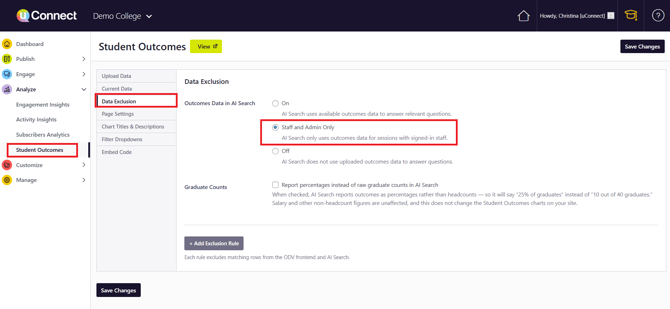
With the Staff and Admin Only option in your Student Outcomes Data Exclusion settings, AI Search will only use your outcomes data to answer questions from signed-in staff and admin users. Students and logged-out visitors won't receive outcomes data. That means your team can ask AI Search as many outcomes questions as you'd like, whether you're preparing for a student appointment or pulling numbers for a leadership report, knowing that not just anyone on the front end of your platform can access those answers.
Your Outcomes Data in AI Search options
The Outcomes Data in AI Search setting offers three options:
- On: AI Search uses your available outcomes data to answer relevant questions for anyone using your platform.
- Staff and Admin Only: AI Search only uses outcomes data for sessions with signed-in staff and admins.
- Off: AI Search does not use your uploaded outcomes data to answer questions.
How to enable Staff and Admin Only access
- Log in to your uConnect platform as an admin or staff user.
- In the admin dashboard, go to Analyze and select Student Outcomes.
- Select the Data Exclusion tab.
- Under Outcomes Data in AI Search, select Staff and Admin Only.
- Click Save Changes.
Test it on your platform
- While logged in, navigate to the front end of your platform.
- Open AI Search and ask a first destination outcomes question, such as "What percentage of last year's graduates were employed within six months?"
- AI Search will respond using your outcomes data.
If this setting is enabled and a non-staff and non-admin user is asking AI Search first-destination-outcomes-based questions, this is an example AI Search's response to an outcomes-based question:
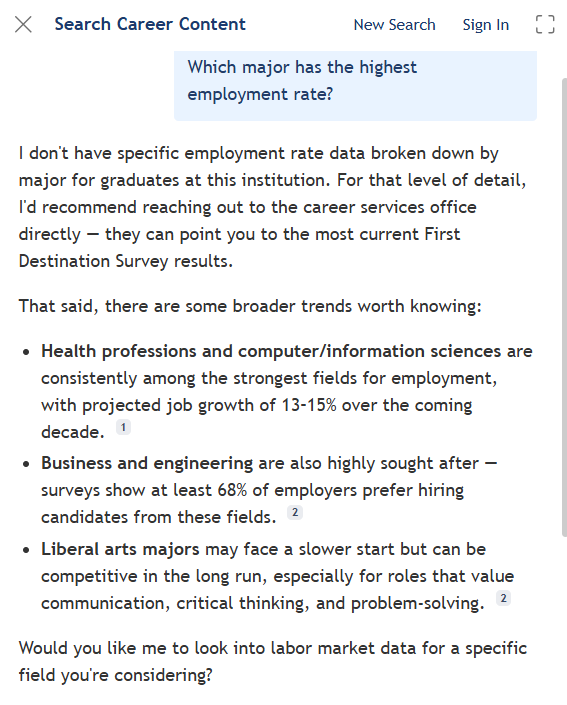
Tip: To see what students and visitors experience, open your platform in a private or incognito browser window, where you aren't signed in, and ask the same question. AI Search won't return your outcomes data.
Conclusion
- Only signed-in staff and admins receive outcomes answers. If a user isn't logged in, or is logged in without a staff or admin role, AI Search won't provide first destination outcomes information.
- You can change this setting anytime. When your outcomes data is ready to be publicly accessible, return to Analyze > Student Outcomes > Data Exclusion and select On.
- Prefer percentages over headcounts? On the same tab, you can check Report percentages instead of raw graduate counts in AI Search. AI Search will then say "25% of graduates" instead of "10 out of 40 graduates." Salary and other non-headcount figures aren't affected, and your Student Outcomes charts stay the same.
- Share on your terms. Staff and Admin Only access is a great fit for testing AI Search with your outcomes data, or for gathering data points for leadership, colleagues, and student appointments, without making that data broadly available.
Need help? If you have questions about this setting or AI Search, visit our support site at support.gouconnect.com or submit a ticket to our support team. We're always happy to help!