
By default, if a team member on your staff page (also called the "Meet the Team" page) has published blog posts, those posts automatically appear under a "Recent Posts" section on the right side of their profile. To hide this section and keep your team page focused, you can turn this setting off.
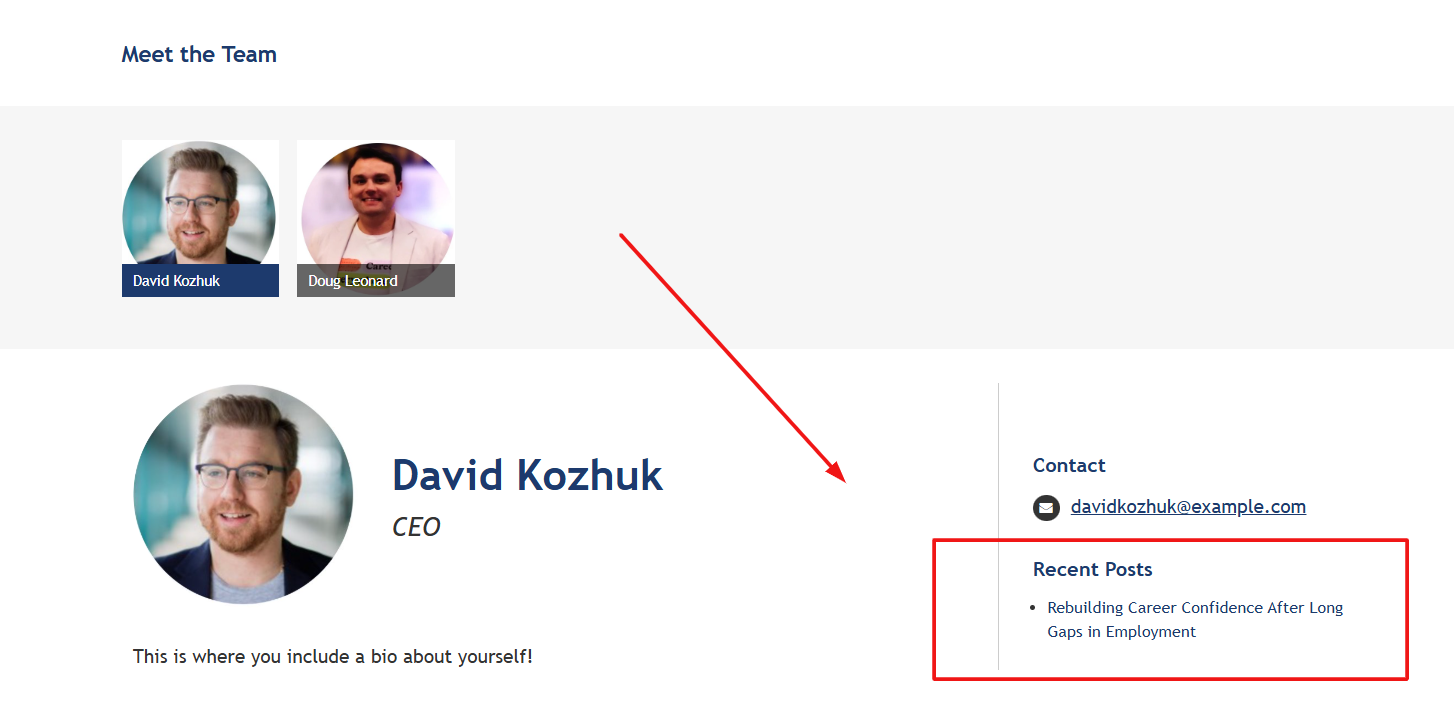
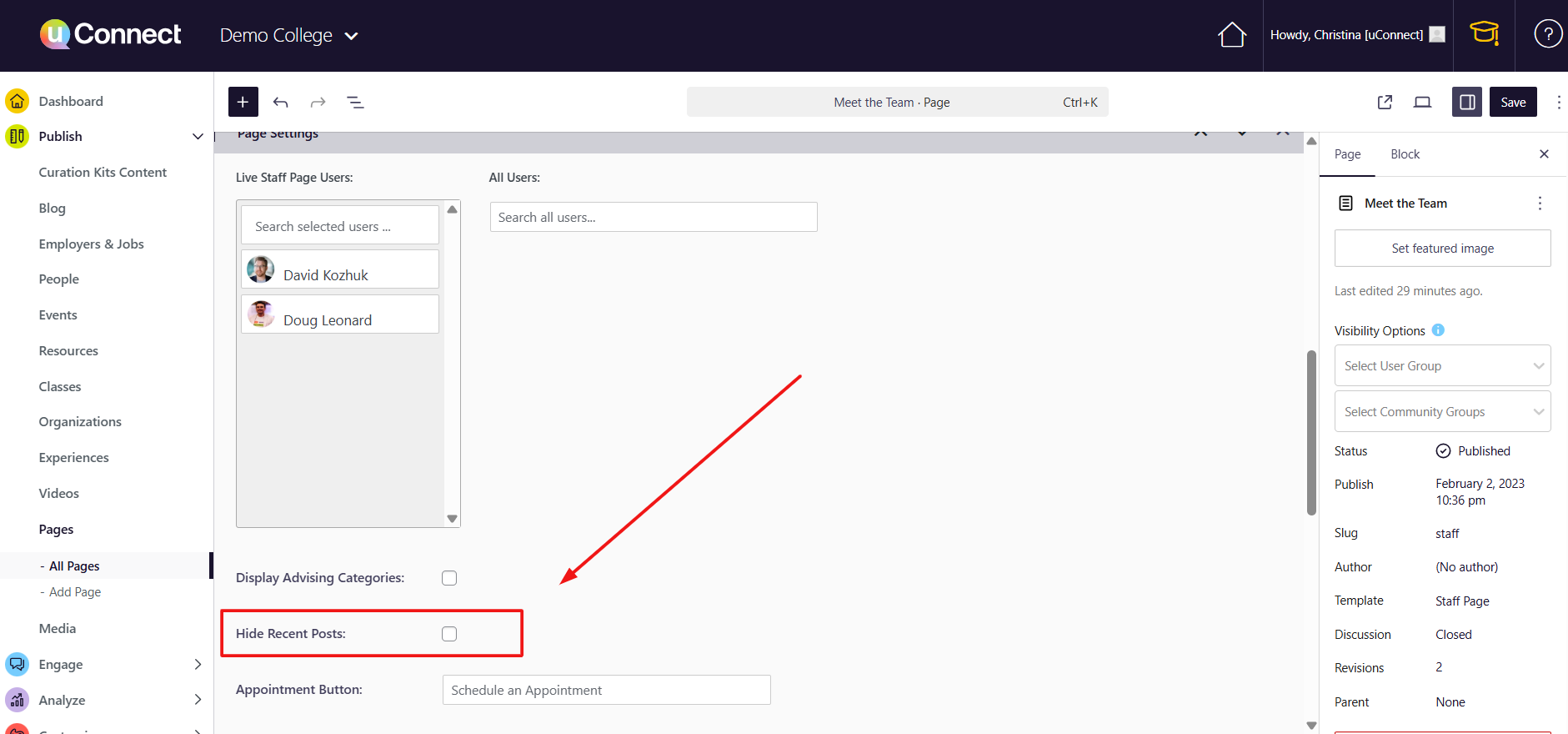
Quick answer: To hide recent posts from your team page, go to Publish > Pages, open your team page, scroll to the Users section, check Hide Recent Posts, and click Save.
Steps to Hide Recent PostsVideo walkthrough
- From your dashboard, click Publish, then Pages.
- Search for your team page using the search bar at the top, or locate it directly in your pages list.
- Click on the page to open the editing area.
- Scroll down until you see your staff members listed as Users. Directly beneath this, you'll find an option called Hide Recent Posts.
- Check this box.
- Click Save.
Once saved, the Recent Posts section will no longer appear on any team member's profile on your team page. To re-enable it, simply uncheck the same box and save again.
Good to Know: Related Settings
While you're in this area of the page editor, there are a couple of other related settings worth knowing about:
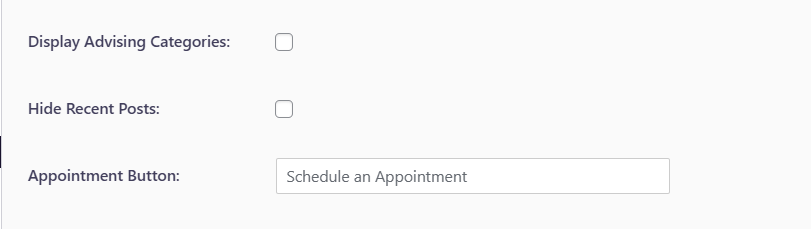
- Display Advising Categories — If your users have advising categories (such as career communities) assigned in their user profiles, enabling this setting will display those categories on the team page.
- Schedule an Appointment button — If your users have a scheduling link configured so students can book time with them online, you can customize the button label. It defaults to "Schedule an Appointment," but you can change it to any wording that fits your team — for example, "Book a Meeting" or "Connect with Me."
Have questions about customizing your team page? Reach out to our support team!