
Overview
Your uConnect platform is built around a community system, and at the top of that system are Community Groups — also referred to as Parent Communities throughout our documentation. Understanding how these work is essential to getting the most out of your content management, tagging, and audience segmentation tools.
Video Walkthrough
What Are Community Groups?
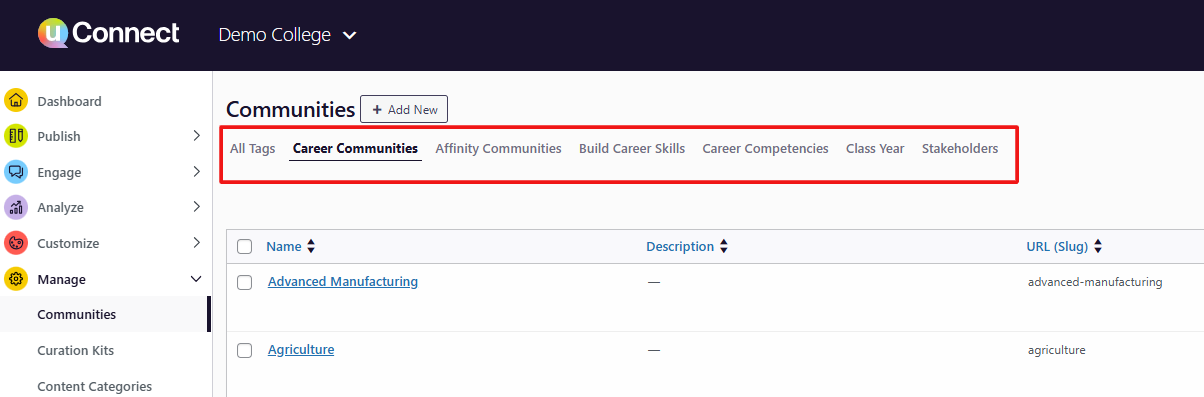
Community Groups are the top-level categories that house all of your sub-communities. They serve two important purposes:
- Content Hubs — Communities act as pages where tagged content is organized and displayed.
- Tagging System — Communities function as tags you can apply to content, users, and email audiences to keep everything organized and targeted.
When you first log in to the Manage section of your admin dashboard, you'll see your Community Groups listed at the top of the Communities page.
How Community Groups Are Set Up
Your initial Community Groups are configured during the onboarding process as your platform is being built. It's important to know that admins cannot create new Community Groups directly — this is by design. Adding new parent-level groups without careful planning can have unintended effects on your tagging system and content structure.
You must submit a support ticket for this request!
From the topic dropdown, select Other/Not Listed.
Standard vs. Custom Community Groups
Some Community Groups are present on every uConnect platform, while others are highly customized to your institution.
Standard (Required) Community Groups
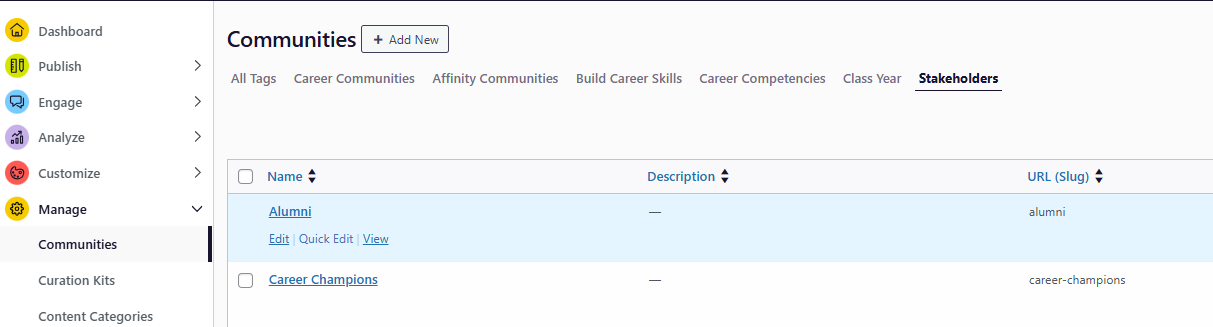
- Stakeholders (may also appear as "People We Serve," "Audiences," or similar) — This group is required on every platform. The sub-communities within it represent the people who can create accounts or are subscribed to receive content (e.g., students, alumni, employers).
- Class Year Communities — If your platform includes an undergraduate student community, you'll also see class year tags associated with it.
⚠️ Note: Some sub-communities within standard groups are hard-coded and cannot be deleted (e.g., Alumni, Employers, Students, etc). You can identify these by hovering over them — hard-coded communities will not display a delete option.
Custom Community Groups
All other Community Groups are tailored to your career center and institution. Common examples include:
- Career pathways or industries
- Academic majors or colleges/schools
- Affinity communities
- Career readiness or skill-building topics
Where Community Groups and Sub-Communities Appear
Once a Community Group and its sub-communities are created, they will appear in the following places across your platform:
| Location | Description |
|---|---|
| Account Sign-Up Preferences | Users can select communities during account creation to personalize their content experience. |
| Content Tagging and Filtering | When publishing content (e.g., blog posts), you can tag it to specific communities and the new Community can appear as a content tag on the front-end. |
| Email Audience Filtering | When building a custom email, you can filter your audience by community. |
⚠️ Visibility controls affect all three of these areas. See the Managing Visibility section below.
Adding Sub-Communities to a Community Group
Once your Community Group has been created (either during onboarding or by the support team), you can start adding sub-communities yourself:
- Navigate to the Manage section of your admin dashboard and open Communities.
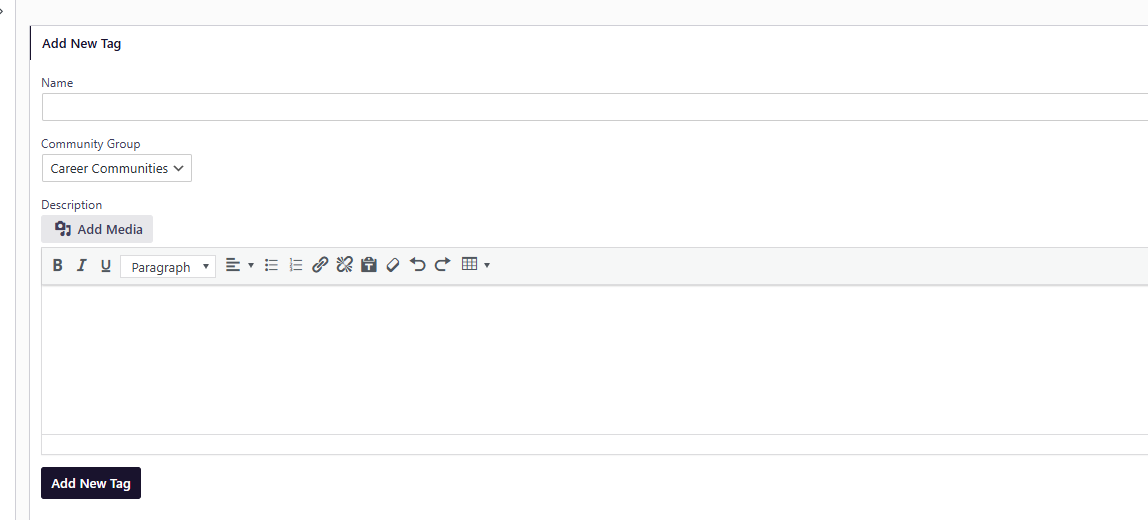
- Click into the Community Group you want to add sub-communities to.
- Click Add New Tag.
- Type the name of your sub-community and click Add New Tag to confirm.
- Repeat as needed to build out your full community structure.
💡 Tip: Some partners use hidden Community Groups for internal processes only — for example, labeling a cohort of students in a summer internship or winter break program. These tags never appear to users but are available for internal content organization and subscriber management.
Managing Visibility
You have control over whether your communities appear to users on the front end. Here's how to hide a sub-community:
- In the Manage > Communities section, locate the sub-community you want to hide.
- Click on it to open the editing view.
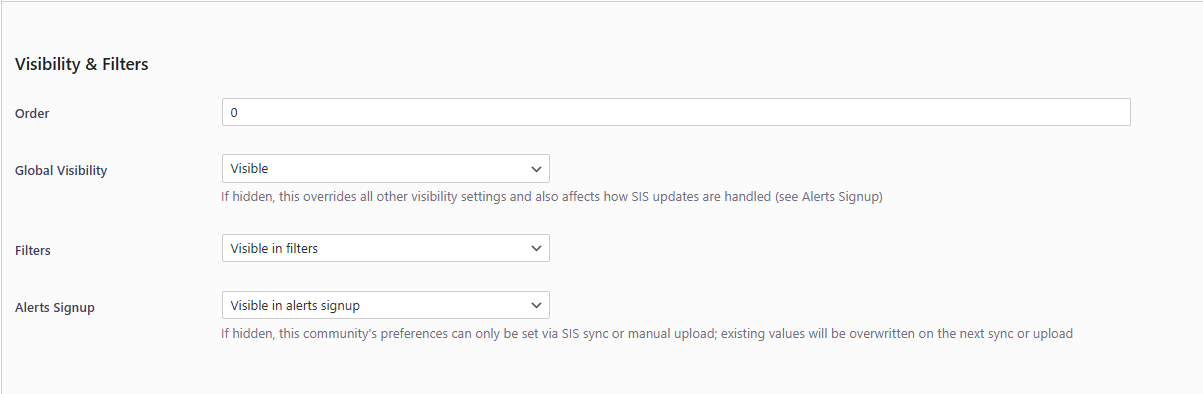
- Scroll to the Visibility Settings at the bottom of the page.
- Set the following to Hidden as needed:
- Email & Content Filters — Hides the community from email audience filters and front-end content filters.
- Sign-Up Preferences — Removes the community from the account creation preferences screen.
- Click Update in the bottom-left corner to save your changes.
⚠️ Important: Hiding sub-communities will also hide the parent Community Group from view — you don't need to separately hide the group itself. However, do not limit global visibility if you have SIS (Student Information System) integration enabled, as this can prevent subscribers from being properly tagged.
Summary
| Task | Who Can Do It |
|---|---|
| Create a new Community Group | uConnect Support Team only |
| Add sub-communities | Admin users |
| Hide/show visibility | Admin users |
| Delete hard-coded communities | Not possible |