
Overview
Your Outcomes page includes filter dropdowns that let users narrow your outcomes data by class year, major, division, and any additional data points you have collected. This article explains how to edit the default filters, reorder them, add custom filters, and configure the new Experiential Learning Participation filter.
Accessing Filter Dropdowns
- Log in to your admin dashboard and navigate to Analyze > Student Outcomes.
- Click the Filter Dropdowns tab.
You will see at least three default filters — these correspond to required fields in the NACE First Destination and MBA-CSEA guidelines and are always present.
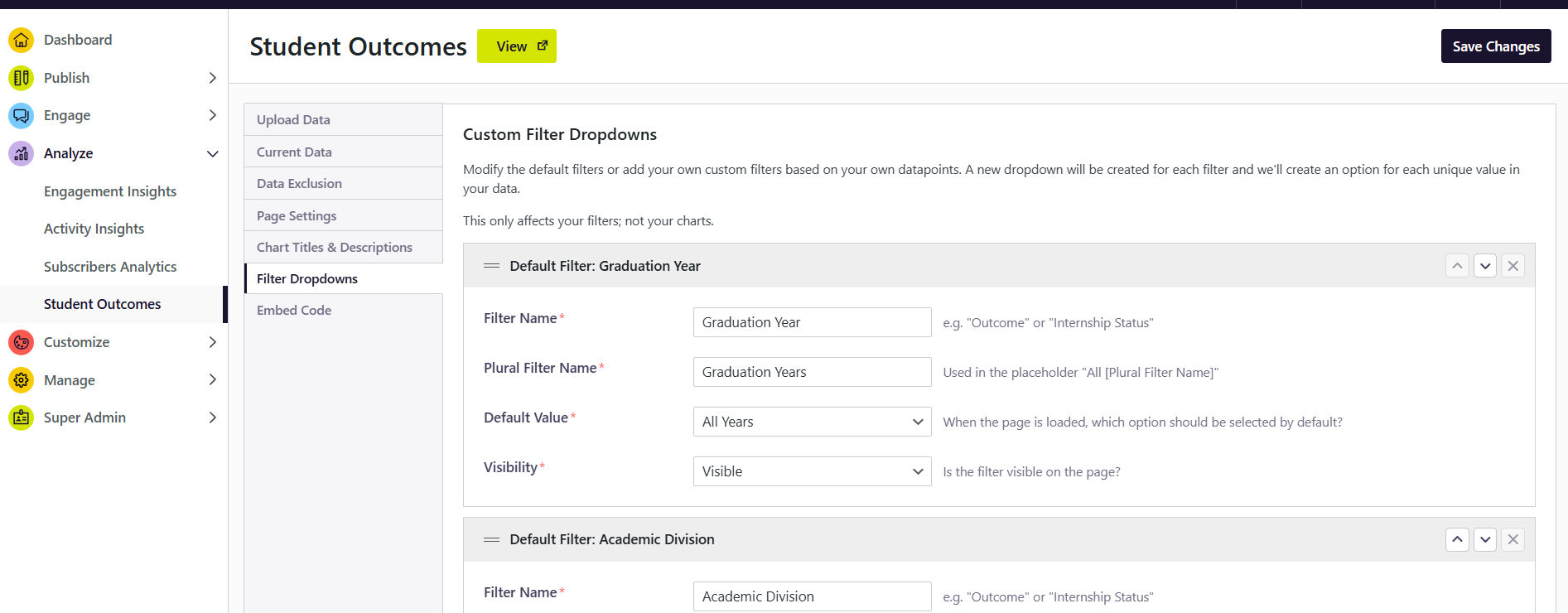
Reordering Filters
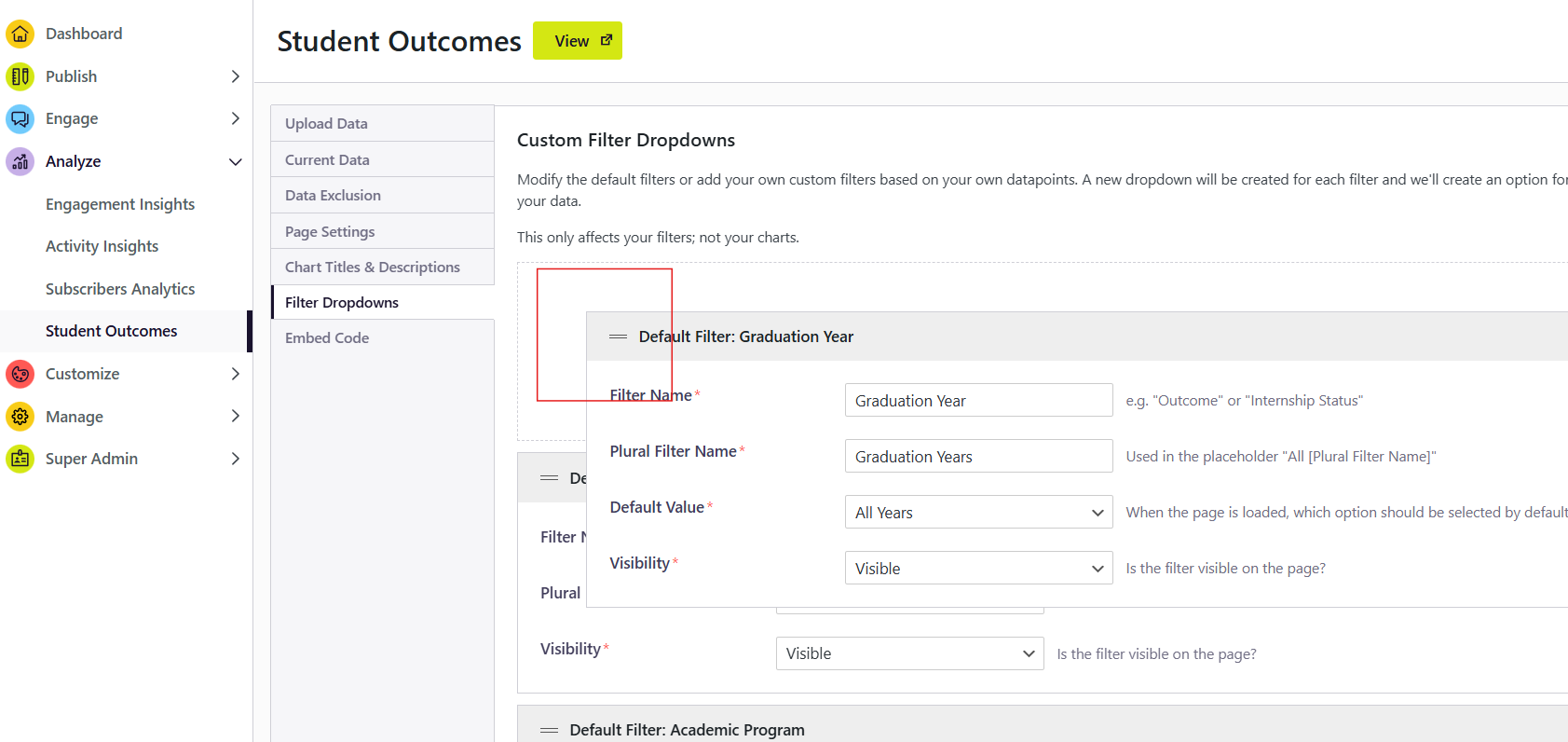
- Click and drag the handle (two horizontal lines) on the left side of a filter card to reorder it.
- Click Save Changes when done.
Renaming Filters
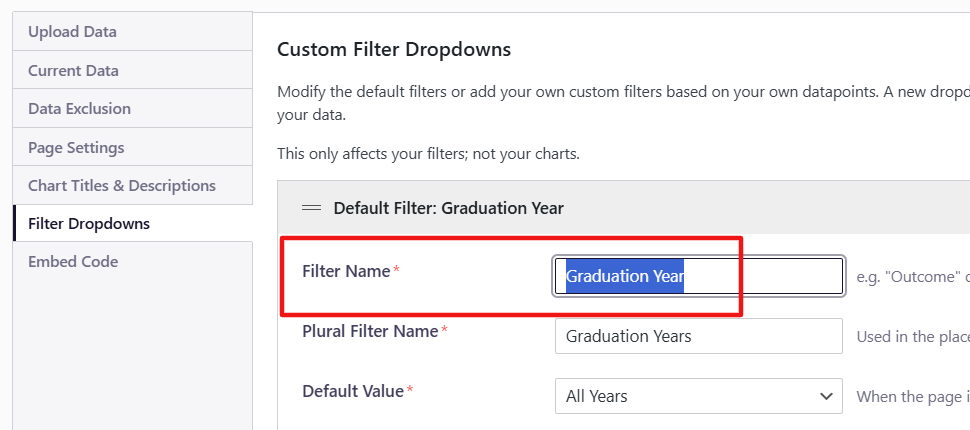
- Click into the name field of any filter to edit its display name.
- Enter a singular name and a plural name. The plural version is displayed when multiple values are selected.
Example: "Country" (singular) and "Countries" (plural). If your data only includes U.S. outcomes, "Country" alone would work — but in most cases you will want the plural to display correctly when multiple values are active.
- Click Save to apply.
Hiding Filters
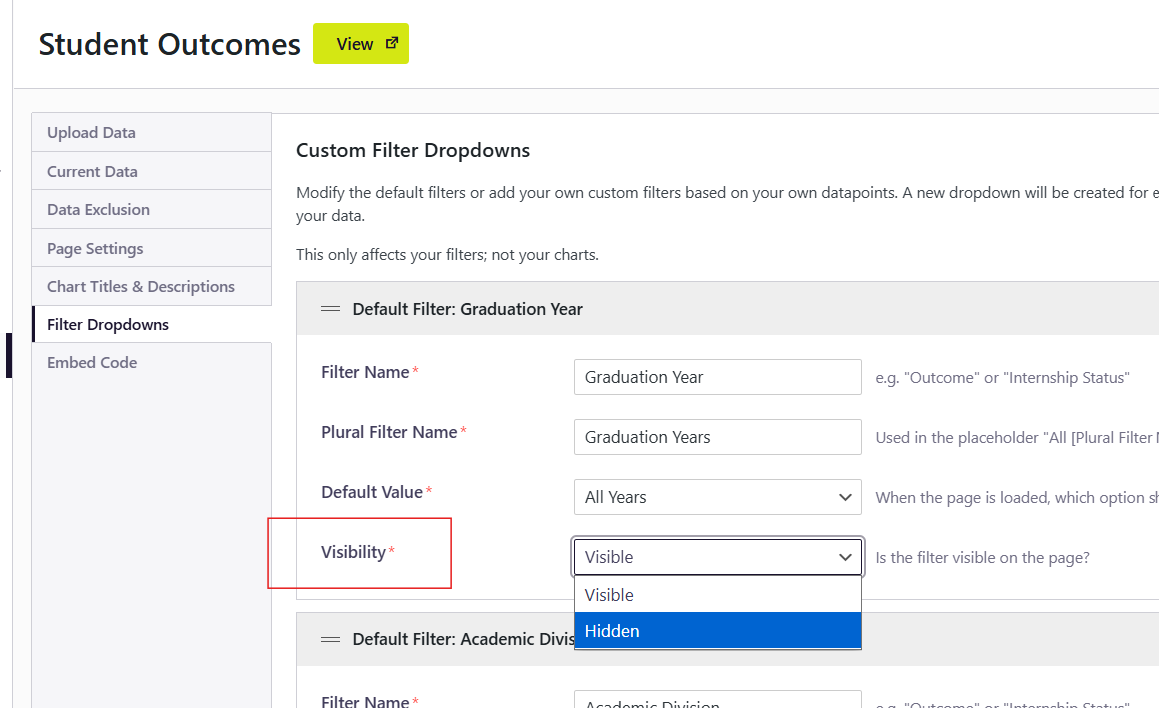
To hide a filter from your public Outcomes page without deleting it, use the Visibility dropdown on the filter card and select Hidden.
Adding Custom Filters
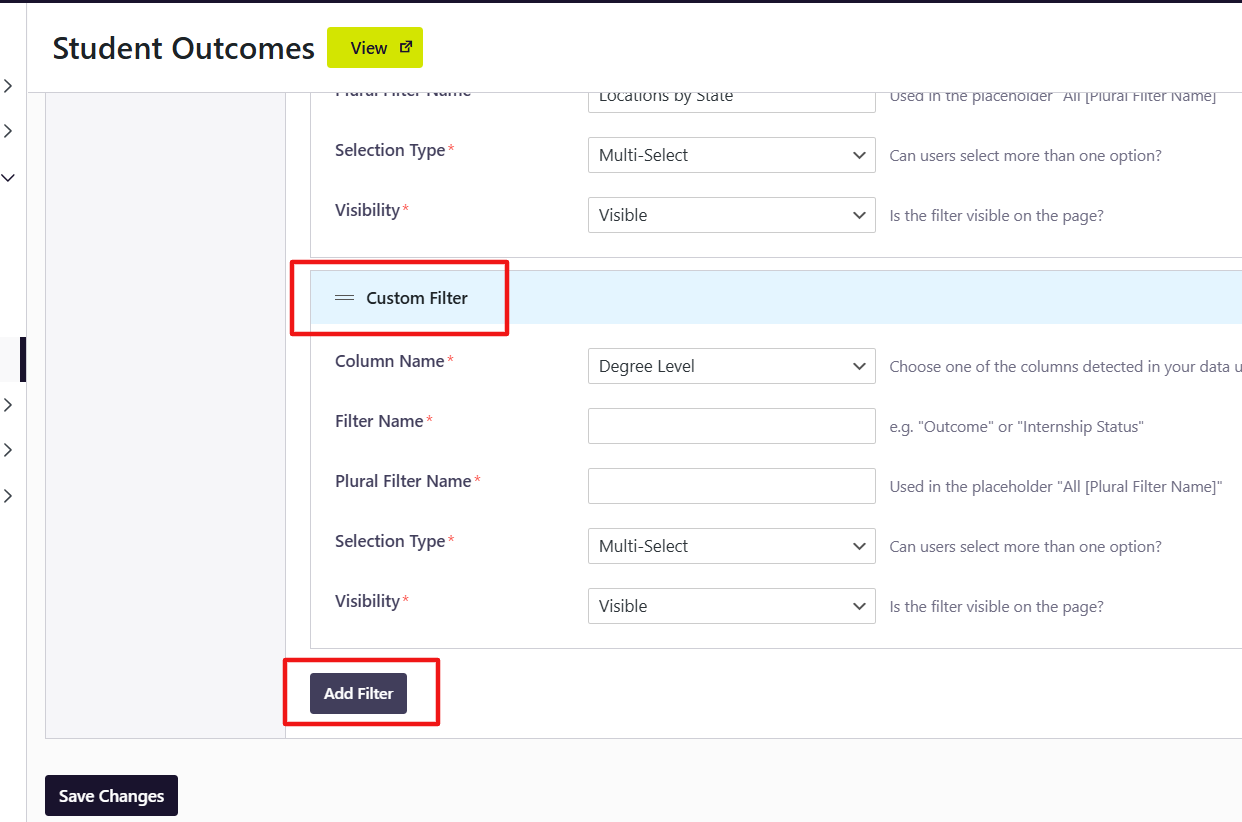
You can add custom filters for any optional data columns included in your uploaded outcomes file — up to 8 total filters across default and custom.
- Click Add Filter.
- From the dropdown, select a column from your uploaded data that is not already assigned to a filter.
- Enter a singular and plural display name for the filter.
- Choose Single Select or Multi-Select depending on whether you want users to be able to select one or multiple values at a time.
- Set visibility to Visible or Hidden.
- Click Save Changes.
|
📌 Please Note You cannot add Annual Salary as a custom filter — there is too much variation in individual salary values to create a useful filter experience. You also cannot add a filter for a column that has only one value or only blank/null values. |
Experiential Learning Participation
|
ℹ️ What Changed The Experiential Learning column now supports multiple values per student. Previously, this column was limited to a Yes/No value. Now, it can capture specific participation types — such as Paid Internship, Study Abroad, or Volunteer Experience — separated by a semicolon in your data file. |
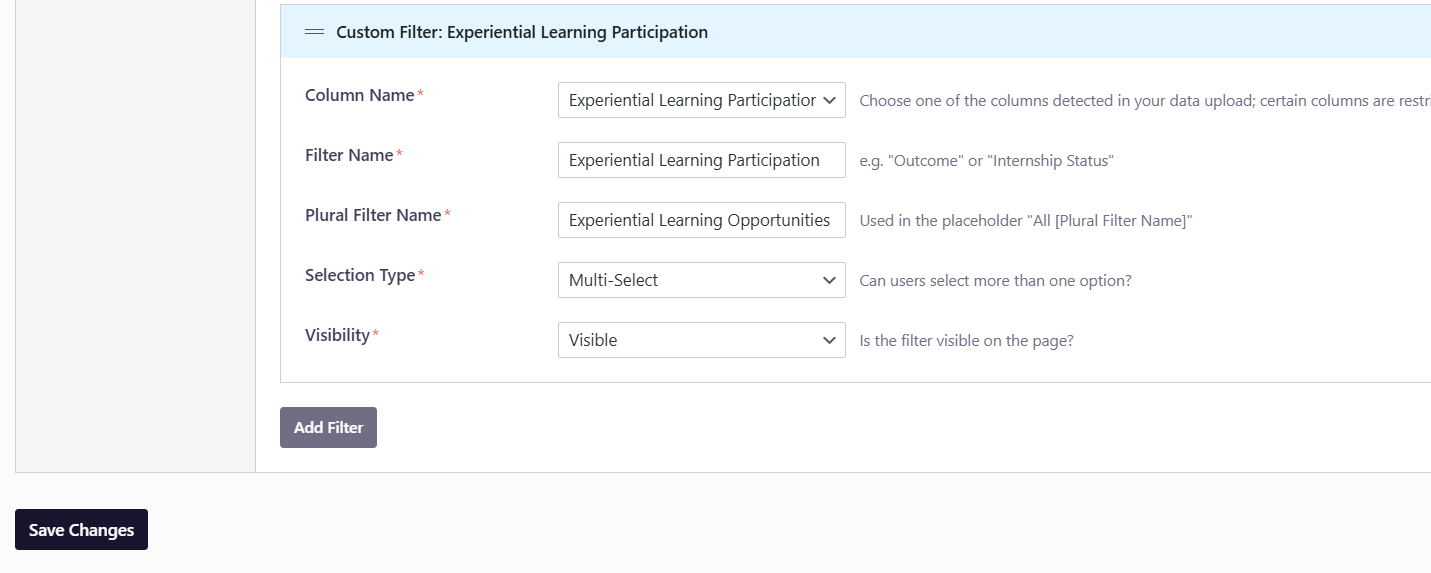
To set up an Experiential Learning Participation filter:
- Ensure your data file includes a column named exactly Experiential Learning Participation (not "Experiential Learning") with values separated by semicolons where applicable.
- In Filter Dropdowns, click Add Filter and select Experiential Learning Participation from the column list.
- Enter your display names (singular and plural — e.g., "Experience Type" / "Experience Types").
- Set the selection type to Multi-Select to allow users to filter by more than one type at a time.
- Set to Visible and click Save Changes.
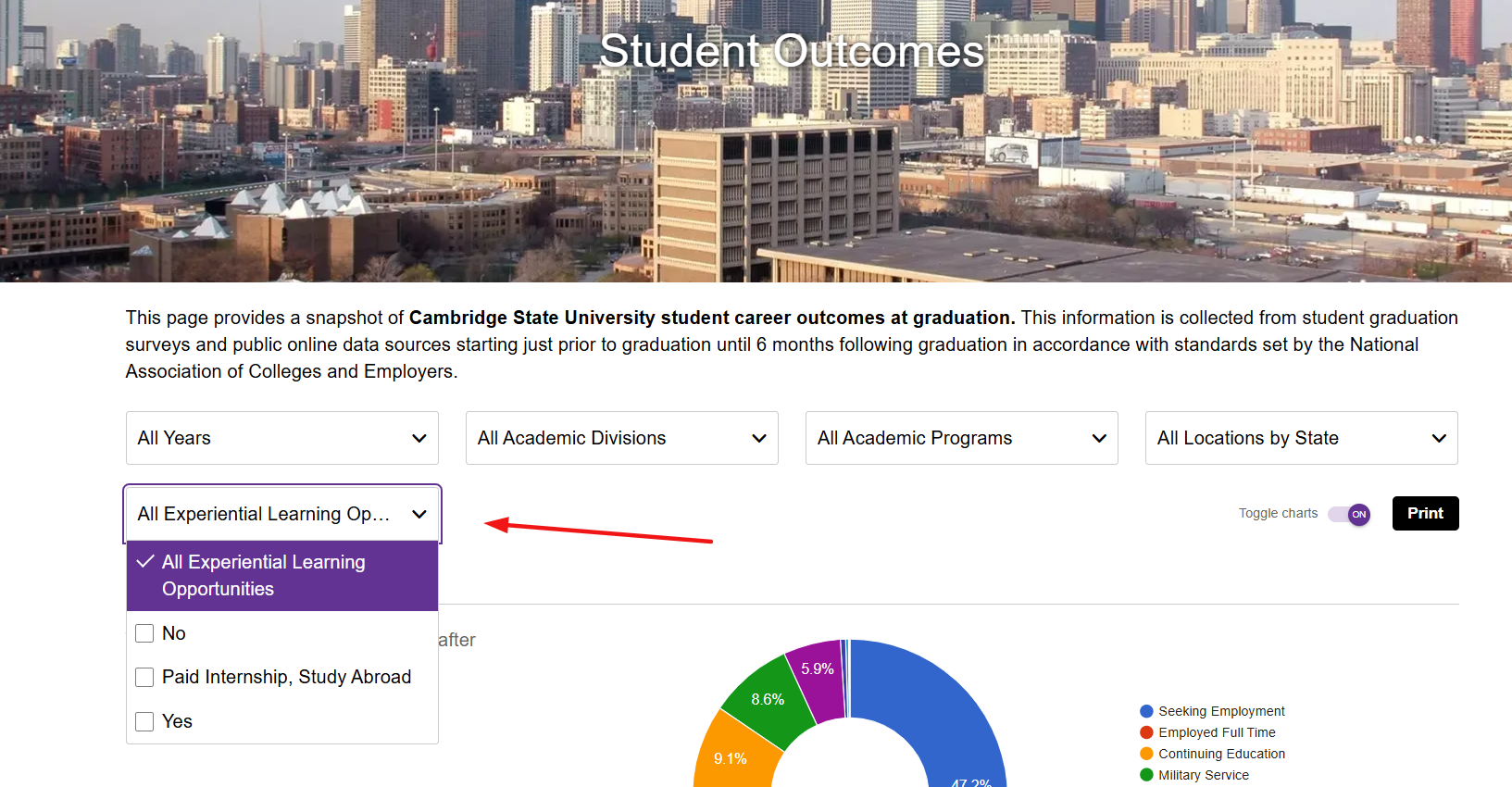
On the public Outcomes page, this filter will display as a bar chart rather than a pie chart, since a student can count in multiple categories simultaneously. This makes it easy for users to see what share of graduates participated in each experience type — for example, what percentage completed paid internships — regardless of whether they also participated in other experiences.
|
💡 Pro Tip If your FDS file already includes an Experiential Learning column with Yes/No values, you can update it to include specific participation types for future uploads. Even historical files can be re-uploaded with richer Experiential Learning data. |