
You can add text description on your Community pages in two locations:
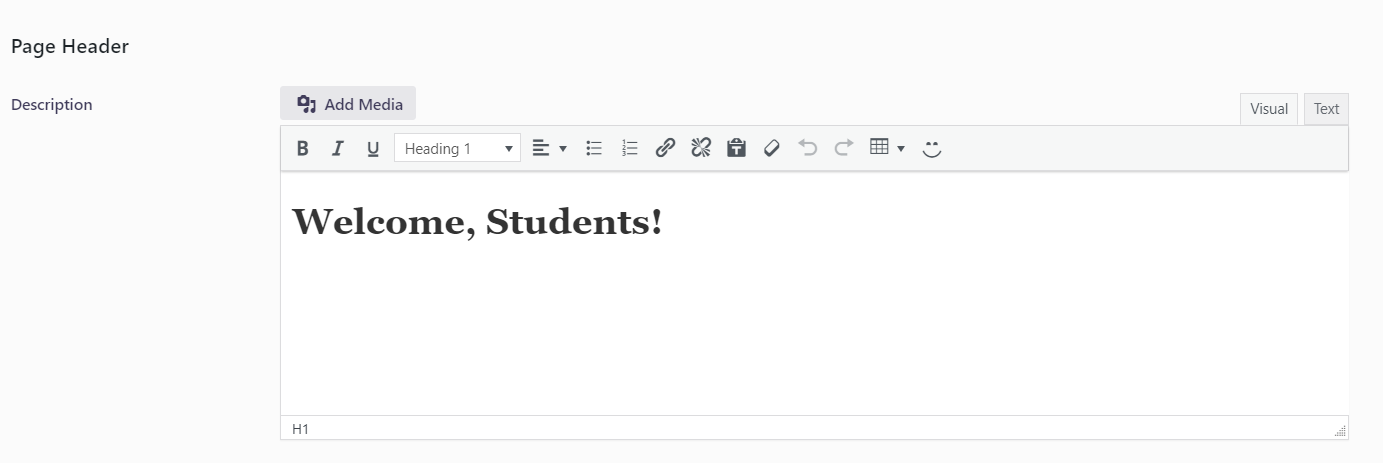
1) Under Page Header, the "Description" text box for basic text editing
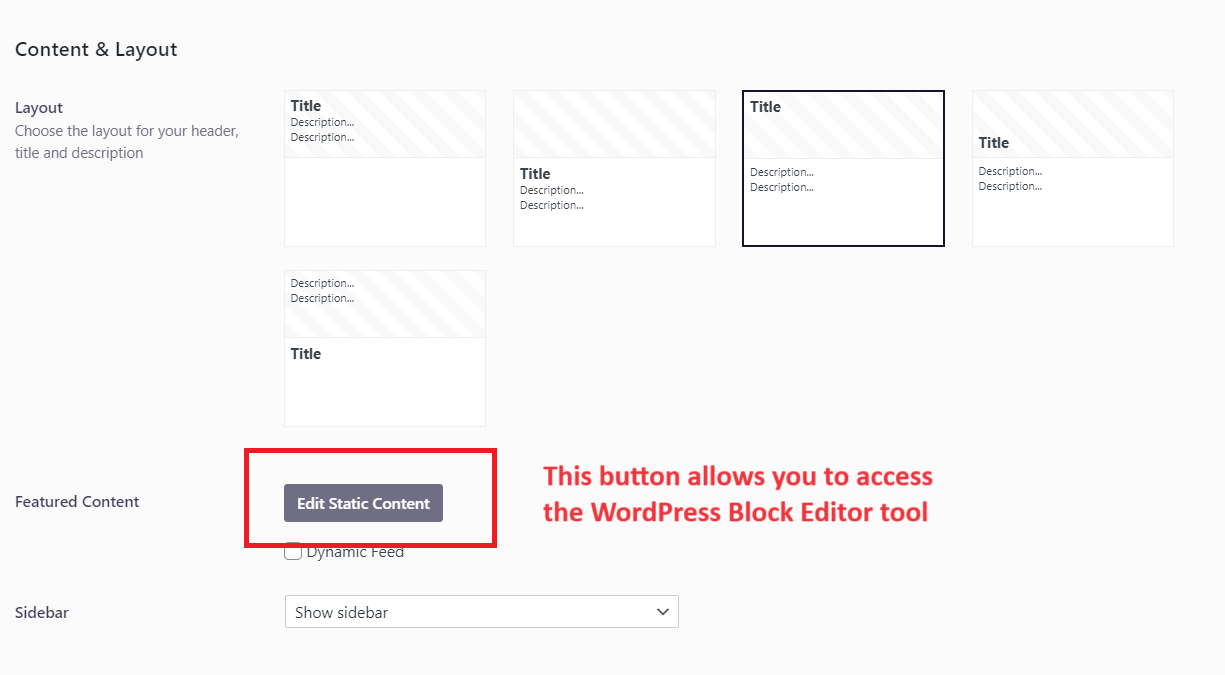
2) Under Content & Layout, the "Edit Static Content" button which allows you to access the WordPress Block Editor for more advanced content editing
We recommend using just one of these sections to add text to your Community pages - not both as it can cause confusion as to where the text lives and how to edit it - and if you use the "Edit Static Content" Block Editor section consistently across all of our Community pages, it's the best of both worlds for two reasons:
1) You can still use the Block Editor as a basic text box if you'd prefer
2) If you ever want to add more dynamic and interactive content in the future, you can easily do so (compared to the more basic "Description" text box
Please watch this video for more in-depth guidance and recommendations on when to use these text options