
How are jobs added?
Before jobs can be published, a basic employer profile must be completed. Once an employer profile exists, jobs can be added in two ways:
- CSM integration — Jobs are pulled automatically from your Career Services Management (CSM) system via an integration configured during onboarding.
- Manual creation — Jobs are created directly from the dashboard under an employer profile.
1. Pull jobs to your dashboard through your CSM integration:
Your CSM integration makes posting jobs seamless. To review and publish jobs pulled from your CSM:
- Hover over Employers & Jobs in your left-hand navigation and select either Employers or Jobs.
- Filter submissions by Pending status to see all jobs automatically pulled from your CSM.
- Select the jobs you wish to publish to your site.
2. Create jobs manually:
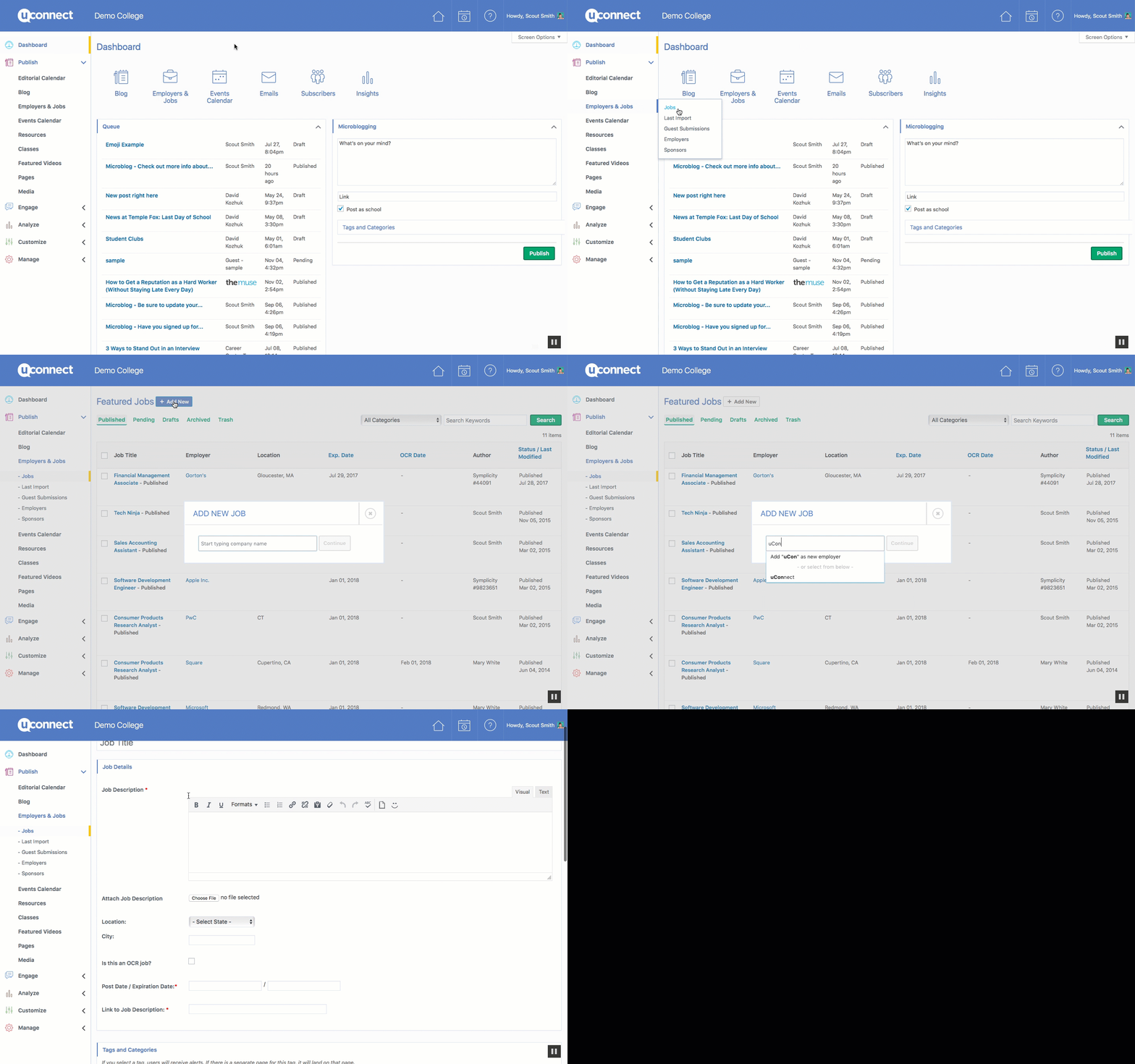
Method A: Via the Jobs menu
- Hover over Employers & Jobs in the left-hand navigation, then select Jobs from the dropdown menu.
- Click the Add New button at the top of the page.
- Select an employer, fill out the required job details, and publish the job.
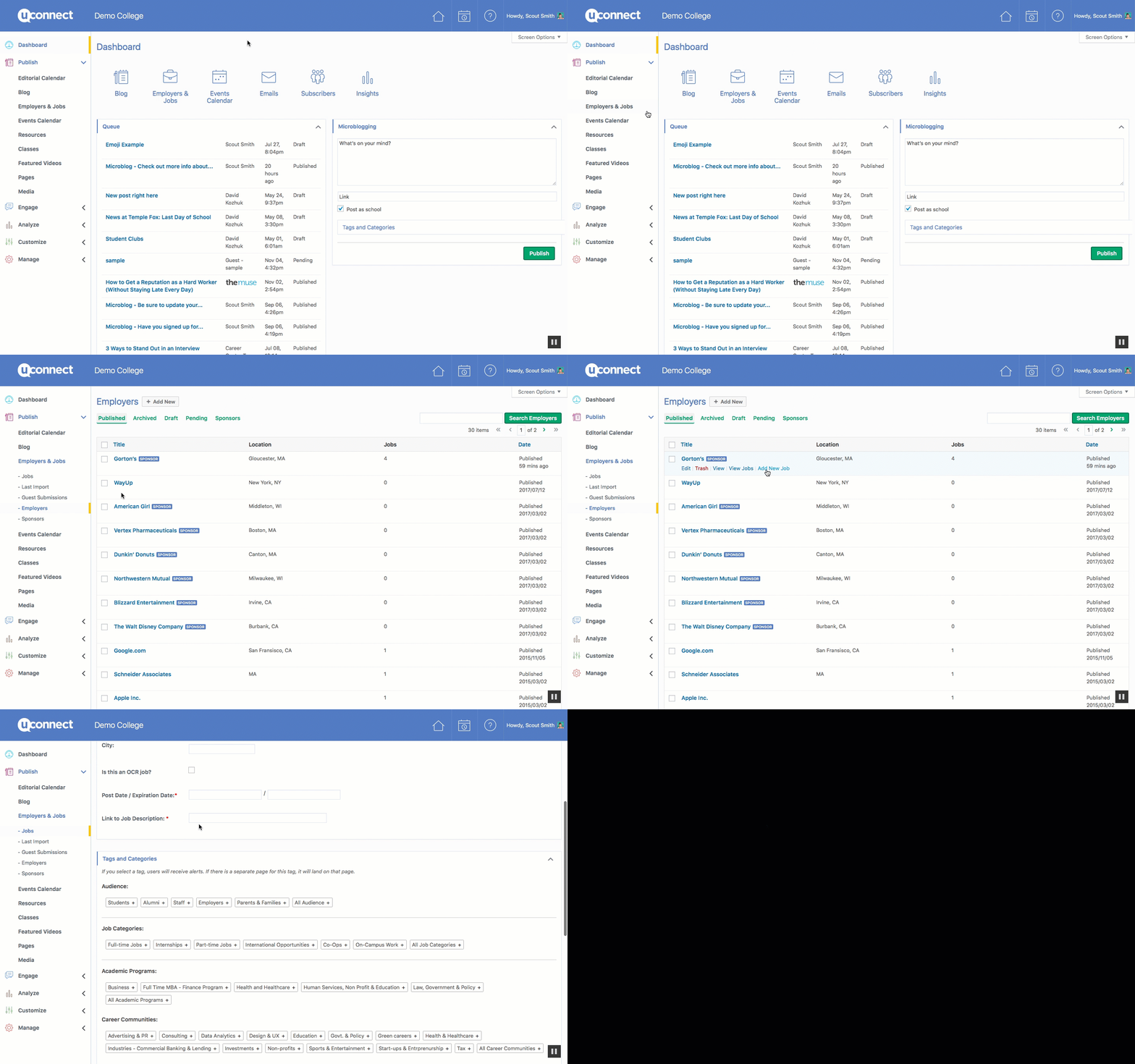
Method B: Via the Employers menu
- Hover over Employers & Jobs in the left-hand navigation, then select Employers from the dropdown menu.
- Hover over an employer from the list and click Add New Job.
- Fill out the job listing details — including the job title, description, and any other required fields — then publish the job.
Note: uConnect automatically removes job postings when their application deadlines pass. To control when a posting expires, make sure the application deadline date is set correctly when creating or editing a job.