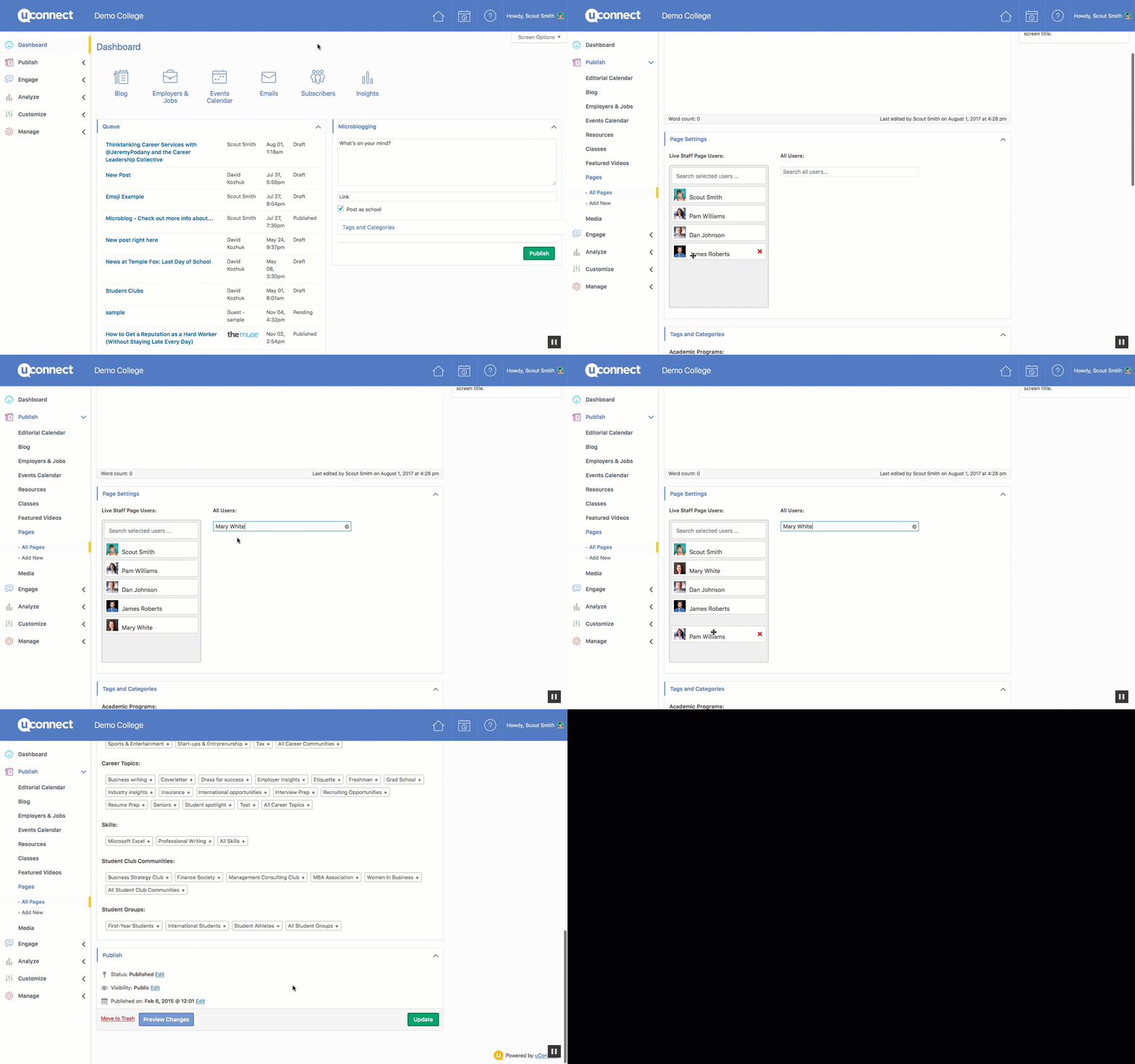
As an admin, you can add a user profile to the staff page by navigating to the Staff page in the Publish tab, then selecting the user in Page Settings. Only users with an existing profile can be added; new users must first be created under Manage > Users > Add New.
How do you add user profiles to the staff page?
Under the Publish tab in the left-hand side of the dashboard, click on Pages
Select the Staff page (note: this page may be called 'Meet the Team' or an alternate title, but the URL will be /staff!)
Scroll down until you see Page Settings
In the search bar, enter and select the name of the user you would like to add to your site's Staff page
Click Save to confirm the addition. The user will now appear in the Live Staff Page Users field.
To reorder profiles, drag and move names in the Live Staff Page Users field to change the order in which users appear on your site's staff page.
To remove a profile from your staff page, hover over the user's name in the Live Staff Page Users field and click the red X.