
Restore an existing user's admin access. Follow these steps when the user account already exists in the system:
- Log into your uConnect platform and navigate to the admin dashboard.
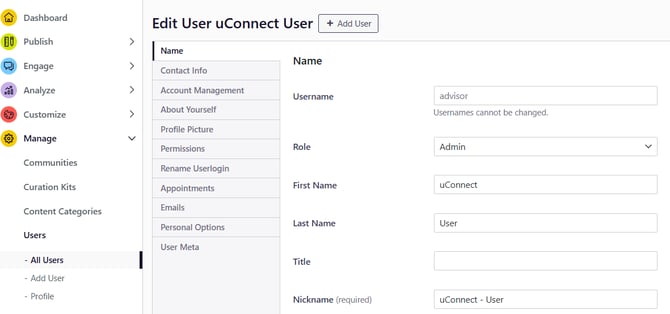
- Go to Manage→ Users.
- Search for the user's email address in the search bar on the right side.
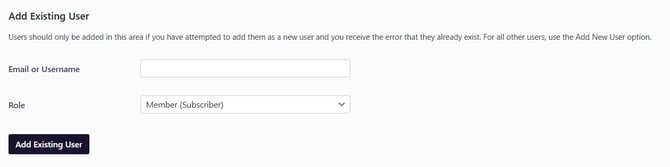
- If you can't find them using the search bar, then click "Add User," scroll down and type in the email into the "Add Existing User" section, specifically the "Email or Username" field.
- If you do find the user, click on the user's account to edit.
- In the "Name" tab, click on the "Role" dropdown and choose "Admin."
- Click "update user" in the bottom left corner.
Once saved, the user's admin access should be restored immediately.
Notes about adding users
- If a user already exists in the system, do not create a brand-new user record for them; use the Add Existing User flow to reassign roles and permissions.
- Attempting to add an existing user as a new user can produce an error.
Troubleshooting
- If you encounter errors when attempting to add a user (for example when trying to create a new user that already exists), use the Add Existing User flow or request Support to help complete the permissions change.
To restore admin access for an existing account, use Admin → Users → Add User → Add Existing User, search the email, assign the admin role, and save. If the Add Existing User option is not visible or you receive errors, please reach out to Support for help.