
Trouble Logging into uConnect Academy from Your Admin Dashboard
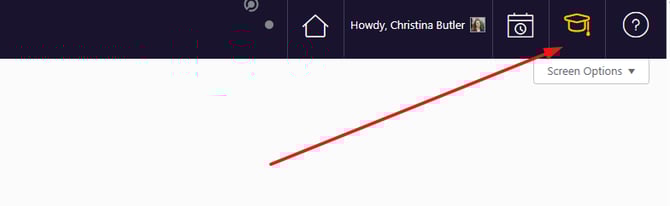
To log into the uConnect Academy, you will most likely be clicking on the gold, graduation cap icon within your Admin Dashboard. We also recommend bookmarking the Academy link as well.
When you first log into the uConnect Academy, it will prompt you to add in a username and password. Use the same login that you use for uConnect.
However, you may encounter login issues depending on how you're accessing the Academy. If you’re an admin and you:
-
Click the gold graduation cap in your uConnect admin dashboard
-
Get redirected to a page on uConnectLabs.com, and
-
See a “password incorrect” message (sometimes with a warning about limited attempts)
this article explains what’s happening and how to fix it.
Why You’re Seeing uConnectLabs.com
When you click the graduation cap to open uConnect Academy, you may notice that your browser goes to a URL on:
-
www.uconnectlabs.com
This is expected. That site handles the login for uConnect Academy, so it’s normal to be redirected there as part of the process.
Important: Academy Uses a Different Password Than Your Campus Login
Even if you normally log into your uConnect site (for example, https://career.abc.edu/) with your campus credentials/SSO, uConnect Academy works differently:
-
Your campus SSO password will not work for uConnect Academy.
-
uConnect Academy uses a separate, local password that is specific to the Academy login.
If you try to use your campus password on the uConnectLabs.com login screen, you’ll see a “password incorrect” error.
How to Get Into uConnect Academy
Step 1: Start from Your Admin Dashboard
-
Log into your uConnect site as usual (e.g.
https://careerhub.uic.edu/). -
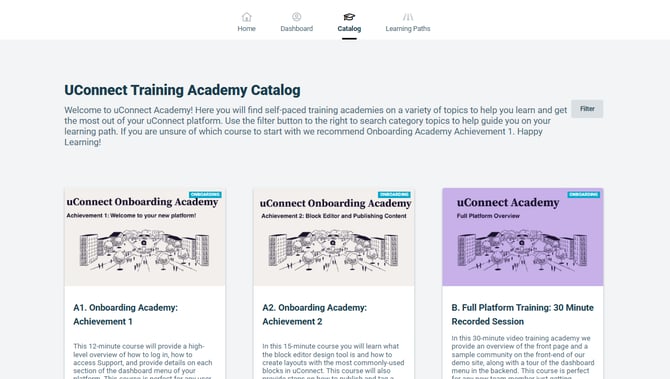
From the admin dashboard, click the gold graduation cap icon to open uConnect Academy.
You will likely be redirected to a page on www.uconnectlabs.com. That’s okay.
Step 2: Set or Reset Your uConnect Academy Password
On the uConnectLabs.com login screen:
-
Do not enter your campus/SSO password.
-
Instead, click “Forgot password” (or similar) on the login screen.
-
Enter the email address you use for your uConnect admin account.
-
Check your inbox for a password reset email from uConnect/uConnect Academy.
-
Follow the link in that email to create a new password for your uConnect Academy account.
Tip: If you don’t see the email within a few minutes, check your spam/junk folder.
Step 3: Log In with Your New Academy Password
Once you’ve created your new password:
-
Go back to your uConnect admin dashboard and click the graduation cap again
or go directly to:https://academy.gouconnect.com/app/catalog -
When prompted to log in:
-
Use your email address
-
Use your new Academy password (the one you just set), not your campus/SSO password
-
You should now be able to access uConnect Academy and your training courses.
When to Contact Your uConnect Team
If you still cannot access uConnect Academy after resetting your password, please reach out to your uConnect support and include:
-
Your full name
-
The email address you’re using to log in
-
The URL of your uConnect site (e.g.
https://careerhub.uic.edu/) -
A screenshot of what you see when you:
-
Click the graduation cap, and
-
Try to log in (including the error message and the URL in the browser)
-
This will help us quickly confirm that your Academy account is set up correctly behind the scenes and resolve any remaining issues.