
Overview
First impressions matter — and for many of your subscribers, the confirmation email they receive after being enrolled in your uConnect communications is their very first touchpoint with your platform. uConnect's Subscriber Email Confirmation feature allows you to automatically notify subscribers when they've been opted into emails, and to fully customize that message so it reflects your institution's voice, branding, and resources.
This article walks you through how to enable the confirmation email, personalize its content, and update its branding to match your institution.
When to Use This Feature
Enable this feature if you want your subscribers to:
- Know they've been enrolled in Career Center email communications
- Understand what kinds of emails they can expect to receive
- Have a clear next step for engaging with your Career Center right away
- Receive a professional, on-brand first impression from day one
This is especially valuable any time you perform a subscriber upload — whether you're onboarding new students, alumni, faculty, or any other user group.
Step-by-Step Instructions
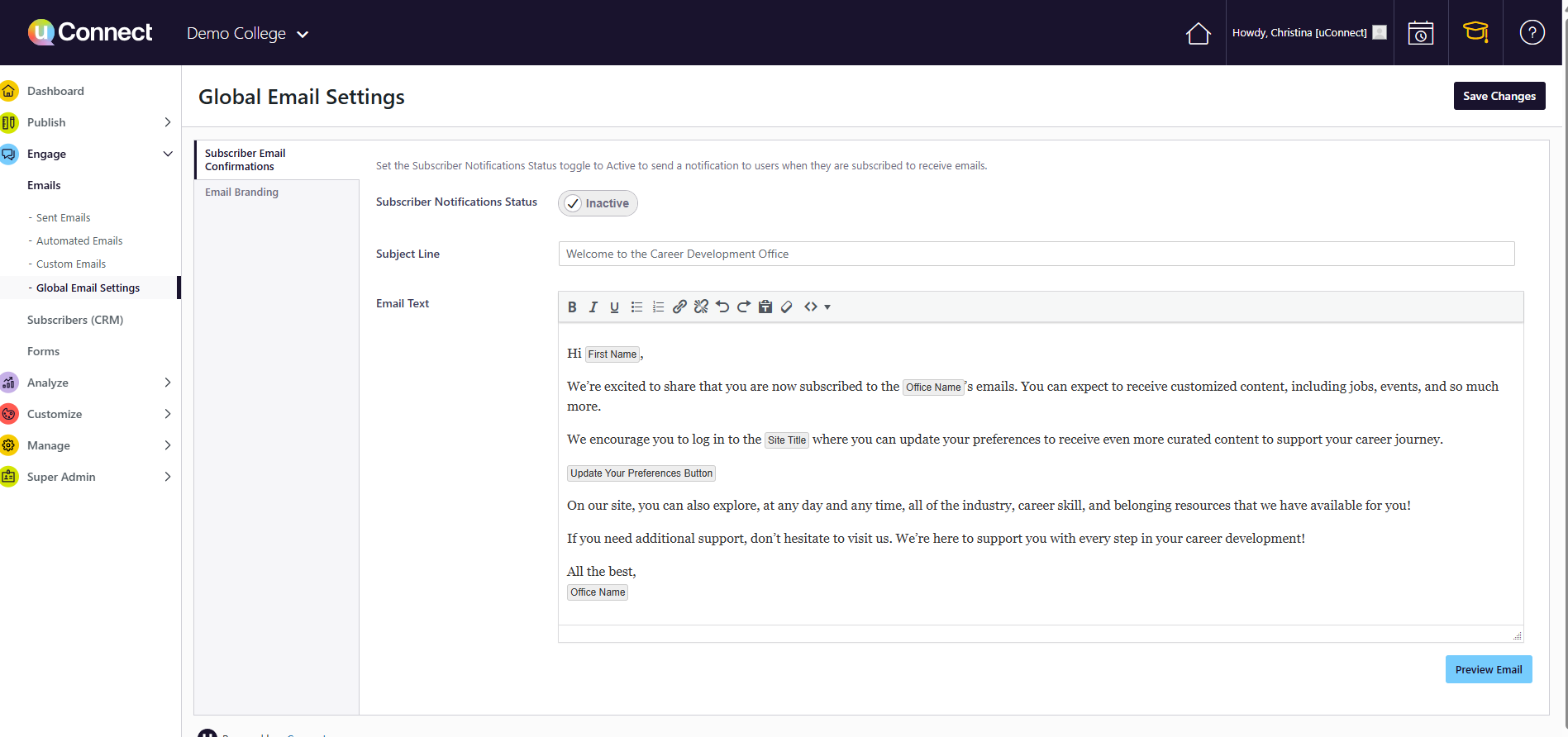
Step 1: Navigate to Subscriber Email Confirmations
From your Admin Dashboard:
- Go to the Engage section in the left navigation.
- Select Emails.
- Click into Global Email Settings.
- Open the first tab: Subscriber Email Confirmations.
Step 2: Activate the Confirmation Email
Toggle the subscriber notification status to Active. Once enabled, any subscriber who is uploaded to your platform and opted into automated emails will automatically receive this confirmation email — sent from the Career Center email address you have configured in uConnect.
💡 Note: The email will only send to subscribers who have been opted into automated emails. Subscribers who are not opted in will not receive the confirmation.
Step 3: Customize the Email Content
This template is fully yours to personalize. Consider using it to:
- Welcome subscribers and explain why they've been added to your email list
- Set expectations about the type and frequency of communications they'll receive
- Highlight next steps — link to your Career Center platform, upcoming events, featured resources, or how to make an appointment
- Invite connection — share how subscribers can reach your team or get involved
At a minimum, you'll want to update:
- Subject Line – Make it warm, clear, and on-brand for your institution
- Email Body Text – Personalize the message to your Career Center's voice and your subscribers' audience (students, alumni, faculty, etc.)
Step 4: Preview the Email
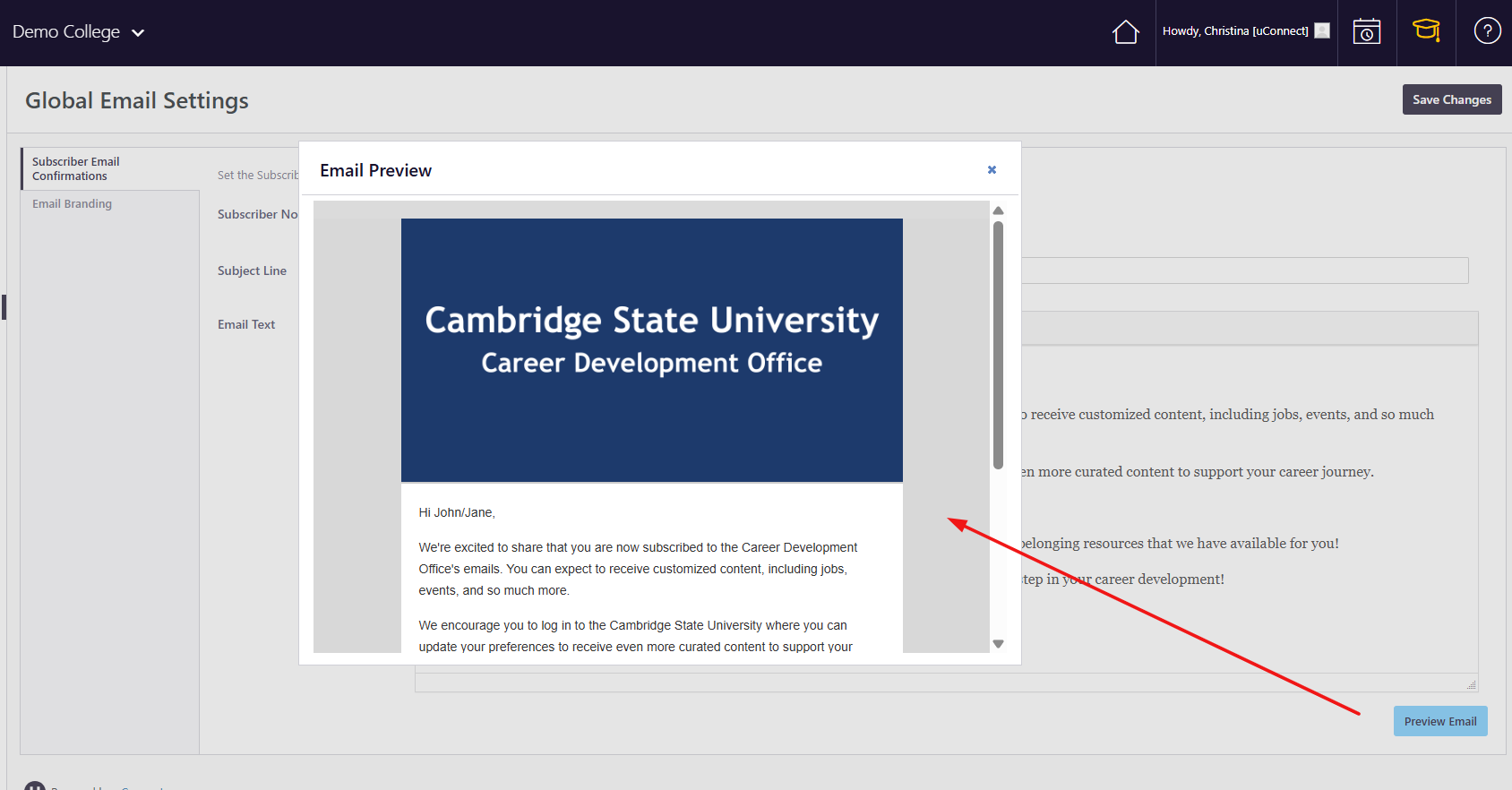
Before saving, click the blue Preview button in the bottom right corner to see exactly what the email will look like to your subscribers — including your institution's banner and branding. This is a great way to catch any formatting or copy issues before it goes live.
Step 5: Save Your Changes
Once you're satisfied with your edits, click Save Changes in the top right corner. Don't skip this step — unsaved changes will be lost if you navigate away!
Updating Email Branding
Want to make sure the confirmation email looks just as polished as the rest of your uConnect emails? Head to the Email Branding tab, located just below the Subscriber Email Confirmations tab. You can update colors, buttons, section headers, footer, and more.
💡 Note: For most institutions, uConnect's onboarding team will set up initial branding to match your institutional colors as part of your platform launch. The Email Branding tab is available if you ever need to make adjustments after launch.
Key Takeaways
- Subscriber Email Confirmations must be toggled to Active to begin sending — they are not on by default.
- The email sends from your configured Career Center email address, keeping communications consistent and professional.
- Both the email content and visual branding are customizable, giving you full control over the subscriber experience.
- Use the Preview feature before saving to confirm everything looks great.
- Any changes to branding (banner, footer, colors) apply across your uConnect emails, not just the confirmation email.
Have questions? Submit a support request through the Help Center.