
If you've tried to view Engagement Insights or another dashboard page that pulls information from your site analytics and had trouble seeing the charts or data, script blockers could be to blame.
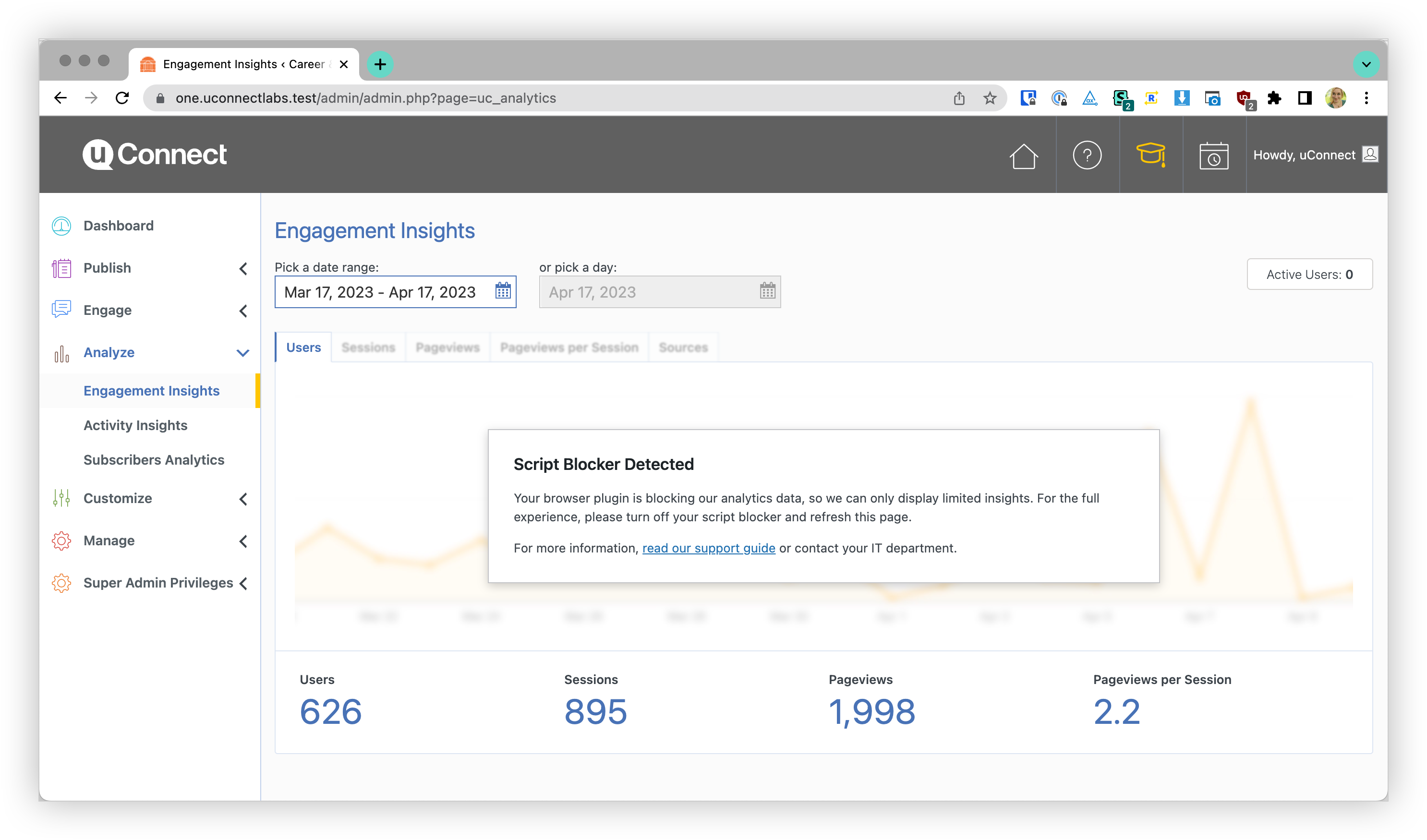
Script blockers are browser settings or plugins/extensions that prevent scripts from running on web pages. While they can help protect your privacy and security, they can also interfere with the functionality of websites that rely on scripts. If we can't connect to the services that they are blocking, we can't pull in their data to your dashboard.
You may have installed a script blocker yourself, or it may have been pre-installed for you by your school or organization.
By disabling the script blocker or adding your website to the "allowlist" (also sometimes called a "whitelist" or "trusted"), you'll be able to access all the features and data on the page without any issues.
Does this sound familiar? Ad blocking works the same way! In fact, your script blocker might even be called an ad blocker. There are some connections we want to block, like malicious ads, but others that we're okay with loading, such as your dashboard scripts. Follow normal security practices such as verifying that you're on a genuine website before allowing blocked scripts to come through.
How can I tell if I have a script blocker?
Plugins and extensions are organized in slightly different places based on your browser:
Google Chrome: In the top-right corner of your browser, click the three-dot menu and select "More tools" > "Extensions."
Mozilla Firefox: In the top-right corner of your browser, click the three-line "hamburger" menu and select "Add-ons."
Microsoft Edge: In the top-right corner of your browser, click the three-dot menu and select "Extensions."
Safari: Click on "Safari" in the menu bar at the top of the screen. From the dropdown menu, select "Preferences." In the Preferences window, click on the "Extensions" tab.
If you see a plugin with a name that has "block" in it (such as "uBlock Origin" or "AdBlock Plus") or you have trouble loading the full experience on some websites, you probably have a script blocker enabled.
How can I turn off my script blocker?
We understand that security and privacy are essential concerns, and we're not recommending that you remove the plugin entirely. Instead, since we know that your dashboard is a safe website, we will mark it as "trusted" so that you can load all of our Engagement Insights scripts. For more information, see uBlock Wiki, "How to mark a website as trusted".
Each plugin has its own settings. We'll go over how to work with uBlock Origin, but the steps will be similar for other plugins too.
Find your script blocker
In Chrome, uBlock Origin has a red shield icon that may have a small number on it (that's how many scripts are currently being blocked). This may already be visible in your browser window:
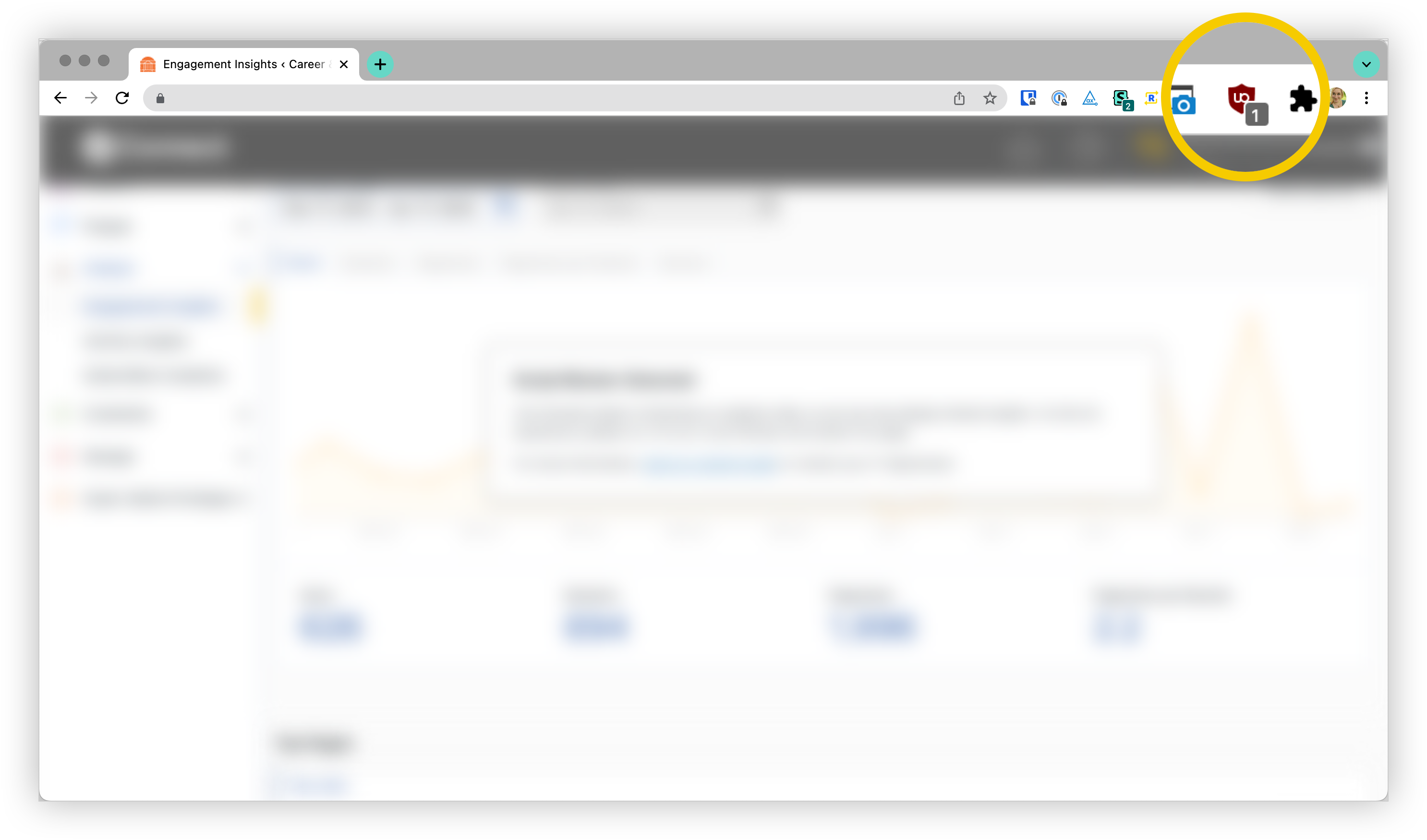
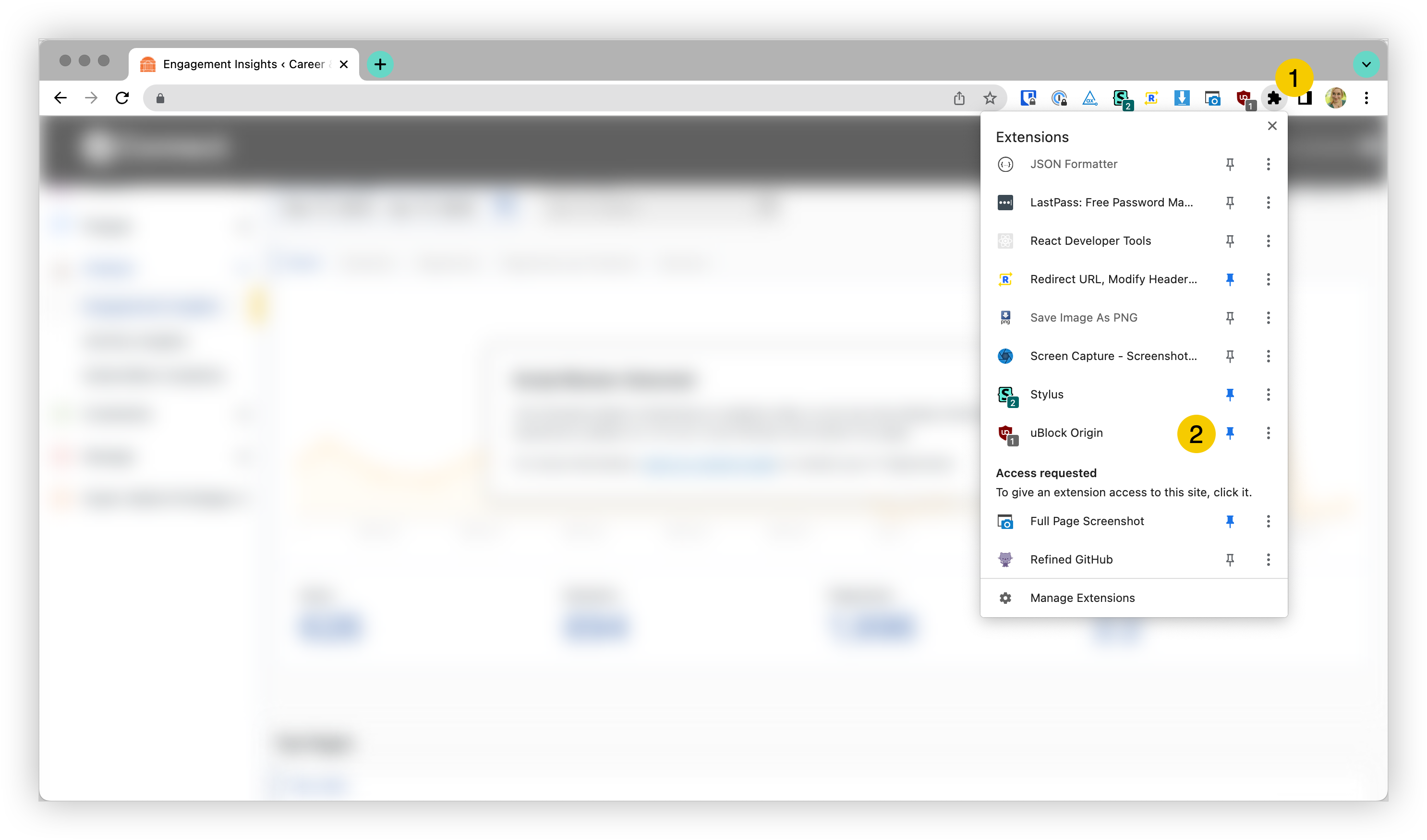
If not, click on the puzzle piece icon to get a full list of your installed extensions. Scroll down to find your script blocker and click on the pin icon to move your blocker into a more prominent, visible location. You can click and drag the icons in your browser bar (near #1 below) to rearrange them.
Click on the Power button
Click the big blue power button to turn off blocking on the current website; this will add the current site to Trusted Sites list. uBlock Origin will remember this setting, so next time you view the page, you shouldn't have any problems.
Once you've turned off your script blockers, refresh the page to see if the issue is resolved. If you're still experiencing problems, please reach out to our support team for further assistance.