
Automated Subscriber Uploads allow your institution to securely sync subscriber data — typically students — from your Student Information System (SIS) into uConnect. This integration allows your team to:
-
Email students directly from uConnect
-
Segment communications
-
Track student engagement with career-related content
While most institutions upload student data, you may also include alumni, faculty, and staff in your file. Manual uploads remain available at any time and are not impacted by automation.
Lastly, you can manage the entire SIS file set up process within the uConnect platform itself so you have full control over your file's mapping, syncing, and additional settings.
Overview of the Setup Process
Setting up automated uploads includes:
-
Confirm if SIS is already enabled in your uConnect platform
-
Coordinate with IT to prepare your file
-
Begin the automated upload process in uConnect
-
Upload the file to your secure S3 bucket
-
Complete field mapping and activate the sync
Step 1: Confirm Whether SIS Is Already Enabled
Navigate to:
Engage > Subscribers > Subscriber Upload Log. Check the User column and follow the next steps below:
-
If you see “System-SIS Bridge” under the "User" section of your Subscribers Upload Log section, automation is already active. If you need to make changes to this existing SIS file, coordinate with IT and submit a support ticket. The uConnect support team will help you make any additional changes.
-
If there is not an active SIS within this section, continue reading and follow the remaining steps!
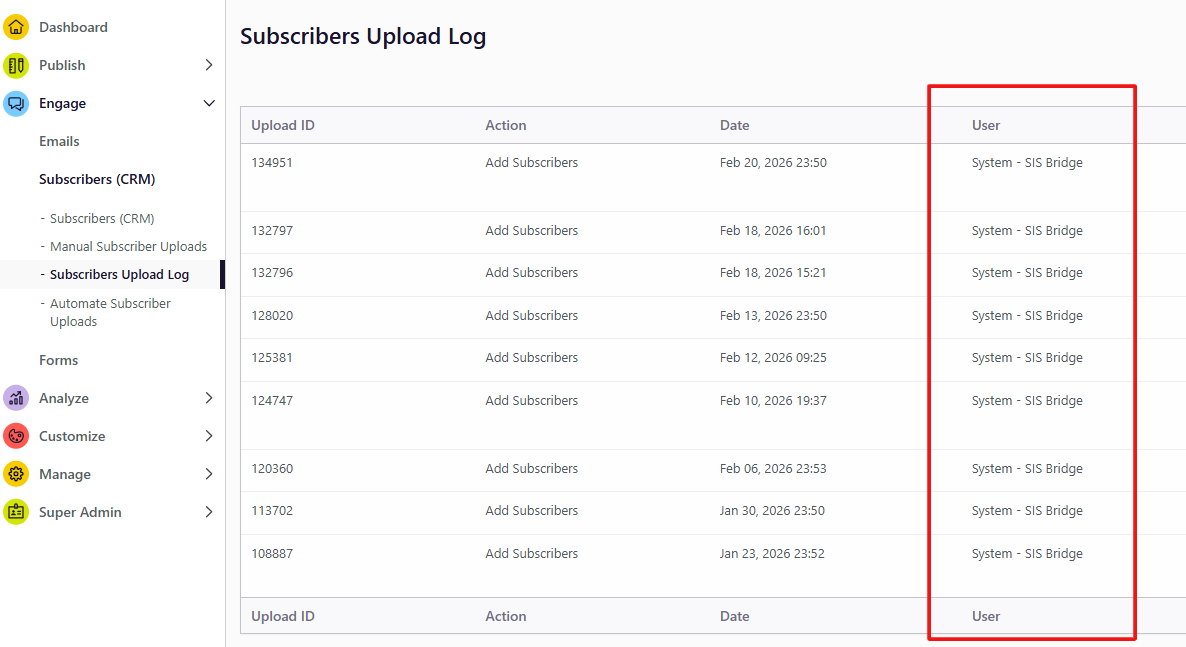
Important: If you already have an active SIS integration with uConnect, our support team has to help you make edits to the file configuration or sync settings on your behalf. For any new SIS integrations that are set up moving forward, they can now be managed within uConnect.
Step 2: Coordinate With Your IT Team
Your IT department (or data team) must generate a recurring SIS file in CSV format.
They will need to:
-
Review formatting requirements
-
Determine which fields to include
-
Configure automated recurring uploads
-
Overwrite the existing file with each upload (when applicable)
-
Combine multiple populations (undergrad, grad, alumni) into one single file if applicable
uConnect processes only one file. If uploading multiple user populations, include them in a single list and add a field (e.g., USER_TYPE or STUDY_LEVEL) to distinguish them. A user may only appear once in the file. Duplicate records (same email or ID) are not allowed.
Use the below email template to reach out to your IT Contact to get started!
Email Template to IT
Subject: Request for SIS Integration Setup for uConnect
Hi [IT Team / Name],
Our office uses uConnect to power our career center website and manage targeted student communications. We are implementing an automated Student Information System (SIS) integration. We are requesting assistance creating a recurring student subscriber file in CSV format that meets uConnect’s formatting requirements. Here is uConnect's documentation (share this article!).
Required fields include:
-
FIRST_NAME
-
LAST_NAME
-
EMAIL
-
USER_ID or USER_LOGIN (if SSO is enabled or email is not persistent)
-
GRADUATION (4-digit year format, e.g., 2025)
-
STAKEHOLDERS (e.g., Undergraduate, Graduate, Alumni — one value per user)
Optional fields may also be included. Once the file is ready, I will initiate the automated upload process in uConnect and forward secure S3 bucket credentials for submission. Please let me know if you have any questions!
Thank you,
[Your Name]
Step 3: Begin the Automated Upload Process
Navigate to:
Engage > Subscribers > Automate Subscriber Uploads
Select Begin Automatic Subscriber Uploads Process
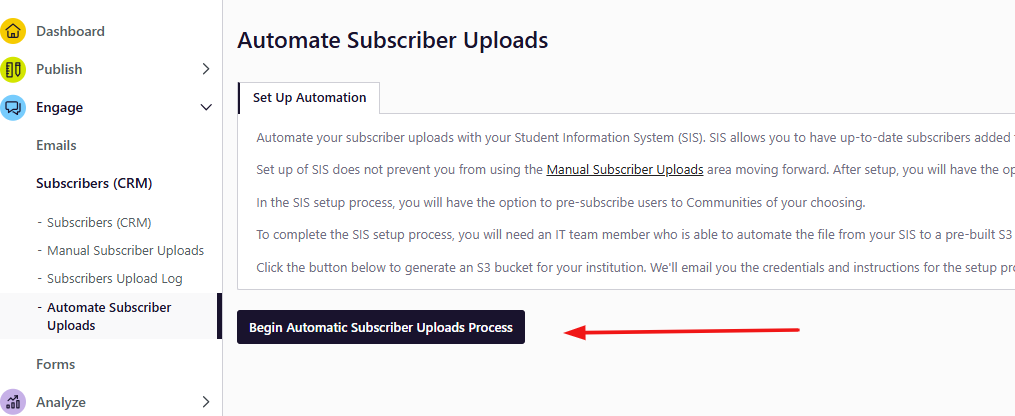
This will:
-
Create a secure Amazon S3 bucket
-
Send you an instructional email that you can forward to your IT team
-
Provide a secure link to generate S3 credentials (valid for 7 days)
Note: Automating uploads does not prevent manual uploads.
Step 4: IT Uploads the File to S3 Bucket
Your IT team will:
-
Generate S3 credentials
-
Configure automated uploads to your assigned S3 bucket
-
Ensure each upload overwrites the previous file
SIS File Name Guidance: There are no specific file name requirements, but it may be helpful to include the word "uConnect," the name of your institution and the time frame for the data upload for reference. But again, it is completely up to you what you name your file. An example file name could be: "uConnect Cambridge University Current Student SIS file_Spring 2026."
Important:
-
The file must include a header row and at least one data record
-
If the file is empty, it will not be processed
-
The sync runs weekly (Saturday night) by default but you can choose daily.
You cannot complete setup until the first file is uploaded.
Step 5: Configure Automation Settings in uConnect
Once the first file has been uploaded, return to:
Engage > Subscribers > Automate Subscriber Uploads
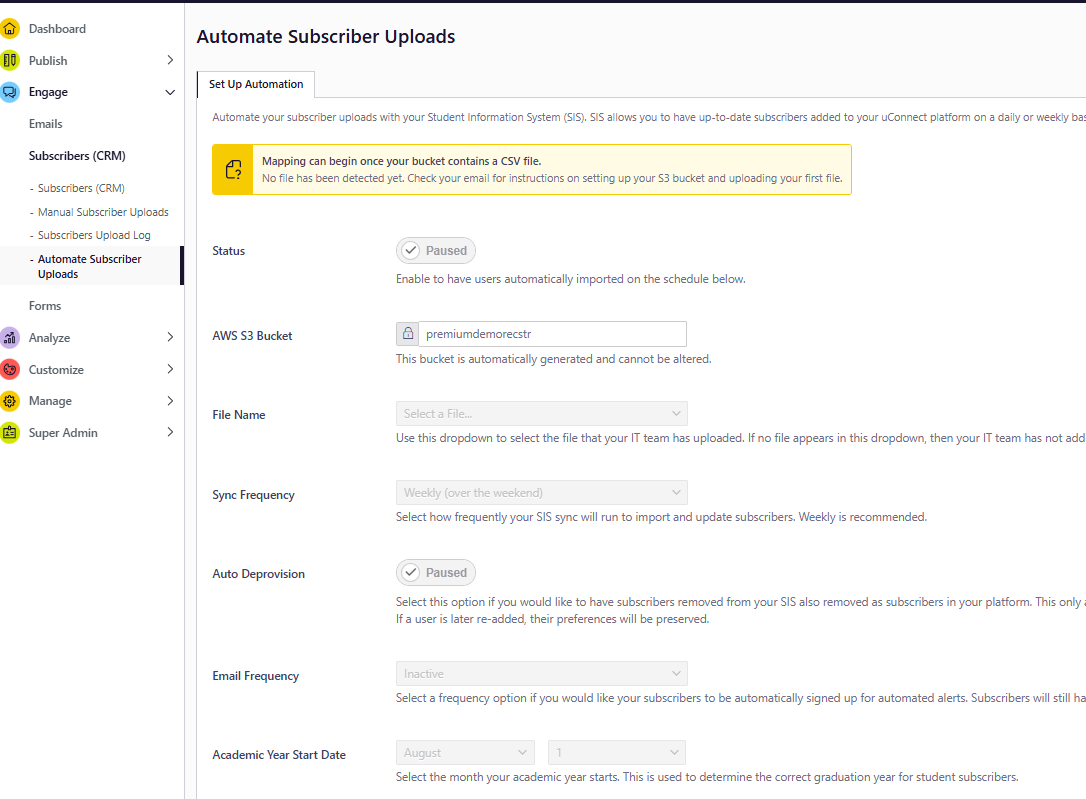
Configure the following items:
StatusToggle to Active to enable ongoing syncs.
File NameSelect your SIS file.
Sync Frequency-
Weekly (recommended)
-
Daily
If enabled, users not included in the latest file are removed.
Email FrequencyOptionally auto-enroll subscribers in a selected email cadence.
Academic Year Start DateSelect the month/day your academic year begins. This determines class year progression.
Step 6: Format and Map your SIS file
After selecting your file, map your CSV headers to uConnect fields.
Required FieldsYour CSV must include:
-
FIRST_NAME
-
LAST_NAME
-
EMAIL
-
USER_ID or USER_LOGIN
-
GRADUATION
-
USER TYPE /STAKEHOLDERS
Optional fields will appear if included.
Please note: a student (user) can only appear once in your file!
How to Format Your SIS File
Once required mappings are complete and Status is set to Active, your automated SIS sync is live. Please refer to our SIS sample file template below!
Your file must:
-
Be in CSV format
-
Meet RFC 4180 standards:
-
Comma-separated values
-
One row per line
-
Fields containing commas enclosed in double quotes
- When using multiple values within a single field, use semicolons
-
Please note: Your SIS file must be a comma‑separated values (CSV) file, where each column is separated by a comma. If you need to include multiple values within a single field (for example, multiple communities for one community group), separate those values with semicolons inside that field
Field Overview
Required Fields
-
FIRST_NAME
- Whatever is listed in your system of record
- Sometimes institutions used "preferred" name
-
LAST_NAME
- Whatever is listed in your system of record
-
EMAIL
- The student's university email address
- Email may also be used for the SSO_ID (User ID) if applicable to your institution
-
SSO_ID
- Each user must have a persistent unique identifier.
- If SSO is enabled:
- USER_ID or USER_LOGIN must match the SSO attribute passed during login
- This prevents duplicate users
- EMAIL may serve as the unique identifier only if:
- It is persistent
- It matches the email passed via SSO
-
GRADUATION YEAR
- This must be a 4-digit year (i.e. 2026)
- We do not support other date formats
- It will directly correlate to your undergraduate students' Class Year tags that will automatically get applied to the student subscribers
- For all students, the graduation year is used to determine when a student is converted to alumni status in your platform. For example, whether a student is a Senior or Graduate Student, when their graduation date comes and goes, their status will automatically switch to "Alumni" based on the default Academic Year Start date of August 1st.
-
STAKEHOLDERS (USER TYPE)
- You can only assign one Stakeholder type per student
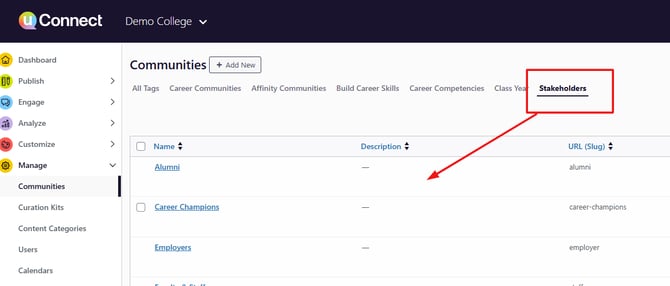
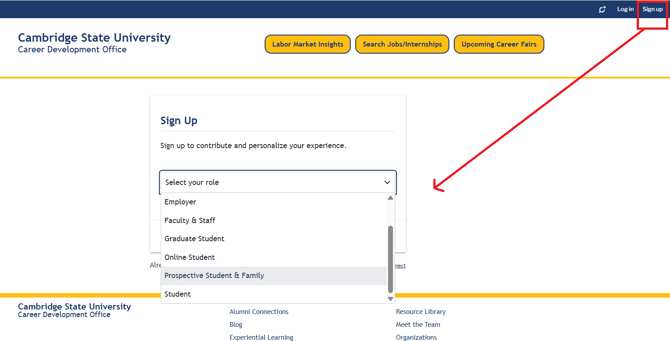
- These are directly related to the Stakeholder Communities in your platform. It may also be called "Audience," "People," or "People We Serve" as other examples.
-
- Also, these Stakeholder Communities are the ones new users select from when they create an account in your uConnect platform:
Optional Fields
EMAIL_OPT_OUT
Opt user out of all email communications.
Accepted values: 1, YES, TRUE (case-insensitive)
DELETE
Delete an existing user.
Accepted values: 1, YES, TRUE
Community Fields (e.g., AFFINITY, INDUSTRY, ACADEMIC_COLLEGE)
You may include additional columns to map users into Community Groups.
Please note: you can only map data in your file to existing Communities within uConnect. If you are not sure if the equivalent Communities exist within the uConnect platform, please reach out to your career center contact and/or our support team!
Rules:
- One extra column per Community Group.
- One column maps to one Community Group.
- Multiple values allowed in a cell, separated by semicolons.
- Multiple values can map to one community.
- You cannot map combinations of values to a single community.
- If headers or values do not match exactly, provide a supporting mapping document.
Example:
|
INDUSTRY |
AFFINITY |
ACADEMIC_COLLEGE |
|
Manufacturing |
First Gen; Military |
College of Engineering |
Community Mapping Rules
Community fields allow subscribers to be associated with uConnect Communities.
Important rules:
-
1 extra column per new Community Group
-
One field can map to only one Community Group
-
Multiple values must be separated by a semicolon
-
You cannot map combinations of values to a single community
-
If headers or values don’t match existing Community names, you will have to map the values to the correct Communities during the upload process
If a user has previously:
-
Opted out of email, or
-
Customized their email preferences
Those settings remain unchanged during SIS sync.
Additional Technical Notes
-
Only one file can be processed
-
Each upload must overwrite the previous file
-
File must contain at least one data record
-
Sync runs weekly by default (Saturday night)
Need Help?
If you have any questions or need assistance with setup, feel free to contact the uConnect support team—we’re here to help ensure a smooth and successful SIS integration.