
(Applies to Handshake, Symplicity, 12Twenty, and other job and event feeds)
When you connect uConnect to job sources like Handshake, Symplicity, or 12Twenty, jobs and events can flow in automatically. That’s powerful, but it can also create challenges:
Some jobs and events auto‑publish that you don’t want on your site.
Deleting a job or event in uConnect doesn’t always stop it from coming back on the next sync.
You may want integrations to save you time, but still keep control over what students and stakeholders see.
In this article, we'll explain how to:
Reduce unwanted jobs and events at the source (Handshake, Symplicity, 12Twenty).
Decide whether imported jobs and events auto‑publish or require review.
Prevent certain jobs and events from being updated by integrations once you’ve edited them.
Work with the uConnect support team when changes are needed on our side.
1. Start at the source: tighten settings in Handshake, Symplicity, and 12Twenty
The most effective way to control which jobs and events appear in uConnect is to limit what’s included in the feeds from your career services tools.
Before requesting any changes from uConnect, we recommend:
In Handshake
Review your Handshake RSS feed settings so your uConnect‑connected RSS feeds are as targeted as possible. For example:
Use Handshake’s filters when you're modifying the RSS feeds:
Exclude certain employers, locations, or job and event types.
Limit to specific student groups, majors, or class years.
If you are using a broad “firehose” style feed (e.g., all jobs), consider:
Creating a more curated feed/search intended specifically for uConnect.
Removing obviously unwanted or fraudulent jobs directly in Handshake.
Once jobs and events are filtered out in Handshake, just make sure to "Save" and not renegerate the RSS public link; they will automatically update during the next sync in uConnect and they will no longer be sent to uConnect in the first place.
In Symplicity
Review how your Symplicity export or feed to uConnect is configured:
Narrow down by:
Job type or category.
Event type or category.
School/college, major, class year, or location.
Employer type or status.
Ensure that:
Only the job or event types you truly want on your public‑facing site are included in the export to uConnect.
Any jobs and events excluded at the Symplicity level will not appear in uConnect.
In 12Twenty
If you connect 12Twenty to uConnect:
Check which postings or events are included in your feed to uConnect.
Filter out:
Internal, test, or highly niche roles you don’t want on your public site.
Any categories or job/event types that consistently generate unwanted postings.
Again, limiting at the 12Twenty level ensures those jobs and events are never imported into uConnect.
2. Decide whether imported jobs and events auto‑publish or require review
Once a job/event or event reaches uConnect from an integration, there are two basic options:
Auto‑publish: the job/event appears on your uConnect site as soon as it’s imported.
Pending: the job/event is saved in uConnect but held for staff approval before publishing.
How this works in practice
uConnect uses a set of integration settings (managed by our support team) that determine:
Which categories or “types” of jobs and events are:
Imported into uConnect.
Automatically published on your site.
Which jobs and events are:
Imported but left in a pending/draft state for your staff to review.
Not imported at all.
Because these settings are not directly visible in your admin dashboard, you’ll need to contact uConnect support to change them (details in Section 5 below).
Common patterns we can configure for you:
High control:
Import selected types of jobs and events, but do not auto‑publish any of them.
Your team reviews and publishes from within uConnect.
Mixed control:
Auto‑publish jobs and events from trusted categories (e.g., full‑time roles from vetted employers).
Import but do not auto‑publish more sensitive categories (e.g., part‑time, gig, or certain external feeds).
Strict filtering:
Completely stop importing specific types of jobs and events that are consistently unwanted.
If you’d like to move to any of these models, submit a support ticket and we’ll adjust the integration rules on your behalf.
3. Prevent integrations from overwriting certain job and event fields
Sometimes you want to keep a job/event from an integration, but customize it for your audience. In that case, you may want to stop further updates from the original system from changing what you’ve edited.
In uConnect, when you edit certain key fields of an imported job or event:
Title
Type
Location
Description
future updates from the integration will no longer overwrite that job or event.
How to “freeze” an imported job or event
Open the job/event in your uConnect admin dashboard.
Edit at least one of these fields:
Title
Type
Location
Description (even a small wording change is enough)
Save the job/event.
From that point on:
The job/event will remain in uConnect with your edits.
Updates sent by Handshake/Symplicity/12Twenty for that same job/event will not change those fields.
This is useful when:
You want to adjust the tone, formatting, or clarity of job postings or events.
You want to add local context or notes for your students.
You’re satisfied with the job overall but don’t want upstream edits to affect your version.
Note: This doesn’t stop new jobs and events from being imported from this company. It just stops updates to that specific record after you’ve edited it.
4. Delete the job or employer or event
You might notice that:
You delete a job or employer or event in uConnect.
Later, the same job or employer or event appears again after the next integration sync.
This can happen when:
The job/employer/event is still present and active in Handshake, Symplicity, or 12Twenty.
Your integration is still configured to import that type of job/event.
The next scheduled sync re‑imports it, because the job/employer/event remains in the source feed.
In other words, deleting a job/event in uConnect:
Removes it from your site for the moment.
Does not guarantee that it will never be re‑created if the source continues to send it.
Your next steps:
Move the Job or Employer to the "Trash" under Publish>Jobs or Publish>Employers; for Events, go to Publish>Events
Remove or update it in the source system (Handshake, Symplicity, 12Twenty)
and/orAdjust your integration rules on the uConnect side so similar jobs/events are no longer imported or auto‑published.
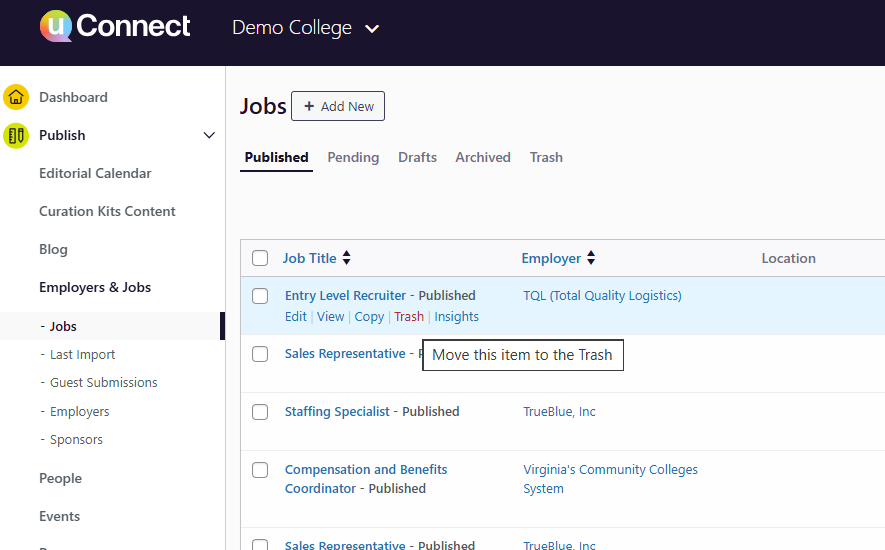
5. When and how to contact uConnect support
Because you don’t have direct access to the internal integration configuration within uConnect, our support team will make these changes on your behalf.
When to open a support ticket
Please reach out to uConnect support if you:
Want to stop importing certain categories or types of jobs and events altogether.
Want to turn off auto‑publish for some or all imported jobs and events.
Want integrations to behave more like an inbox (everything pending review) rather than a firehose (everything auto‑published).
Notice specific jobs and events or patterns (e.g., recurring scam jobs) that you cannot resolve just by changing settings in Handshake/Symplicity/12Twenty.
Our team will then:
Review your current integration setup.
Adjust import and auto‑publish rules to match your preferences.
Confirm the outcome and explain how your new configuration will behave going forward.
6. Recommended overall strategy
To balance automation with control, we generally recommend the following layered approach:
Tighten filters in Handshake/Symplicity/12Twenty first
Remove or limit job and events type and sources that you never want your audience to see.
Use uConnect integration rules to fine‑tune behavior
Decide which categories of jobs and events:
Import and auto‑publish,
Import but stay in pending, or
Don’t import at all.
Freeze specific jobs you customize
Edit the title, type, location, or description of any imported job/event you want to “lock” from further updates.
Delete specific jobs and employers and events right from your uConnect platform
This provides a quick-fix solution in the meantime while you work on reconfiguring your integration settings.
Contact uConnect support for structural changes
Whenever your strategy changes or patterns of unwanted jobs and events appear, we’ll update the integration rules for you.