---
title: How to Hide Community Pages from AI Search and Keyword Search
description: You can control whether a Community page is discoverable in AI Search and the front-end keyword search bar — without needing to remove it from your platform entirely. This is especially useful for internal-only pages that you don't want on your menu or front end, but whose content you still want indexed and searchable in certain contexts.
---
[](https://www.gouconnect.com/)
- [Knowledge Base](https://support.gouconnect.com/)
- [Career Everywhere](https://www.gouconnect.com/career-everywhere/)
- [Community](https://www.gouconnect.com/career-everywhere/community/access/)
- [Submit a Ticket](https://share.hsforms.com/10AUHU9-DRi-Bw3fdB-SUYA8bok)
- [Support Portal Login](https://support.gouconnect.com/_hcms/mem/login)
✕
## Submit a Ticket
Loading support form...
[Skip to content](https://support.gouconnect.com/articles/how-to-hide-community-pages-from-ai-search-and-keyword-search#main-content)
Open main navigation
Close main navigation
What do you need help with today?
- There are no suggestions because the search field is empty.
1. [uConnect Knowledge Base](https://support.gouconnect.com/articles)
2. [Manage Your Communities & Content Categories](https://support.gouconnect.com/articles/manage-your-communities-content-categories)
# How to Hide Community Pages from AI Search and Keyword Search
## This article walks through how to hide a Community page from search, confirm the change took effect, and reverse it when needed.
### Overview
You can control whether a Community page is discoverable in **AI Search** and the front-end **keyword search bar** — without needing to remove it from your platform entirely. This is especially useful for internal-only pages that you don't want on your menu or front end, but whose content you still want indexed and searchable in certain contexts.
### Before You Start
Note that this setting does **not** affect content preference selection. If you also want to hide a page from a user's preference/interest checklist (the options users select when creating an account), you'll need to update **Global Visibility** separately. This article only covers **Page and Search Visibility**.
### How to Hide a Page from Search
1. Go to your **Admin Dashboard** and navigate to **Manage \> Communities**.
2. Click into the Community page you want to hide.
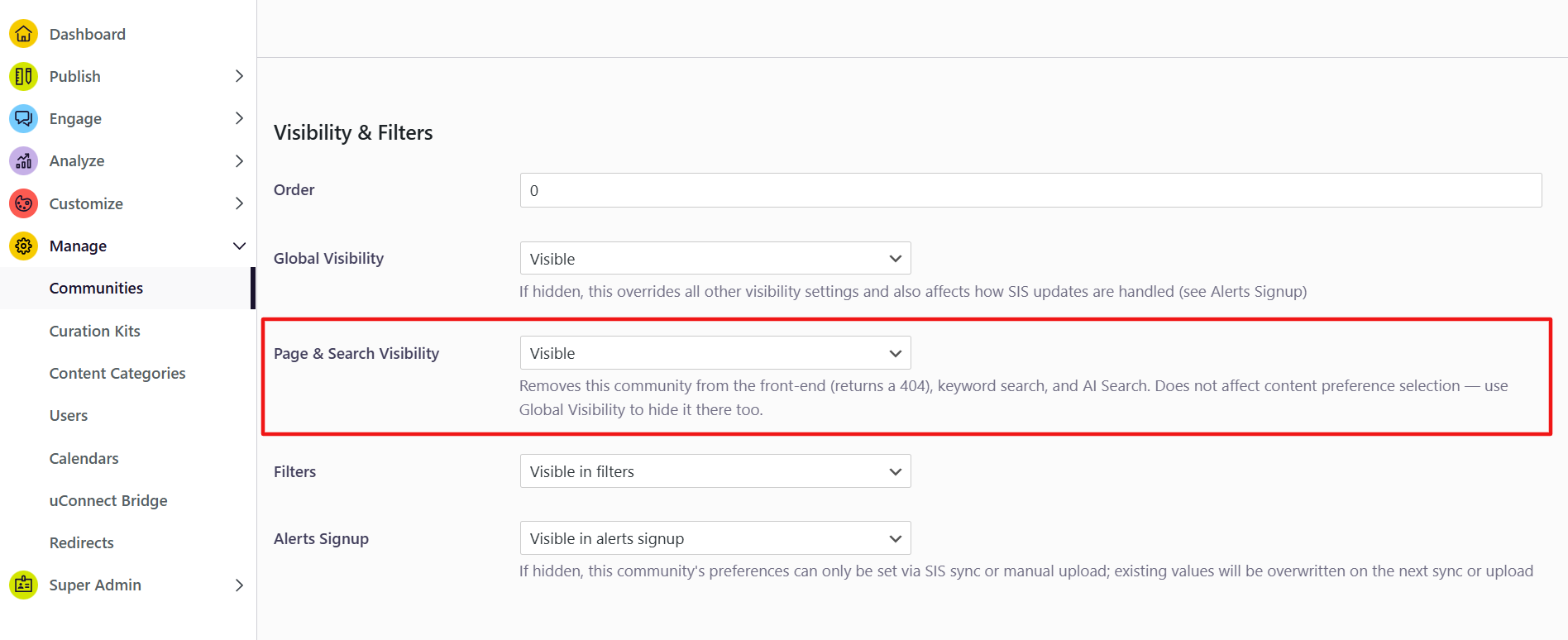
3. Scroll about three-quarters of the way down to the **Visibility and Filters** section.
4. Locate **Page and Search Visibility** (one of four visibility settings available).
5. Switch the setting to **Hidden**.
6. Click **Update** in the bottom-left corner to save.
### Confirming the Change
Once updated, give the platform a few minutes to process the change before testing.
**Check the front end first:**
- Navigate to the page directly (e.g., via the menu). You should see a **Page Not Found** error — this confirms the page is now hidden from the front end as well as search.
**Check AI Search:**
- Ask AI Search a question directly related to the page's content.
- **Give it a minute or two** to process the visibility change. If you test immediately, the page may still surface temporarily.
- Try starting a **New Search** and asking a related (but not identical) question to get a cleaner read on whether the page has been suppressed.
- Once fully processed, the hidden page should no longer appear in AI Search results — other related content may surface instead, but not the hidden page.
### How to Make a Page Visible Again
1. Return to **Manage \> Communities** and click into the page.
2. Scroll to **Page and Search Visibility** and switch it back to **Visible**.
3. Click **Update**.
4. Wait about a minute for the change to process.
5. Test on the front end — the page should now load normally, and it should reappear in keyword search and AI Search results.
### Quick Reference
| Setting | What It Hides |
| --- | --- |
| Page and Search Visibility | Front-end page access, keyword search, AI Search |
| Global Visibility | Content preference/interest selection during account setup |
### Video Walkthrough
**Pro Tip:** Always allow **1–2 minutes** of processing time after changing visibility settings before testing. Testing too quickly can make it seem like the change didn't work when it just hasn't fully propagated yet.
- [Get Started](https://support.gouconnect.com/articles/get-started)
- [AI Search](https://support.gouconnect.com/articles/ai-search)
- [Analytics & Data](https://support.gouconnect.com/articles/analytics-data#main-content)
- [Outcomes Data](https://support.gouconnect.com/articles/analytics-data#outcomes-data)
- [Platform Analytics](https://support.gouconnect.com/articles/analytics-data#platform-analytics)
- [Google Analytics](https://support.gouconnect.com/articles/analytics-data#google-analytics)
- [Publish Content](https://support.gouconnect.com/articles/publish-content)
- [Manage Your Communities & Content Categories](https://support.gouconnect.com/articles/manage-your-communities-content-categories#main-content)
- [Communities](https://support.gouconnect.com/articles/manage-your-communities-content-categories#communities)
- [Content Categories](https://support.gouconnect.com/articles/manage-your-communities-content-categories#content-categories)
- [Manage Subscribers & Users](https://support.gouconnect.com/articles/manage-subscribers-users)
- [Platform Design](https://support.gouconnect.com/articles/platform-design#main-content)
- [Widgets](https://support.gouconnect.com/articles/platform-design#widgets)
- [Block Editor (WordPress)](https://support.gouconnect.com/articles/platform-design#block-editor-wordpress)
- [Menus](https://support.gouconnect.com/articles/platform-design#menus)
- [Accessibility Hub](https://support.gouconnect.com/articles/accessibility-hub#main-content)
- [Block Editor](https://support.gouconnect.com/articles/accessibility-hub#block-editor)
- [Market Your Platform](https://support.gouconnect.com/articles/market-your-platform#main-content)
- [Activation and Promotion Guides](https://support.gouconnect.com/articles/market-your-platform#activation-and-promotion-guides)
- [Modules & Integrations](https://support.gouconnect.com/articles/modules-integrations#main-content)
- [Outcomes Data Visualization](https://support.gouconnect.com/articles/modules-integrations#outcomes-data-visualization)
- [Technical Configurations](https://support.gouconnect.com/articles/technical-configurations#main-content)
- [Automated Subscriber Uploads (SIS)](https://support.gouconnect.com/articles/technical-configurations#automated-subscriber-uploads-sis)
- [Product Updates](https://support.gouconnect.com/articles/product-updates)
- [Customer Training Recordings](https://support.gouconnect.com/articles/customer-training-recordings)
- [Candid Career+](https://support.gouconnect.com/articles/candid-career)
- [General](https://support.gouconnect.com/articles/general)
[](https://www.gouconnect.com/)
- [Customers](https://www.gouconnect.com/customers/)
- [Case Studies](https://www.gouconnect.com/customers/case-studies/)
- [Client Directory](https://www.gouconnect.com/customers/client-directory/)
- [Testimonials](https://www.gouconnect.com/customers/testimonials/)
- [Product](https://www.gouconnect.com/product/)
- [Use Cases](https://www.gouconnect.com/product/use-cases/)
- [Integrations](https://www.gouconnect.com/product/integrations/)
- [Become a Partner](https://www.gouconnect.com/company/partner/)
- [Company](https://www.gouconnect.com/company/)
- [Careers](https://www.gouconnect.com/company/careers/)
- [News](https://www.gouconnect.com/company/news/)
- [Status Page](https://status.gouconnect.com/)
- [Career Everywhere](https://www.gouconnect.com/career-everywhere/)
- [The Movement](https://www.gouconnect.com/career-everywhere/movement/)
- [Community](https://www.gouconnect.com/career-everywhere/community/access/)
- [Podcast](https://www.gouconnect.com/career-everywhere/podcast/)
© 2026 uConnect Inc.
[Accessibility Policy](https://www.gouconnect.com/accessibility-policy/) · [Privacy Policy](https://www.gouconnect.com/privacy-policy/)