---
title: Getting Started with Student Outcomes
description: Discover how the Student Outcomes section helps you centralize, visualize, and leverage institutional data to tell a compelling career story and power smarter, AI-driven experiences for your students.
---
[](https://www.gouconnect.com/)
- [Knowledge Base](https://support.gouconnect.com/)
- [Career Everywhere](https://www.gouconnect.com/career-everywhere/)
- [Community](https://www.gouconnect.com/career-everywhere/community/access/)
- [Submit a Ticket](https://share.hsforms.com/10AUHU9-DRi-Bw3fdB-SUYA8bok)
- [Support Portal Login](https://support.gouconnect.com/_hcms/mem/login)
✕
## Submit a Ticket
Loading support form...
[Skip to content](https://support.gouconnect.com/articles/getting-started-with-student-outcomes#main-content)
Open main navigation
Close main navigation
What do you need help with today?
- There are no suggestions because the search field is empty.
1. [uConnect Knowledge Base](https://support.gouconnect.com/articles)
2. [Analytics & Data](https://support.gouconnect.com/articles/analytics-data)
3. [Outcomes Data](https://support.gouconnect.com/articles/analytics-data#outcomes-data)
# Getting Started with Student Outcomes
## Discover how the Student Outcomes section helps you centralize, visualize, and leverage institutional data to tell a compelling career story and power smarter, AI-driven experiences for your students.
### **Video Walkthrough**
### **Overview**
Your uConnect Virtual Career Center (VCC) now includes a Student Outcomes section available to all customers. This area lets you upload your institution's student outcomes data directly into your platform — giving your career center a powerful new way to tell your story and power smarter experiences for students.
Uploading your outcomes data unlocks two major benefits:
- **In-dashboard visibility:** Explore an interactive preview of your data — including charts and visualizations — directly within your admin dashboard, without it being publicly visible to students or visitors.
- **AI Search integration:** When AI Search is enabled on your platform, your uploaded outcomes data becomes part of the knowledge base that powers search responses. Students can ask natural-language questions like "How much do English majors earn after graduation?" and receive answers drawn directly from your institution's own data.
| **ℹ️ What Changed** The Student Outcomes section has moved! It was previously located under Publish in your admin dashboard. It is now located under Analyze \> Student Outcomes. This change reflects how we think about this section — it is a data analysis tool, not a publishing one. |
| --- |
### **What You Can Do with Student Outcomes**
| **Feature** | **All Customers** | **ODV Module Customers** |
| --- | --- | --- |
| Upload outcomes data | ✅ Yes | ✅ Yes |
| Download data template | ✅ Yes | ✅ Yes |
| View & manage current data | ✅ Yes | ✅ Yes |
| In-dashboard visualization preview | ✅ Yes (Visualized Data tab) | ✅ Yes |
| User ID & User Email fields | ✅ Yes (optional) | ✅ Yes (optional) |
| Outcomes data in AI Search | ✅ Yes (when AI Search is enabled) | ✅ Yes |
| AI Search toggle (on/off) | ✅ Yes | ✅ Yes |
| Public-facing Outcomes page | ❌ Upgrade required | ✅ Yes |
| Embed outcomes on external sites | ❌ Upgrade required | ✅ Yes |
| Filter Dropdowns customization | ❌ Upgrade required | ✅ Yes |
| Data Exclusion controls (by major/year) | ❌ Upgrade required | ✅ Yes |
| Page & chart customization | ❌ Upgrade required | ✅ Yes |
### **Navigating to Student Outcomes**
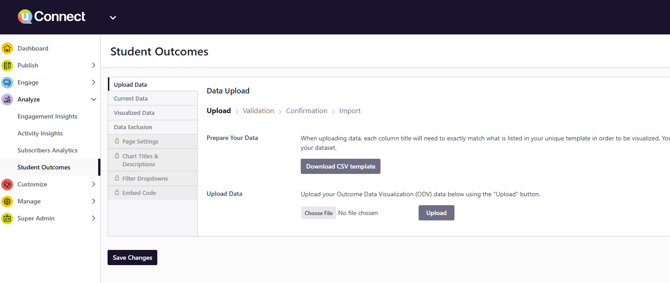
To access your Student Outcomes section:
- Log in to your uConnect admin dashboard.
- Click Analyze in the left-hand navigation menu.
- Select Student Outcomes.
****
### **Tabs in Your Student Outcomes Section**
Once inside Student Outcomes, you will see the following tabs:
- **Upload Data:** Download your template and upload your outcomes data file.
- **Current Data:** View, download, or delete previously uploaded class year data.
- **Visualized Data:** Preview an interactive visualization of your uploaded data — visible to admins only, not publicly displayed.
**Ready to start formatting your data? Review the guidelines**
Once you've reviewed the above information, now you're ready to begin formatting your outcomes data to our FDS guidelines and then can upload your data.
[Review the Guidelines](https://clients.gouconnect.com/career-outcomes-data-format-first-destination-data/?_gl=1*1iekx81*_gcl_au*NzQyMDg5MzQxLjE3NzczMDc0MDQuMjUzNTQ2MDY4LjE3ODIyNTI5MTAuMTc4MjI1MjkwOQ..)
[How to Upload Your Data](https://support.gouconnect.com/articles/how-to-upload-your-student-outcomes-data)
**Need help formatting your data? We're here to help!**
We understand that formatting your data to meet the NACE guidelines is daunting, so if you want some extra help getting your formatting off to a solid start, [just submit a support ticket here](https://share.hsforms.com/10AUHU9-DRi-Bw3fdB-SUYA8bok) for "Outcomes, file upload or questions" and send us your raw data. We'll put it into the correct format using these guidelines and then you'll be able to upload it when you're ready!
[Submit Your Outcomes Data](https://share.hsforms.com/10AUHU9-DRi-Bw3fdB-SUYA8bok)
| **📌 Please Note** If your institution has purchased the Outcomes Data Visualization (ODV) module, you will also see additional tabs including Chart Titles & Descriptions, Page Settings, Filter Dropdowns, Data Exclusion, and Embed Code. These are ODV-exclusive features. If you are interested in unlocking them, reach out to your Customer Success Manager. |
| --- |
### **Locked Tabs — What Do They Mean?**
You may notice some tabs in Student Outcomes appear locked. These represent premium features available with the ODV module. You can preview what each feature does, but configuration requires an upgrade. Contact your Customer Success Manager to learn more.
| **💡 Pro Tip** This is a great time to connect with your institutional research or career outcomes team to get your First Destination Survey (FDS) data ready for upload. The sooner you upload, the sooner your students benefit from institution-specific AI Search answers! |
| --- |
- [Get Started](https://support.gouconnect.com/articles/get-started)
- [AI Search](https://support.gouconnect.com/articles/ai-search)
- [Analytics & Data](https://support.gouconnect.com/articles/analytics-data#main-content)
- [Outcomes Data](https://support.gouconnect.com/articles/analytics-data#outcomes-data)
- [Platform Analytics](https://support.gouconnect.com/articles/analytics-data#platform-analytics)
- [Google Analytics](https://support.gouconnect.com/articles/analytics-data#google-analytics)
- [Publish Content](https://support.gouconnect.com/articles/publish-content)
- [Manage Your Communities & Content Categories](https://support.gouconnect.com/articles/manage-your-communities-content-categories#main-content)
- [Communities](https://support.gouconnect.com/articles/manage-your-communities-content-categories#communities)
- [Content Categories](https://support.gouconnect.com/articles/manage-your-communities-content-categories#content-categories)
- [Manage Subscribers & Users](https://support.gouconnect.com/articles/manage-subscribers-users)
- [Platform Design](https://support.gouconnect.com/articles/platform-design#main-content)
- [Widgets](https://support.gouconnect.com/articles/platform-design#widgets)
- [Block Editor (WordPress)](https://support.gouconnect.com/articles/platform-design#block-editor-wordpress)
- [Menus](https://support.gouconnect.com/articles/platform-design#menus)
- [Accessibility Hub](https://support.gouconnect.com/articles/accessibility-hub#main-content)
- [Block Editor](https://support.gouconnect.com/articles/accessibility-hub#block-editor)
- [Market Your Platform](https://support.gouconnect.com/articles/market-your-platform#main-content)
- [Activation and Promotion Guides](https://support.gouconnect.com/articles/market-your-platform#activation-and-promotion-guides)
- [Modules & Integrations](https://support.gouconnect.com/articles/modules-integrations#main-content)
- [Outcomes Data Visualization](https://support.gouconnect.com/articles/modules-integrations#outcomes-data-visualization)
- [Technical Configurations](https://support.gouconnect.com/articles/technical-configurations#main-content)
- [Automated Subscriber Uploads (SIS)](https://support.gouconnect.com/articles/technical-configurations#automated-subscriber-uploads-sis)
- [Product Updates](https://support.gouconnect.com/articles/product-updates)
- [Customer Training Recordings](https://support.gouconnect.com/articles/customer-training-recordings)
- [Candid Career+](https://support.gouconnect.com/articles/candid-career)
- [General](https://support.gouconnect.com/articles/general)
[](https://www.gouconnect.com/)
- [Customers](https://www.gouconnect.com/customers/)
- [Case Studies](https://www.gouconnect.com/customers/case-studies/)
- [Client Directory](https://www.gouconnect.com/customers/client-directory/)
- [Testimonials](https://www.gouconnect.com/customers/testimonials/)
- [Product](https://www.gouconnect.com/product/)
- [Use Cases](https://www.gouconnect.com/product/use-cases/)
- [Integrations](https://www.gouconnect.com/product/integrations/)
- [Become a Partner](https://www.gouconnect.com/company/partner/)
- [Company](https://www.gouconnect.com/company/)
- [Careers](https://www.gouconnect.com/company/careers/)
- [News](https://www.gouconnect.com/company/news/)
- [Status Page](https://status.gouconnect.com/)
- [Career Everywhere](https://www.gouconnect.com/career-everywhere/)
- [The Movement](https://www.gouconnect.com/career-everywhere/movement/)
- [Community](https://www.gouconnect.com/career-everywhere/community/access/)
- [Podcast](https://www.gouconnect.com/career-everywhere/podcast/)
© 2026 uConnect Inc.
[Accessibility Policy](https://www.gouconnect.com/accessibility-policy/) · [Privacy Policy](https://www.gouconnect.com/privacy-policy/)