---
title: Edit a menu
description: Learn edit existing menus for your platform
---
[](https://www.gouconnect.com/)
- [Knowledge Base](https://support.gouconnect.com/)
- [Career Everywhere](https://www.gouconnect.com/career-everywhere/)
- [Community](https://www.gouconnect.com/career-everywhere/community/access/)
- [Submit a Ticket](https://share.hsforms.com/10AUHU9-DRi-Bw3fdB-SUYA8bok)
- [Support Portal Login](https://support.gouconnect.com/_hcms/mem/login)
✕
## Submit a Ticket
Loading support form...
[Skip to content](https://support.gouconnect.com/articles/9363100-edit-a-menu#main-content)
Open main navigation
Close main navigation
What do you need help with today?
- There are no suggestions because the search field is empty.
1. [uConnect Knowledge Base](https://support.gouconnect.com/articles)
2. [Platform Design](https://support.gouconnect.com/articles/platform-design)
3. [Menus](https://support.gouconnect.com/articles/platform-design#menus)
# Edit a menu
## Learn how to edit the three menu types that exist in your uConnect platform: 1) primary (main) navigation menu; 2) community (hero) menus; 3) footer menus.
You have the ability to edit all of your menus in uConnect! You are able to edit the existing items and links in your menus, edit the dropdowns in your menus, and you can remove items from your menus too. You can also create new menus from scratch so read this article to learn how [to create new menus.](https://support.gouconnect.com/en/articles/10149890-create-a-menu-and-take-it-live)
However, please remember: when you create a new Community (Hero) menus specifically, you will need our Support Team to take it live for you by activating a new Menu widget on the pages you prefer. [Submit a widget ticket for that type of request!](https://share.hsforms.com/10AUHU9-DRi-Bw3fdB-SUYA8bok?__hstc=250938329.ea9f0ba4f6e3517c56b36aa56cbd7a29.1752179216064.1778081712806.1778088380824.413&__hssc=250938329.8.1778088380824&__hsfp=ee55ce6f623c1dbe50200f61bb4e00a0)
### Menu Types
There are three types of menus you can edit in your platform:
- **A Primary/Main Navigation Menu** (sits on your front page)
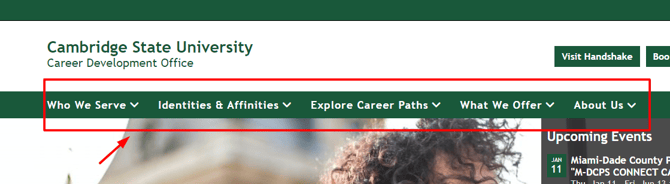
- **Hero/Community Navigation Menu** (serves as an inner menu on Community pages)

- **Footer Menu** (sits at the bottom of your platform)

### How to Edit a Menu
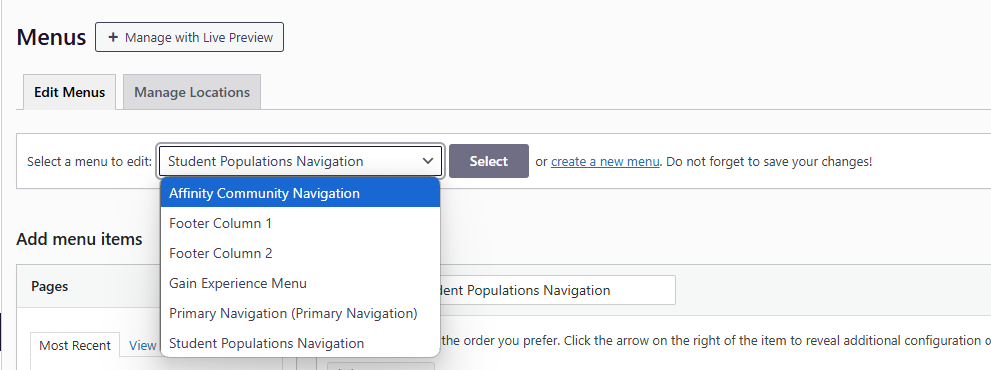
To edit an existing menu, first navigate to the **Customize \> Menus** area of your dashboard.
From there, you will want to click on the menu dropdown bar to choose which menu you want to edit and then hitting "**Select**" to begin editing.
#### Video Tutorial on Editing Menus
####
Deeper dive into how to edit specific menu types:
- [How to edit Footer menus](https://support.gouconnect.com/en/articles/12883840-how-to-edit-footer-menus)
- If you're creating or editing Community (Hero) Menus, refer to these specific instructions below:
1. [Create a hero community menu navigation that links to widgets](https://support.gouconnect.com/en/articles/9367885-create-a-hero-community-menu-navigation-that-links-to-widgets)
2. [Create a hero community navigation menu that anchors to content on your page](https://support.gouconnect.com/en/articles/9977187-create-a-hero-community-navigation-menu-that-anchors-to-content-on-your-page)
### Identifying Menus
To identify the correct menu that you'd like to edit, use the following tactics in the video below to understand how you can identify which menu you're trying to edit:
In short, you'll want to:
1. Investigate the menu buttons to make sure they match what are on the page
2. If it's a hero community menu, use the Widget IDs to ensure they match the Widget IDs that are in the menu buttons themselves
Once you've selected a menu that you would like to edit, you have multiple options. You can click directly into a given menu item to update the text of that menu item, you can drag and drop to rearrange where that menu item appears within the menu, or you can select a menu item and then hit the 'Delete' button to remove it from your menu. You also are able to add new menu items from the left-hand side bar set of options. To better understand adding new menu items, please review [this article here](https://support.gouconnect.com/articles/9363706-add-a-menu-item).
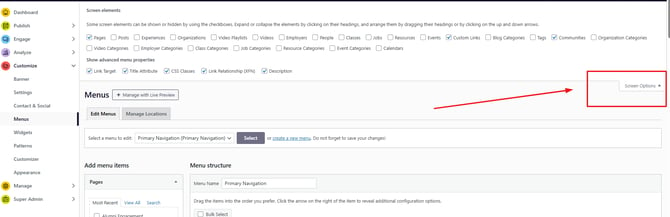
**Pro Tip:** Make sure to update your ***Screen Options*** so all of your menu settings are visible for optimum editing capabilities!
After making any changes, don't forget to hit '**Save Menu!'**
### **Still have questions?**
If you are having any menu issues,[**start with our menu troubleshooting article!**](https://support.gouconnect.com/en/articles/9677111-troubleshooting-menu-issues)
**Then, [watch our recording of our Menus training](https://community.careereverywhere.com/c/video-library-8a119e/uconnect-training-menus-widgets) in the Career Everywhere Community.**
Then, if you're interested in learning more about the reasons why you may want to add a new menu, or the different types of menus that are available, explore more of [our collection of menu articles.](https://support.gouconnect.com/en/articles/platform-design)
Finally, if you're having any other difficulties in adding or updating a menu, you can reach our Support team:
[Contact Our Support Team](https://share.hsforms.com/10AUHU9-DRi-Bw3fdB-SUYA8bok?form_link_page=Updating%20your%20public%20URL%20post-launch)
- [Get Started](https://support.gouconnect.com/articles/get-started)
- [AI Search](https://support.gouconnect.com/articles/ai-search)
- [Analytics & Data](https://support.gouconnect.com/articles/analytics-data#main-content)
- [Outcomes Data](https://support.gouconnect.com/articles/analytics-data#outcomes-data)
- [Platform Analytics](https://support.gouconnect.com/articles/analytics-data#platform-analytics)
- [Google Analytics](https://support.gouconnect.com/articles/analytics-data#google-analytics)
- [Publish Content](https://support.gouconnect.com/articles/publish-content)
- [Manage Your Communities & Content Categories](https://support.gouconnect.com/articles/manage-your-communities-content-categories#main-content)
- [Communities](https://support.gouconnect.com/articles/manage-your-communities-content-categories#communities)
- [Content Categories](https://support.gouconnect.com/articles/manage-your-communities-content-categories#content-categories)
- [Manage Subscribers & Users](https://support.gouconnect.com/articles/manage-subscribers-users)
- [Platform Design](https://support.gouconnect.com/articles/platform-design#main-content)
- [Widgets](https://support.gouconnect.com/articles/platform-design#widgets)
- [Block Editor (WordPress)](https://support.gouconnect.com/articles/platform-design#block-editor-wordpress)
- [Menus](https://support.gouconnect.com/articles/platform-design#menus)
- [Accessibility Hub](https://support.gouconnect.com/articles/accessibility-hub#main-content)
- [Block Editor](https://support.gouconnect.com/articles/accessibility-hub#block-editor)
- [Market Your Platform](https://support.gouconnect.com/articles/market-your-platform#main-content)
- [Activation and Promotion Guides](https://support.gouconnect.com/articles/market-your-platform#activation-and-promotion-guides)
- [Modules & Integrations](https://support.gouconnect.com/articles/modules-integrations#main-content)
- [Outcomes Data Visualization](https://support.gouconnect.com/articles/modules-integrations#outcomes-data-visualization)
- [Technical Configurations](https://support.gouconnect.com/articles/technical-configurations#main-content)
- [Automated Subscriber Uploads (SIS)](https://support.gouconnect.com/articles/technical-configurations#automated-subscriber-uploads-sis)
- [Product Updates](https://support.gouconnect.com/articles/product-updates)
- [Customer Training Recordings](https://support.gouconnect.com/articles/customer-training-recordings)
- [Candid Career+](https://support.gouconnect.com/articles/candid-career)
- [General](https://support.gouconnect.com/articles/general)
[](https://www.gouconnect.com/)
- [Customers](https://www.gouconnect.com/customers/)
- [Case Studies](https://www.gouconnect.com/customers/case-studies/)
- [Client Directory](https://www.gouconnect.com/customers/client-directory/)
- [Testimonials](https://www.gouconnect.com/customers/testimonials/)
- [Product](https://www.gouconnect.com/product/)
- [Use Cases](https://www.gouconnect.com/product/use-cases/)
- [Integrations](https://www.gouconnect.com/product/integrations/)
- [Become a Partner](https://www.gouconnect.com/company/partner/)
- [Company](https://www.gouconnect.com/company/)
- [Careers](https://www.gouconnect.com/company/careers/)
- [News](https://www.gouconnect.com/company/news/)
- [Status Page](https://status.gouconnect.com/)
- [Career Everywhere](https://www.gouconnect.com/career-everywhere/)
- [The Movement](https://www.gouconnect.com/career-everywhere/movement/)
- [Community](https://www.gouconnect.com/career-everywhere/community/access/)
- [Podcast](https://www.gouconnect.com/career-everywhere/podcast/)
© 2026 uConnect Inc.
[Accessibility Policy](https://www.gouconnect.com/accessibility-policy/) · [Privacy Policy](https://www.gouconnect.com/privacy-policy/)