---
title: How to Edit Footer Menus
description: Learn how to edit the footer menus in the bottom, footer area of your uConnect platform.
---
[](https://www.gouconnect.com/)
- [Knowledge Base](https://support.gouconnect.com/)
- [Career Everywhere](https://www.gouconnect.com/career-everywhere/)
- [Community](https://www.gouconnect.com/career-everywhere/community/access/)
- [Submit a Ticket](https://share.hsforms.com/10AUHU9-DRi-Bw3fdB-SUYA8bok)
- [Support Portal Login](https://support.gouconnect.com/_hcms/mem/login)
✕
## Submit a Ticket
Loading support form...
[Skip to content](https://support.gouconnect.com/articles/12883840-how-to-edit-footer-menus#main-content)
Open main navigation
Close main navigation
What do you need help with today?
- There are no suggestions because the search field is empty.
1. [uConnect Knowledge Base](https://support.gouconnect.com/articles)
2. [Platform Design](https://support.gouconnect.com/articles/platform-design)
3. [Menus](https://support.gouconnect.com/articles/platform-design#menus)
# How to Edit Footer Menus
Your uConnect platform includes three types of menus that help users navigate your content:
1. **Primary Navigation Menu** – the main navigation at the top of your platform
2. **Community (Hero) Menus** – button-style menus displayed beneath community page banners
3. **Footer Menus** – customizable link columns displayed at the bottom of your platform
This article walks you through how to edit **footer menus**, which are typically used to highlight key links—either mirroring your institution’s website footer or providing customized navigation options for your users.
---
## Understanding Footer Menus
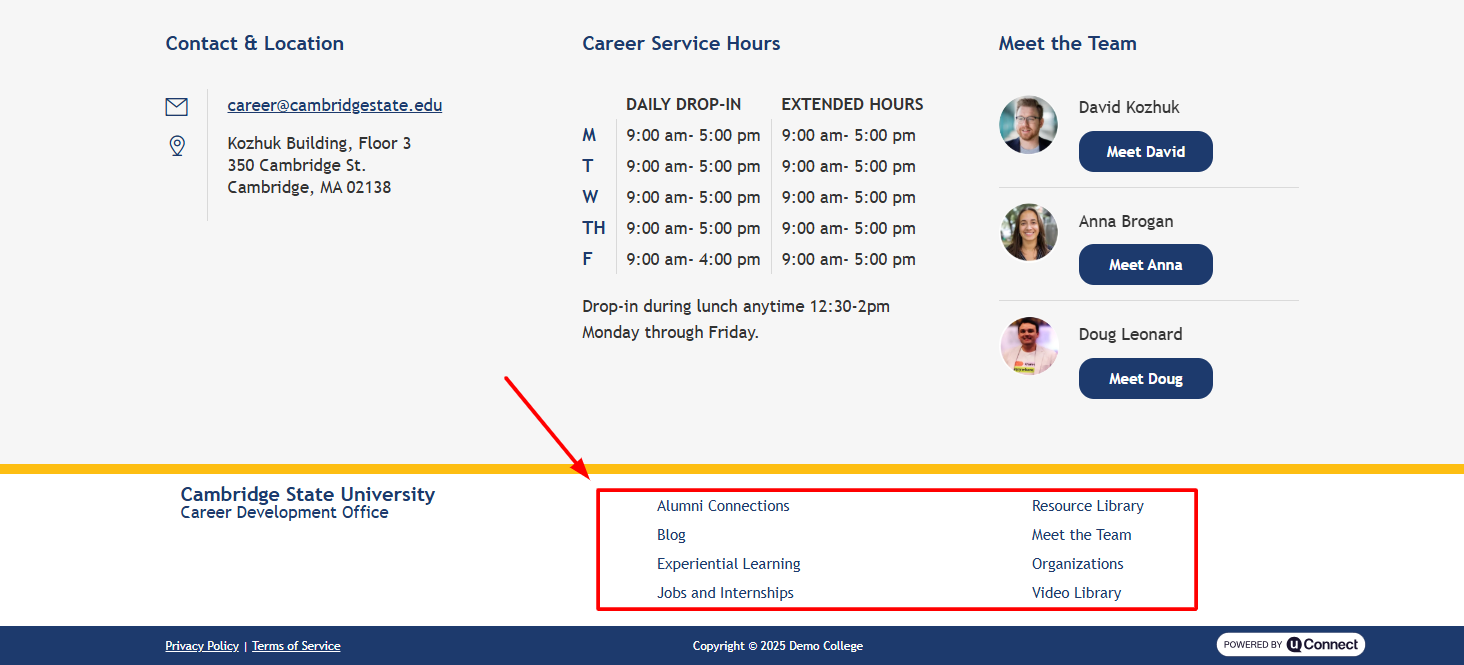
Footer menus appear at the bottom of your platform and often include institutional resources, quick links, or student services. Most institutions have at least **two footer menus** (often labeled *Footer Column 1* and *Footer Column 2*), but you can add more if needed. These menus are fully customizable unless your marketing or communications team has specific branding requirements.
---
## How to Edit an Existing Footer Menu
Follow these steps to modify your footer links:
## 1. Navigate to Your Menu Editor
1. Log in to your admin dashboard.
2. Open the **Customize** on the left.
3. Select **Menus**.
## 2. Choose the Footer Menu You Want to Edit
In the menu selector at the top, choose the footer column you’d like to update (e.g., **Footer Column 1**). If you're unsure which is which, click through the menu list until you identify the correct one based on the links it contains.
## 3. Edit Existing Links
Most footer links are added as **custom links**, meaning you can easily repurpose them.
To edit a link:
1. Expand the menu item.
2. Update the **URL** field to the new destination.
3. Update the **Navigation Label** (the text shown in the footer).
You do **not** need to delete and recreate a link — editing the existing item works perfectly.
---
## How to Add a New Link to Your Footer Menu
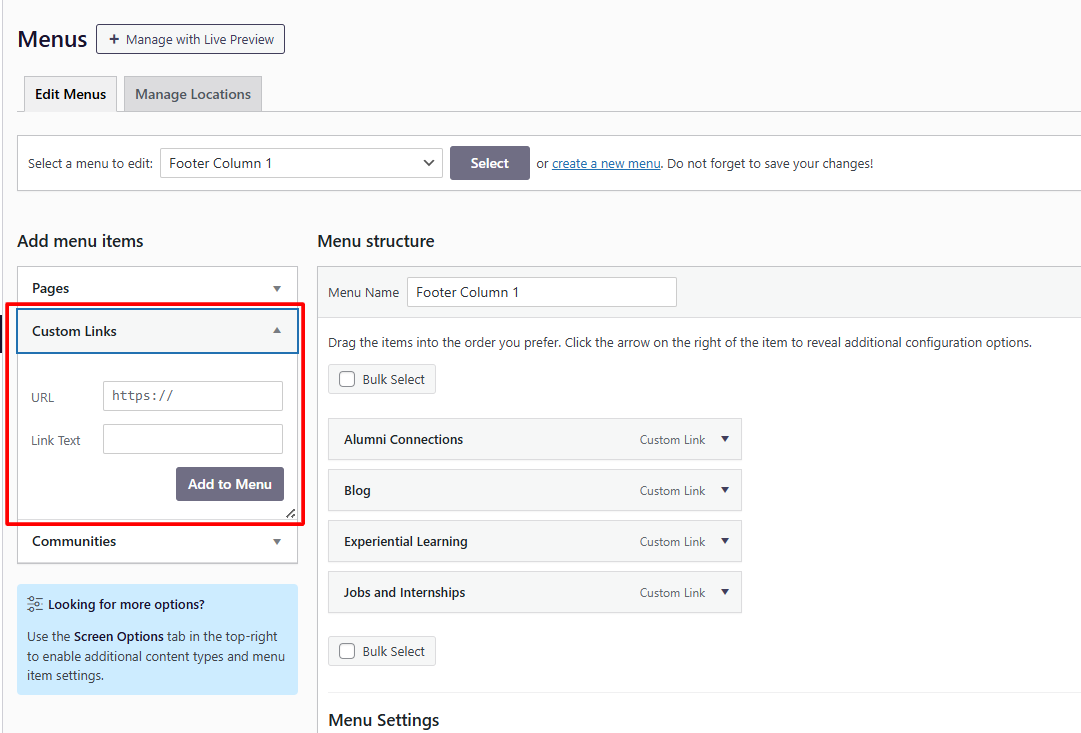
1. In the left sidebar, under **Add menu items**, choose **Custom link**.
2. Enter the URL you want to link to.
3. Add the label (the text the user will see).
4. Click **Add to Menu**.
5. Drag and drop the new menu item into your preferred order.
6. Click **Save Menu** — footer menus do *not* auto-save!
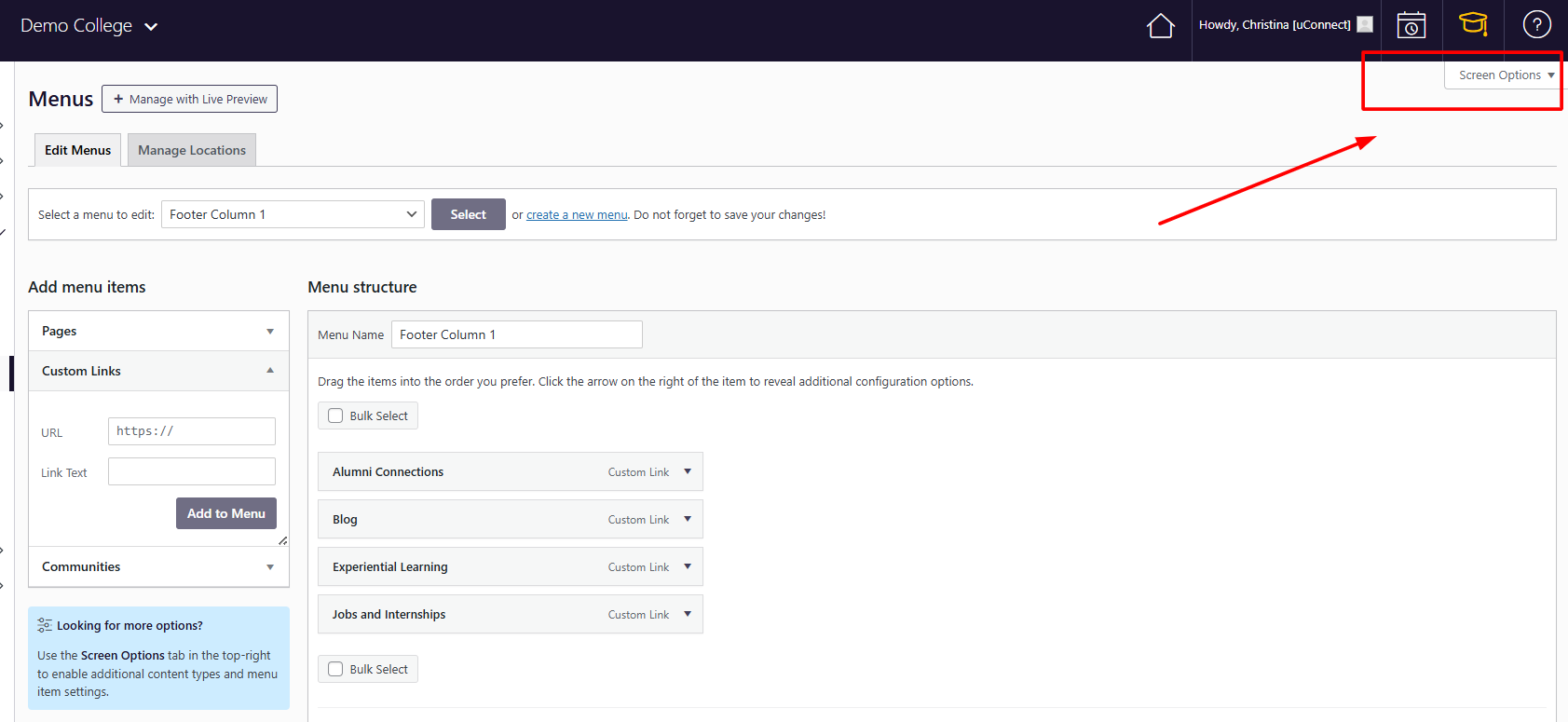
🔎 **Don’t see “Custom Link”?**
Click **Screen Options** in the upper-right corner and ensure that **Custom Links** is checked.
---
## How to Create an Additional Footer Menu
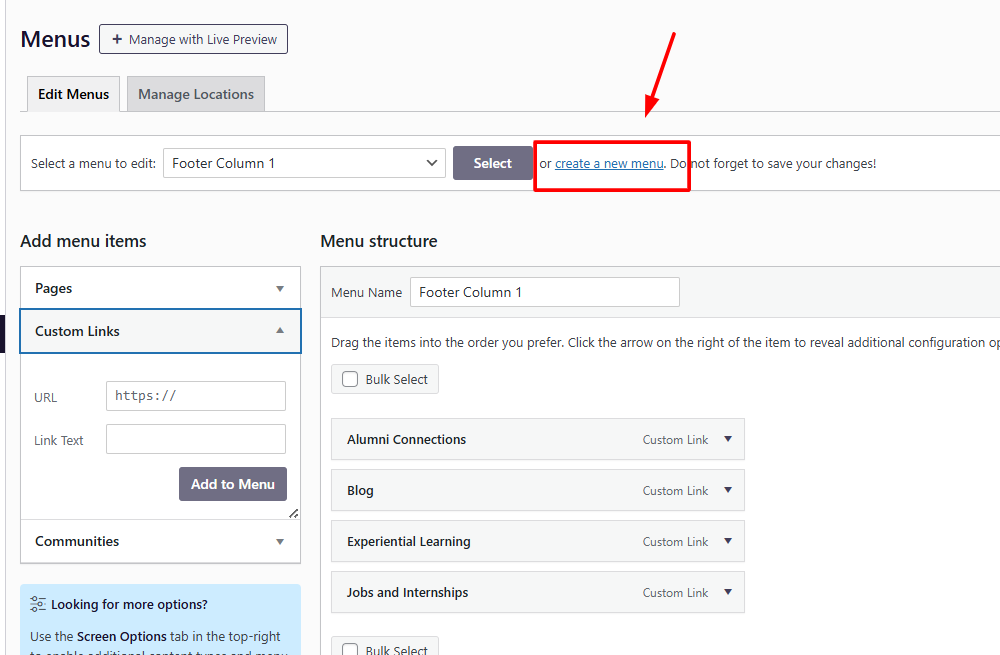
If you’d like to add a *new* footer column:
1. Click **Create New Menu**.
2. Name your menu (e.g., *Footer Column 3*).
3. Click **Create Menu**.
4. Begin adding your custom links.
## Important: Activating Your New Footer Menu
Creating a new menu in the editor doesn’t automatically display it on your platform. A member of the uConnect team must add a **menu widget** to enable it on the front end.
To request this:
1. Go to **[support.gouconnect.com](https://support.gouconnect.com/en/)**[.](https://support.gouconnect.com/en/)
2. Click **[Submit a Ticket](https://share.hsforms.com/10AUHU9-DRi-Bw3fdB-SUYA8bok)**[.](https://share.hsforms.com/10AUHU9-DRi-Bw3fdB-SUYA8bok)
3. Choose **Widget** as your ticket type.
4. Select **I want to add a new widget**.
5. In the description, request that the new menu be added as a **footer menu widget**.
6. Submit the form.
Our support team will take it from there!
---
## Summary
Editing your footer menus is simple once you know where to look:
- Go to **Customize → Menus**
- Select the appropriate footer column
- Edit or add links as needed
- Save your changes
- For *new* footer menus, submit a support ticket to have the menu widget enabled
With these tools, you can ensure your footer accurately reflects the most important navigation elements for your users. If you need help with a new footer column or want assistance refining your footer layout, our support team is always here to help!
- [Get Started](https://support.gouconnect.com/articles/get-started)
- [AI Search](https://support.gouconnect.com/articles/ai-search)
- [Analytics & Data](https://support.gouconnect.com/articles/analytics-data#main-content)
- [Outcomes Data](https://support.gouconnect.com/articles/analytics-data#outcomes-data)
- [Platform Analytics](https://support.gouconnect.com/articles/analytics-data#platform-analytics)
- [Google Analytics](https://support.gouconnect.com/articles/analytics-data#google-analytics)
- [Publish Content](https://support.gouconnect.com/articles/publish-content)
- [Manage Your Communities & Content Categories](https://support.gouconnect.com/articles/manage-your-communities-content-categories#main-content)
- [Communities](https://support.gouconnect.com/articles/manage-your-communities-content-categories#communities)
- [Content Categories](https://support.gouconnect.com/articles/manage-your-communities-content-categories#content-categories)
- [Manage Subscribers & Users](https://support.gouconnect.com/articles/manage-subscribers-users)
- [Platform Design](https://support.gouconnect.com/articles/platform-design#main-content)
- [Widgets](https://support.gouconnect.com/articles/platform-design#widgets)
- [Block Editor (WordPress)](https://support.gouconnect.com/articles/platform-design#block-editor-wordpress)
- [Menus](https://support.gouconnect.com/articles/platform-design#menus)
- [Accessibility Hub](https://support.gouconnect.com/articles/accessibility-hub#main-content)
- [Block Editor](https://support.gouconnect.com/articles/accessibility-hub#block-editor)
- [Market Your Platform](https://support.gouconnect.com/articles/market-your-platform#main-content)
- [Activation and Promotion Guides](https://support.gouconnect.com/articles/market-your-platform#activation-and-promotion-guides)
- [Modules & Integrations](https://support.gouconnect.com/articles/modules-integrations#main-content)
- [Outcomes Data Visualization](https://support.gouconnect.com/articles/modules-integrations#outcomes-data-visualization)
- [Technical Configurations](https://support.gouconnect.com/articles/technical-configurations#main-content)
- [Automated Subscriber Uploads (SIS)](https://support.gouconnect.com/articles/technical-configurations#automated-subscriber-uploads-sis)
- [Product Updates](https://support.gouconnect.com/articles/product-updates)
- [Customer Training Recordings](https://support.gouconnect.com/articles/customer-training-recordings)
- [Candid Career+](https://support.gouconnect.com/articles/candid-career)
- [General](https://support.gouconnect.com/articles/general)
[](https://www.gouconnect.com/)
- [Customers](https://www.gouconnect.com/customers/)
- [Case Studies](https://www.gouconnect.com/customers/case-studies/)
- [Client Directory](https://www.gouconnect.com/customers/client-directory/)
- [Testimonials](https://www.gouconnect.com/customers/testimonials/)
- [Product](https://www.gouconnect.com/product/)
- [Use Cases](https://www.gouconnect.com/product/use-cases/)
- [Integrations](https://www.gouconnect.com/product/integrations/)
- [Become a Partner](https://www.gouconnect.com/company/partner/)
- [Company](https://www.gouconnect.com/company/)
- [Careers](https://www.gouconnect.com/company/careers/)
- [News](https://www.gouconnect.com/company/news/)
- [Status Page](https://status.gouconnect.com/)
- [Career Everywhere](https://www.gouconnect.com/career-everywhere/)
- [The Movement](https://www.gouconnect.com/career-everywhere/movement/)
- [Community](https://www.gouconnect.com/career-everywhere/community/access/)
- [Podcast](https://www.gouconnect.com/career-everywhere/podcast/)
© 2026 uConnect Inc.
[Accessibility Policy](https://www.gouconnect.com/accessibility-policy/) · [Privacy Policy](https://www.gouconnect.com/privacy-policy/)